Settings
Commerce → Settings — getting paid, delivery rates and labels, checkout, store details and the Meta catalog, and the messages customers get about their order.
Commerce → Settings covers "How you get paid and deliver, what checkout asks, and your store's details." Each tab keeps its edits while you look at another; click Save changes in the bar at the bottom of a tab to keep them, or Discard.
The Tabs
| Tab | Covers | Page |
|---|---|---|
| Getting paid | Stripe, Razorpay, cash on delivery, bank transfer, invoices | Getting Paid |
| Delivery | Shipping rates and EasyPost labels | below |
| Checkout | Where customers pay, checkout in chat, cart reminders | Checkout |
| Store | Meta catalog, store details, currency and tax, storefront | below and Storefront |
| Customer messages | What customers are told about their order | below |
| Legacy catalog | Older WhatsApp-catalog tools — only if your account used them | Legacy Catalog Tools |
Settings opens on Getting paid, or on Checkout when customers pay on your Shopify or WooCommerce checkout.
Set Delivery Rates
Shipping rates — "Customers see the rates that match their address." With no rates, "Checkout skips the delivery step until you add one."
Click Add rate.
Give it an Option name (such as Standard) and a Zone name, and pick Countries — "Leave empty to offer this rate everywhere."
Set Price, an optional Free over amount, and Fastest (days) / Slowest (days). Keep Offer this rate on and click Save rate.
The table lists Zone, Option, Delivery time ("2–5 days", or Same day for 0–0), Price (Free at zero) and Free over. A rate that is switched off shows Off.
| Checkout | Which rates apply |
|---|---|
| RateUp | These rates |
| WooCommerce | These rates — customers pick one before paying, "since WooCommerce's payment page has no delivery step" |
| Shopify | "Shopify's own shipping rates apply there. These rates apply only to RateUp checkout." |
Buy Shipping Labels With EasyPost
Shipping labels — "Connect EasyPost to compare carriers and buy labels from an order. Customers get tracking on WhatsApp automatically." Connect asks for the API key and the address parcels ship from. Once connected, each order's Ship this order gets a Buy a label tab — see Ship an Order.
Connect Your Meta Catalog
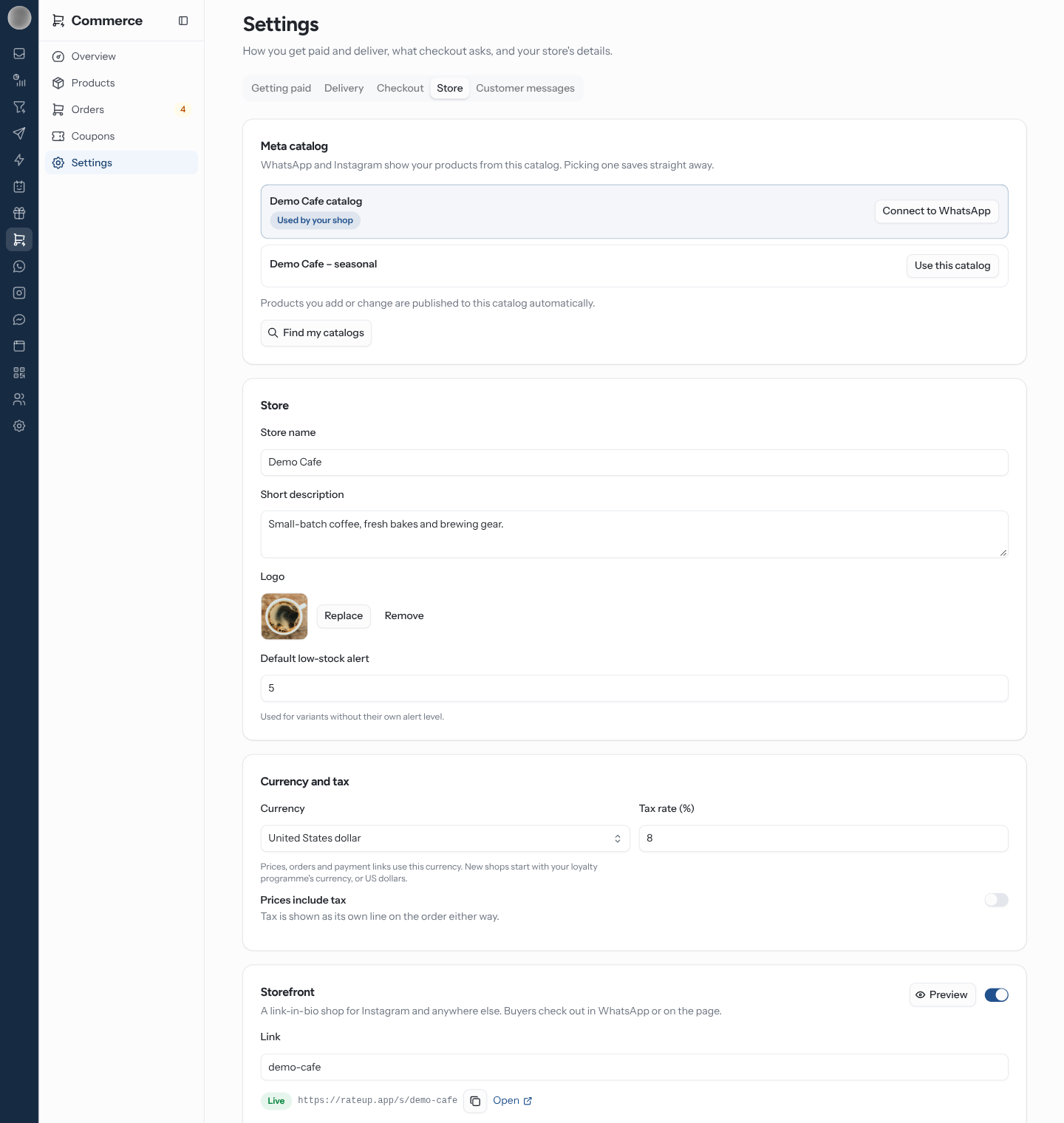
The Store tab's Meta catalog card: "WhatsApp and Instagram show your products from this catalog. Picking one saves straight away."
Connect a WhatsApp number first — the card shows Connect WhatsApp until you do.
Click Find my catalogs. RateUp pulls the catalogs on your Meta account.
Click Use this catalog on the one to use. It is marked Used by your shop, and "Your products are being published to it now."
Connecting links the catalog to every WhatsApp Business account in your organisation and publishes every product you own to it. With one catalog (or one already linked to WhatsApp), RateUp picks it for you. "Products you add or change are published to this catalog automatically."
| Message | Means |
|---|---|
| "No catalog on your Meta account yet" | Create one in Meta Commerce Manager (Open Meta Commerce Manager), then Find my catalogs again |
| "Could not reach Meta. Try again." | Meta did not answer |
| Connected to WhatsApp on a catalog | It is already linked to a WhatsApp number |
Fill In Your Store Details
| Card | Fields |
|---|---|
| Store | Store name, Short description, Logo, Default low-stock alert ("Used for variants without their own alert level.") |
| Currency and tax | Currency — "Prices, orders and payment links use this currency."; Tax rate (%); Prices include tax ("Tax is shown as its own line on the order either way.") |
| Storefront | Publishing switch, Link, banner, Instagram profile and QR code — see Storefront |
Choose What Customers Hear
Customer messages — "What customers hear about their order. Inside WhatsApp's 24-hour window we send a plain message; outside it, only an approved template can reach them."
Each row has a switch and, when on, a template picker: Only inside the 24-hour window (the default) or one of your approved WhatsApp templates.
| Message | On by default |
|---|---|
| Order placed, Payment received, Confirm a cash order | Yes |
| Packed | No |
| Shipped, with tracking, Out for delivery, Delivered, Delivery failed | Yes |
| Cancelled, Refunded | Yes |
| Payment reminder, Cart reminder, Back in stock | Yes |
| Ask for a review | Yes — sent after delivery |
The switches stop the order updates and Ask for a review. In the current build Payment reminder, Cart reminder and Back in stock go out whatever their switch says — their rows here only choose the template. The cash-order confirmation buttons arrive with Order placed, so the Confirm a cash order row has no effect of its own. To stop cart reminders, pick no times on Checkout.
Keep Order placed on if you ask cash customers to confirm. Turning it off also stops the Confirm order / Cancel message, and with Ask the customer to confirm on, those orders are then cancelled when Hours to confirm runs out.
A storefront order whose number has not been confirmed on WhatsApp gets no messages until it is paid; its timeline notes "the number isn't confirmed yet". See Storefront.
Troubleshooting
| Symptom | Cause | Fix |
|---|---|---|
| "Could not load your shop settings" | The shop could not be loaded | Reload the page |
| Fields are greyed out | You lack the permission for that tab | Ask an admin — see Who Can Do What |
| A message never arrives outside 24 hours | The row uses Only inside the 24-hour window | Pick an approved template |
| No Legacy catalog tab | Your account never used the older catalog tools | Nothing to do |