Setup
The guided checklist that takes a new shop from connecting WhatsApp to a first test order.
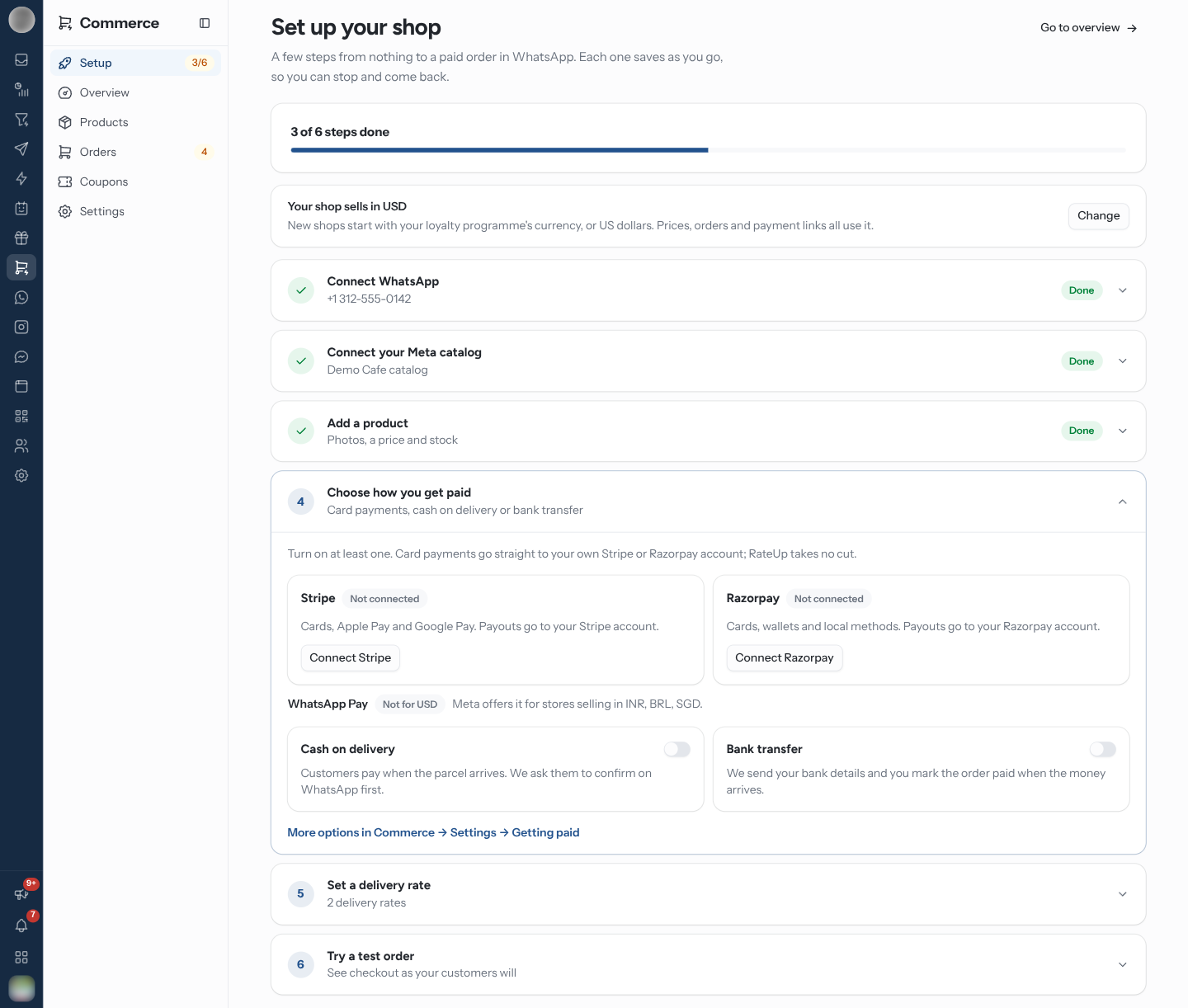
Setup — "Set up your shop" — is a checklist of the few things a shop needs before a customer can pay for an order in WhatsApp. "Each one saves as you go, so you can stop and come back."
Find Setup
Setup appears in the Commerce sidebar group only while steps are left, with a badge such as 3/7. While it shows, clicking Commerce itself opens Setup. The Overview also carries a Finish setup · 3/7 banner with Continue setup until you are done.
Once every step is done the page reads "Your shop is ready" with Open your overview, and the sidebar entry disappears. Go to overview at the top leaves setup at any time.
Work Through the Steps
The first unfinished step opens on its own; finishing it moves on to the next. Click any step's title to open or close it.
| Step | Done when | What you do there |
|---|---|---|
| Connect WhatsApp | A WhatsApp number is connected | Connect a number under Channels. Members without that right see "Ask an admin of your account to connect it." |
| Connect your Meta catalog | The shop has a Meta catalog | Find my catalogs, then Use this catalog — see Connect Your Meta Catalog |
| Add a product | At least one active product exists | Add a product, or Import from CSV (Import from Shopify / Import from WooCommerce for a shop that follows a store) |
| Choose how you get paid | Stripe or Razorpay is connected, or cash on delivery or bank transfer is on | Connect a provider or flip a switch — see Getting Paid |
| Set a delivery rate | At least one active delivery rate exists | A "standard rate" is filled in for you; set its price and Save delivery rate |
| Try a test order | A test order exists, or any order has been placed | Create a test order |
The step list changes when customers pay on your Shopify or WooCommerce checkout (see Checkout):
| Shop | Steps |
|---|---|
| Pays on RateUp checkout | All six above |
| Pays on the WooCommerce checkout | Choose how you get paid becomes Choose where customers pay, done while WooCommerce stays connected. Set a delivery rate stays, because WooCommerce's payment page has no delivery step |
| Pays on the Shopify checkout | As WooCommerce, and Set a delivery rate is dropped — Shopify handles delivery |
Change the Shop's Currency
The card under the progress bar reads "Your shop sells in USD" (or your currency): "New shops start with your loyalty programme's currency, or US dollars. Prices, orders and payment links all use it." Click Change, pick a currency and Save. The same setting is under Commerce → Settings → Store → Currency and tax.
Try a Test Order
Open Try a test order and click Create a test order. It needs an active product ("Add a product first.").
RateUp makes "a real order for one of your products, marked as a test". Test order #N is ready offers Open checkout, Copy checkout link and See the order.
Open the checkout and go through it as a customer would.
To pay it without being charged, connect Stripe or Razorpay with test-mode keys — their test cards then work at checkout. Cash on delivery and bank transfer orders can be placed straight away.
If a provider is in live mode, the page warns "… is in live mode, so paying this order charges the
card for real." Refund it from the order afterwards, or switch to test keys. When customers pay on
Shopify or WooCommerce, opening the checkout creates a real order there, tagged rateup — delete it
there afterwards, or cancel it in RateUp and RateUp closes it there.
The same test order is offered on the Orders page as Create test order.
Troubleshooting
| Symptom | Cause | Fix |
|---|---|---|
| "Connect a WhatsApp number first" when finding catalogs | No number is connected | Do Connect WhatsApp first |
| "No catalog on your Meta account yet" | Meta has no catalog for your business | Open Meta Commerce Manager, create one, then Find my catalogs again |
| Create a test order is greyed out | No active product, or you lack "Send products and payment links in chat" | Add a product, or ask an admin |
| The Setup entry stays in the sidebar | A step is still open | Open Setup and finish the step without a Done badge |