Assigned Conversations
Learn how assigned conversations work in the RateUp Inbox and how teams manage ownership and reassignment.
The Assigned view displays conversations that have been assigned to a team or a specific staff member.
These conversations already have ownership and are actively being handled or monitored.
The Assigned view is primarily used by Business Admins and Managers to track workload and ensure accountability.
Purpose of Assigned Conversations
Assigned conversations help teams:
- Track who is responsible for each conversation
- Monitor active conversations across teams
- Avoid duplicate or missed responses
- Balance workload effectively
Assigned View Overview
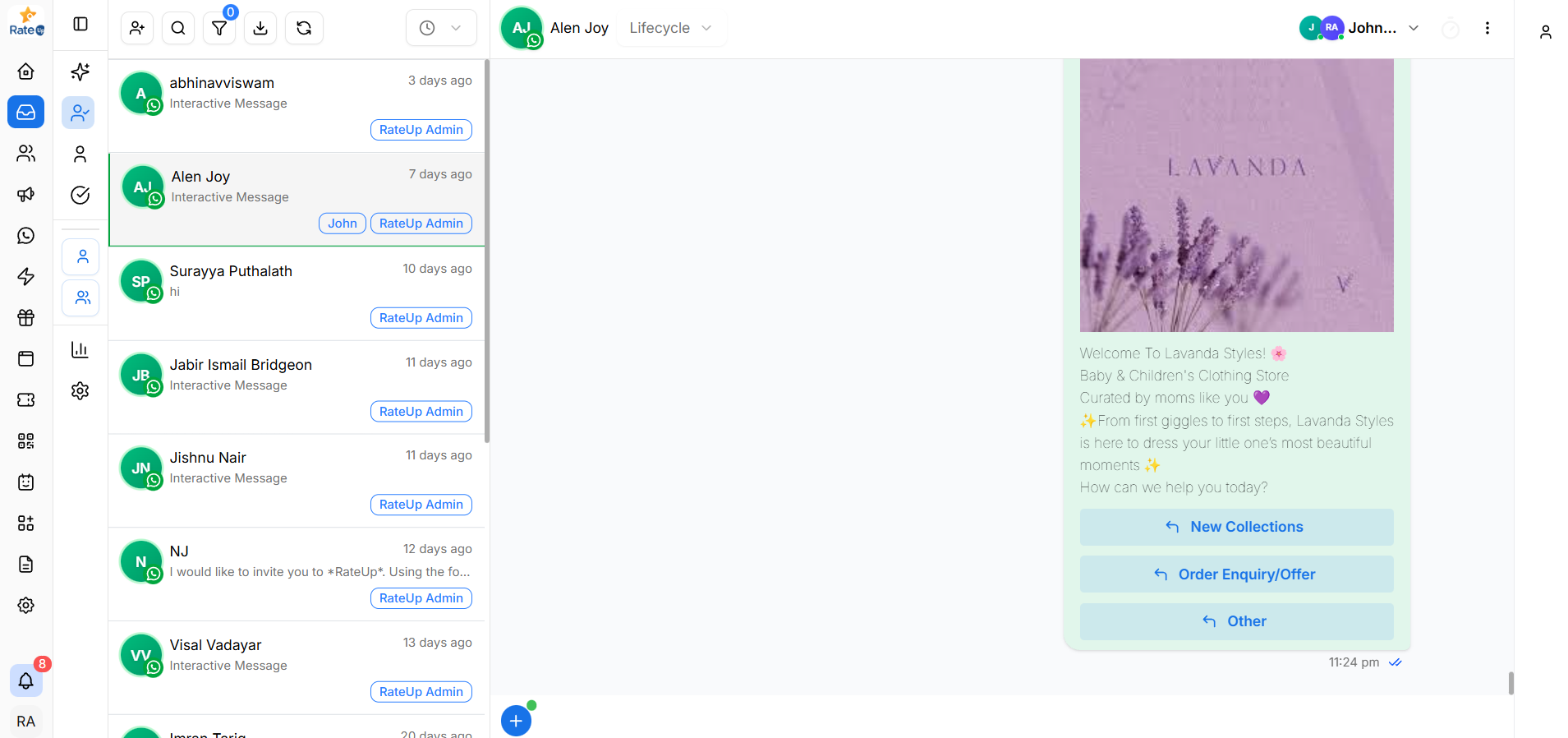
In the Assigned view:
- Conversations are already assigned
- The assigned user or team is clearly visible
- Conversations may belong to you or other team members
What Appears in Assigned Conversations
A conversation appears in Assigned when:
- It is assigned to a team
- It is assigned to another staff member
- It has not been closed yet
Assigned conversations remain visible until they are closed or reassigned.
Assigned vs Mine
Understanding this difference is important:
| View | Meaning |
|---|---|
| Assigned | Conversations assigned to any team or staff member |
| Mine | Conversations assigned specifically to you |
ℹ️ A conversation assigned to you will appear in both Assigned and Mine.
Assigned User Visibility
When a conversation is assigned, the assigned user is clearly shown in multiple places.
Conversation List
- The assigned user’s name or label appears in the conversation list
- This helps quickly identify ownership
Chat View (Top-Right)
- The assigned user is shown at the top-right corner of the chat window
- This ensures clear accountability while responding
Opening an Assigned Conversation
To open an assigned conversation:
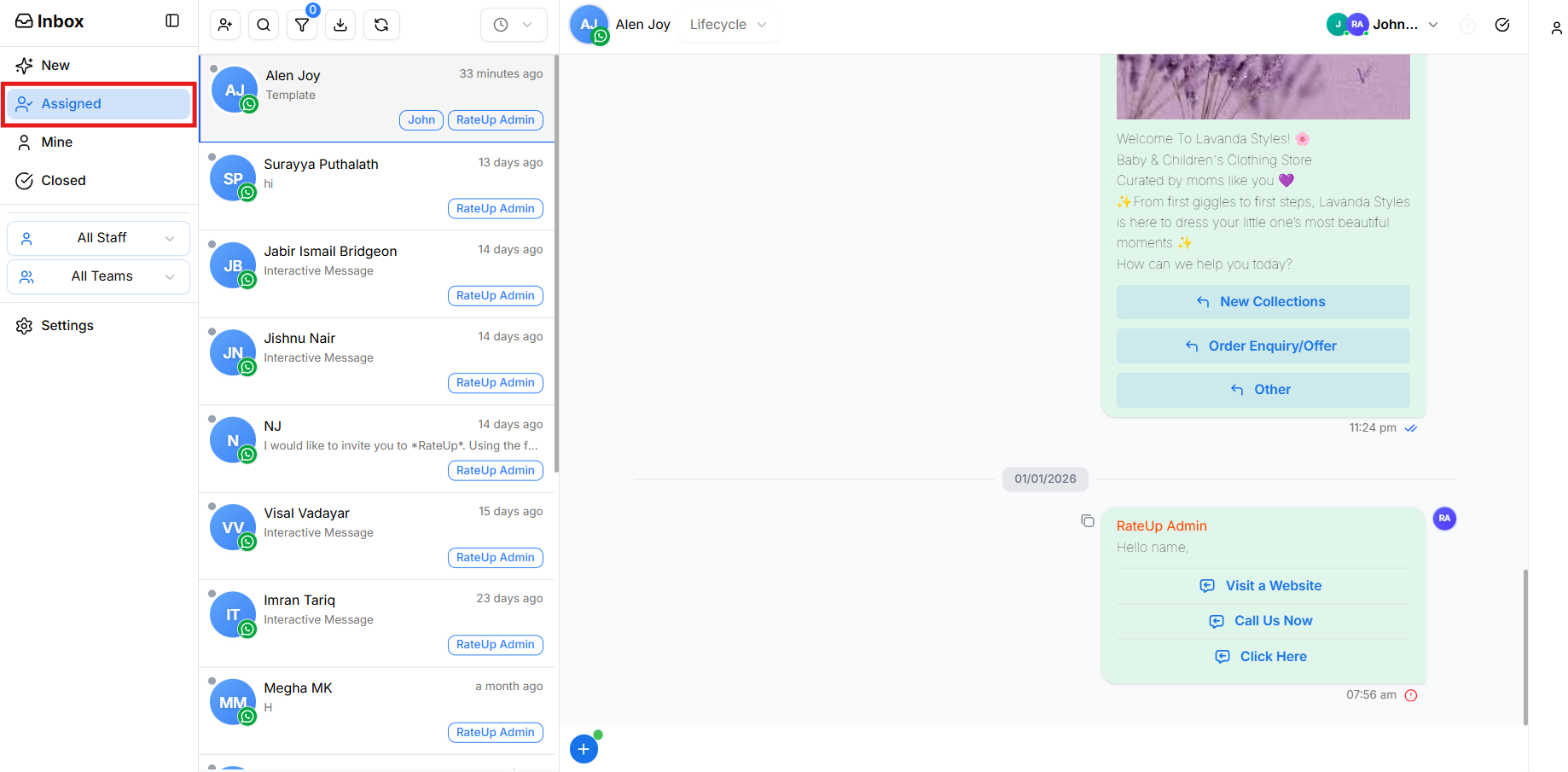
- Click a conversation from the Assigned tab
- The chat opens in the conversation panel
- You can view:
- Assigned user or team
- Conversation lifecycle status
- Full message history
Your ability to respond depends on your role permissions.
Reassigning an Assigned Conversation
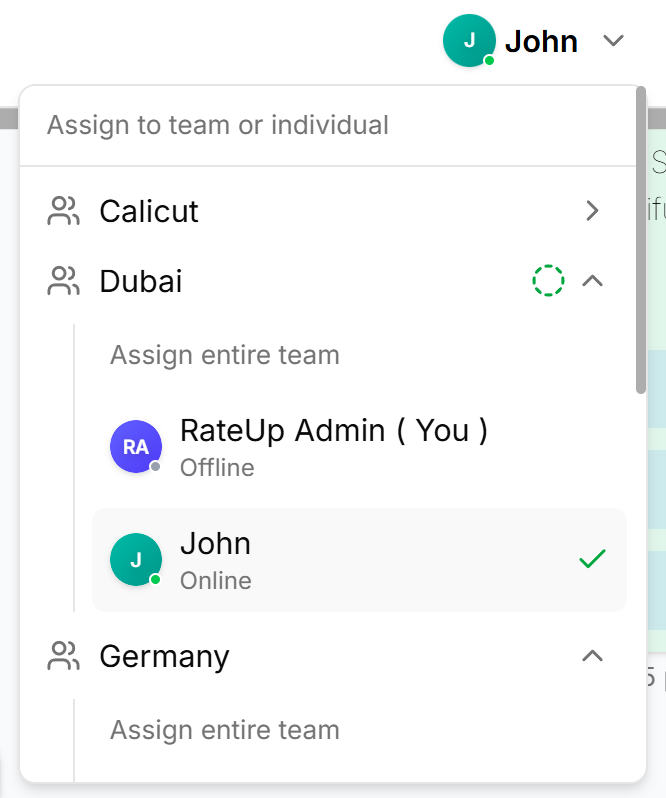
Assigned conversations can be reassigned at any time.
To reassign a conversation:
- Open the assigned conversation
- Click the assigned user name at the top-right
- The Assign to team or individual panel opens
- Choose:
- Another team, or
- A specific team member
- The conversation is reassigned instantly
Team vs Individual Assignment
When reassigning, you can:
-
Assign the entire team
→ Any team member can respond based on access rules -
Assign a specific individual
→ Ownership is clearly defined for one person
User availability (Online / Offline) is shown to help with smart assignment.
Role-Based Behavior
Business Admin
- Can view all assigned conversations
- Can reassign across all teams
- Can monitor organization-wide workload
Manager
- Can view and reassign conversations within their teams
Agent
- Can view assigned conversations
- Can respond if permitted
- Reassignment permissions depend on role settings
Best Practices
- Regularly review the Assigned view
- Reassign conversations if an agent is unavailable
- Avoid frequent reassignment to prevent confusion
- Close conversations once they are fully resolved
What’s Next?
Continue to Mine to learn how conversations assigned specifically to you are managed.