Closed
Finished tickets — how they are stored, why they are read-only, and what happens when you reopen one.
Closed holds tickets that have been closed, resolved or marked unresolved.
They are finished work: no longer active, but kept as a permanent record for reference and reporting.
Tickets belonging to a contact you have flagged as spam are not here — they are in Spam, with the contact.
What You See
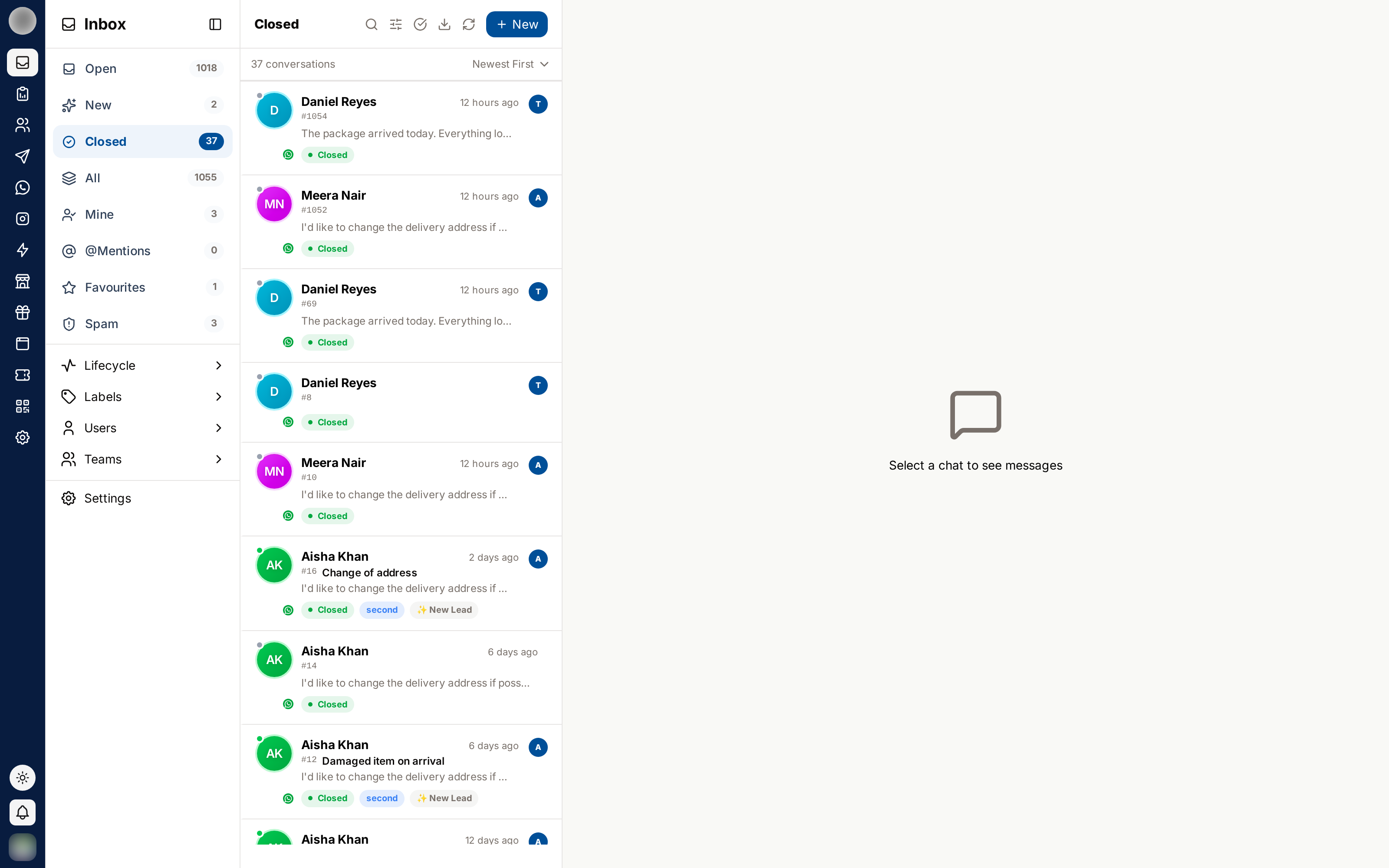
- Every ticket is finished
- The status pill is green — hover it to see who closed it, when, and how
- No ticket here has an assignee; closing clears them
Closed Tickets Are Read-Only
Opening a closed ticket replaces the composer with a banner:
This chat has been closed by RateUp Admin at 16/12/25 11:01 PM. Assign it to start the conversation again.
You cannot send a message or a private note on a closed ticket. The record stays exactly as it was left. The banner's Assign to me and Assign buttons, like Reopen, start a new ticket rather than reviving this one.
You can still:
- Read the whole message history
- See the close result and who closed it
- Open the Ticket Details panel
- Star the ticket
- Export the conversation
- Delete it permanently, if you are an admin — from the ⋮ menu
Reopening
Click Reopen in the chat header.
Reopening does not revive the old ticket. It opens a new ticket for the same customer and carries over the people who were assigned when the original closed.
| Original ticket | New ticket | |
|---|---|---|
| Number | Unchanged | A fresh number |
| Status | Stays Closed | Assigned |
| Close time and result | Frozen | Not set yet |
| Where it lives | Closed view + history bar | Open / Mine |
Both remain visible in the customer's previous conversations bar, so the full story is never lost.
When a Customer Replies After Closure
You do not need to do anything. Their message creates a new ticket, which lands in New. The closed ticket stays closed, so its resolution time and result stay accurate.
When to Reopen
The ticket was closed by mistake — reopen and carry on.
The fix did not work — reopen so the follow-up is tracked as active work rather than buried in a closed thread.
A customer asks about something unrelated — do not reopen. Let their message open its own ticket.
Role-Based Behaviour
| Role | In the Closed view |
|---|---|
| Super Admin | Views and reopens any closed ticket, on every channel |
| Admin | Views and reopens closed tickets on the channels their teams grant |
| Staff | The same channel scope, minus any assigned tickets their organisation hides from them |
Reopening is not role-gated — anyone who can see a closed ticket can reopen it.
Related Pages
- Closing & Reopening — the close options in full
- All — search across open and closed together
- Spam