Closing & Reopening Tickets
The ticket lifecycle end to end — the three close outcomes, closing in bulk, blocking, reopening, and permanently deleting a conversation.
Every ticket ends. This page covers how to end one properly, and what happens afterwards.
The Three States
| Status | Meaning | Set by |
|---|---|---|
| New | Nobody is assigned yet | Created automatically with the ticket |
| Assigned | At least one agent or team owns it | Assigning someone |
| Closed | Closed, resolved or unresolved | Using the Close menu |
Status is derived from assignment and closure — there is no status field to maintain separately. Assign a ticket and it becomes Assigned; close it and it becomes Closed.
Closing a Ticket
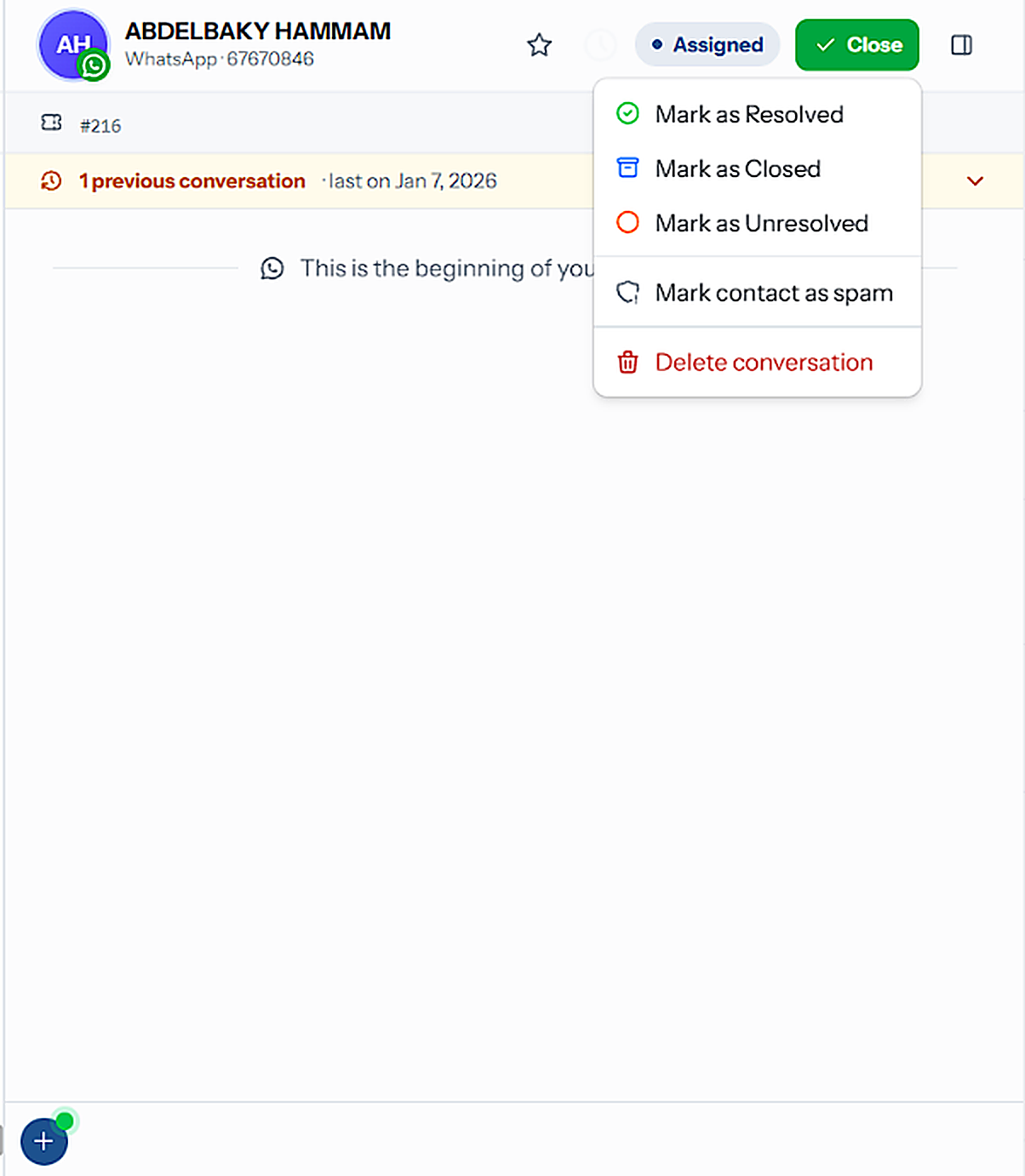
The green Close button sits in the top-right of the chat window, next to the panel toggle.
Finish the conversation — make sure the customer has what they need.
Click Close in the chat header.
Pick the outcome that describes what actually happened.
Choosing the right outcome
| Option | Use when | Ticket goes to |
|---|---|---|
| Mark as Resolved | The customer's problem was solved | Closed |
| Mark as Closed | Finished, with no specific outcome to record | Closed |
| Mark as Unresolved | You could not solve it, and want that on record | Closed |
These outcomes feed your reporting. "Resolved" and "Unresolved" are the difference between a support team that looks perfect and one that can actually find its weak spots — pick honestly.
An option is greyed out when the ticket already has that status. Hover Mark as Unresolved for a reminder that closing removes every assignee.
Below the outcomes, separated from them, sit the two contact actions — Mark contact as spam and Block contact. They are not ways of finishing a ticket: they apply to the person, and to every ticket they have. Spam in detail →
Admins see a third group at the very bottom: Delete conversation. See Deleting a Conversation.
Closing many tickets at once
To close a whole batch — a backlog after a campaign, say — use selection mode in the list: tick the tickets, or use the select-all checkbox, then Close selected chats. Bulk close always records Closed, never an outcome. Bulk actions →
What Closing Changes
Closing a ticket removes all its assignees. This is intentional: closed work should not sit in anyone's queue.
Once a ticket is closed:
- It moves to the Closed view
- All assignees are cleared
- A system note records who closed it and when
- The composer is replaced by a banner — the ticket becomes read-only
- If it was closed with a result, a green badge appears in the ticket strip and in Ticket Details
Blocking a Contact
Block contact sits in the Close menu, below Mark contact as spam. On an already-closed ticket it moves into the ⋮ overflow menu next to Reopen.
Open the Close menu (or ⋮ on a closed ticket) and choose Block contact.
Confirm in the dialog.
A blocked contact cannot message you, and you cannot message them. The composer is replaced by "This contact has been blocked by you." with an Unblock contact button. Click it and confirm to lift the block.
Block contact only appears while the customer's 24-hour window is open, and only for a contact who is not already blocked. If the option is missing from the menu, the customer has not written in the last 24 hours.
Blocking cuts communication in both directions — the customer cannot reach you even if they later need to. To get junk out of your queue while still receiving whatever arrives, use Mark contact as spam instead.
Reopening a Ticket
A closed ticket shows Reopen where Close used to be.
Open the closed ticket.
Click Reopen in the chat header.
A new ticket is created for the same customer, with the previous assignees carried over.
What reopening actually does
| Original ticket | New ticket | |
|---|---|---|
| Number | Keeps its own | Gets a fresh one |
| Status | Stays Closed | Assigned |
| Close time and result | Frozen | Not set |
| Assignees | None | Whoever was assigned when it closed |
| Where it appears | Closed view, history bar | Open / Mine |
Reopening does not revive the old ticket. Its resolution time and outcome stay exactly as they were, so your reporting is not rewritten after the fact.
The same happens if you assign somebody to a closed ticket: a successor is opened rather than the closed one being brought back to life.
When a Customer Replies After Closure
Nothing to do. Their message creates a new ticket in the New view, and the closed ticket stays closed.
This is the whole point of the ticket model: one topic, one ticket, one honest record of how it went.
Deleting a Conversation
Closing keeps a ticket as a permanent record. Deleting removes it, along with every message in it. Use it for test threads, duplicates, or a conversation that should never have been stored. Only members with the Delete conversations ability — by default Owners, Admins and Managers.
There are three places to delete from:
| From | How |
|---|---|
| The Close menu | Open the ticket → Close → Delete conversation, at the bottom |
| The ⋮ menu | On a closed or spam ticket, where there is no Close menu |
| Ticket Details panel | Delete conversation, the last button in the panel |
Choose Delete conversation from any of the places above.
Read the confirmation — "Ticket #1042 with Priya Sharma will be deleted."
Click Delete.
Deleting cannot be undone. The ticket and every message in it are removed for everyone. The customer's WhatsApp is not affected, since they still have their copy. Nor are the contact themselves, their details, labels and pipeline lead, or their other tickets.
| Deleted | Kept |
|---|---|
| The ticket, its number, title and description | The contact and everything on it |
| Every message, private note and system note in it | The customer's other tickets |
| Its conversation tags | The customer's 24-hour window |
To delete many tickets at once, use selection mode in the list and Delete selected chats. See Bulk Actions.
If you only want a customer out of your queue, mark them as spam instead. It is reversible, and nothing is lost.
Auto-Close
Tickets that go quiet can be closed automatically. Two rules, configured under Inbox Settings → Automation:
- New and unassigned conversations — closed after a set time without a new message
- Assigned conversations — closed after a set time without a new message
Auto-closed tickets behave like any other closed ticket and can be reopened.
Frequently Asked
Best Practices
- Close only when the topic is genuinely finished
- Pick the outcome that is true, not the one that looks best
- Do not reuse an old ticket for a new question — let a new one be created
- Flag the contact as spam for noise, and Block only for repeat offenders
- Let auto-close handle the tickets nobody will ever answer
Related Pages
- Closed view
- Spam view
- Tickets & Conversations
- Inbox Settings — auto-close rules