Accessing the Inbox
Open the Inbox from the RateUp dashboard, and understand who can see which conversations.
Before you can work on tickets, you need access to the Inbox. This page covers where to find it, what has to be connected, and what each role is allowed to see.
Before You Start
You need:
- A RateUp account in a team with the Inbox feature — Owners and Admins always have it
- At least one connected channel — a WhatsApp Business number or an Instagram account
- Membership of at least one team, if your organisation routes tickets by team
Open the Inbox
Log in to your RateUp account.
If you have not set a password yet, see Login.
In the left sidebar, click Inbox.
The Inbox opens on the Open view, showing every active ticket you have access to.
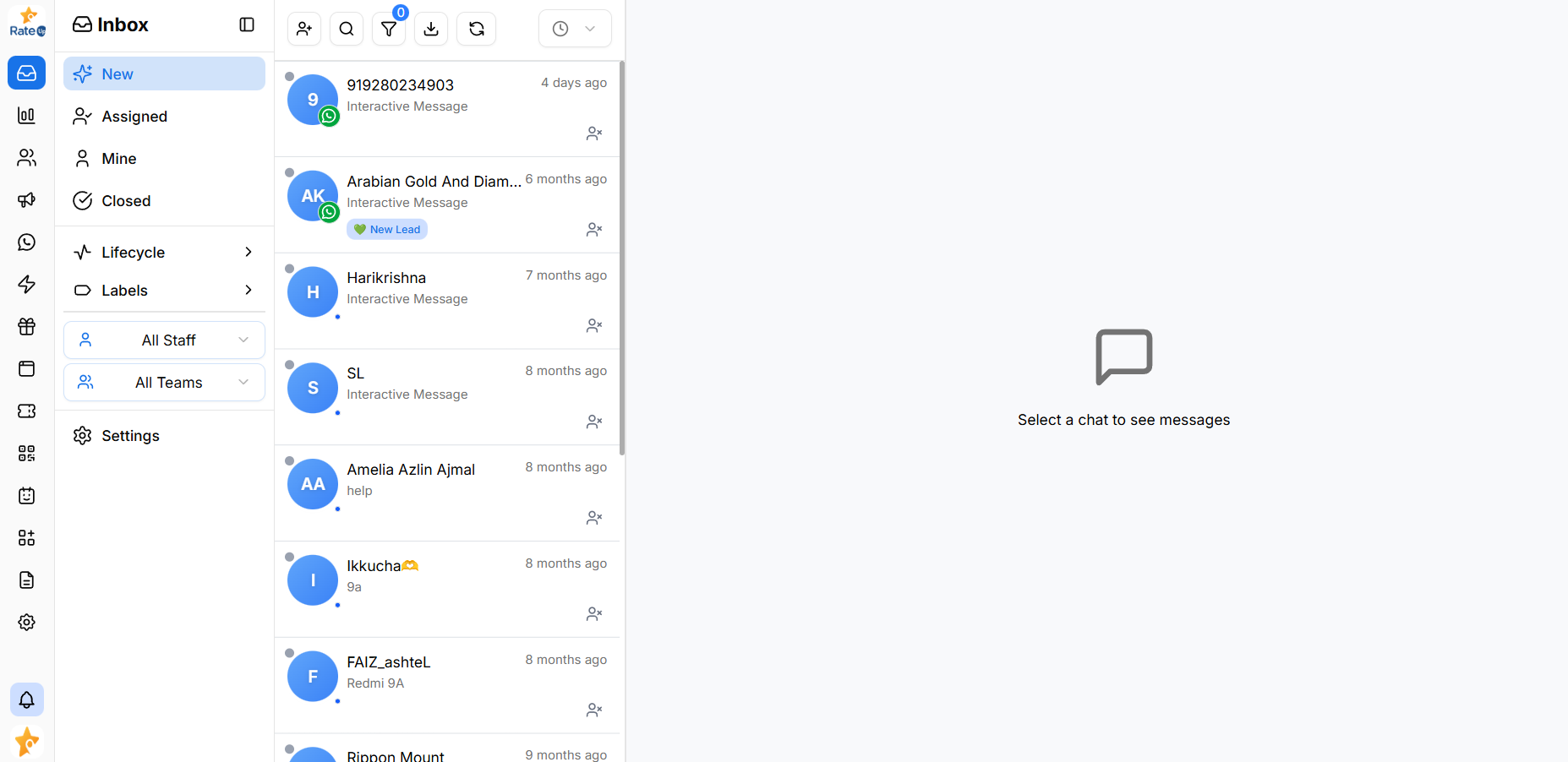
The Inbox is reachable from anywhere in RateUp using the sidebar, and the sidebar counts update as new messages arrive.
Who Can Access the Inbox
RateUp has six roles, set per member under Settings → Members:
| Role | Inbox reach |
|---|---|
| Owner | Every ticket on every channel |
| Admin | Every ticket on every channel |
| Manager | Tickets on the channels their teams reach; also blocks, marks spam, deletes and exports |
| Staff | Tickets on the channels their teams reach |
| Agent | Tickets on the channels their teams reach — replies and assigns |
| Viewer | Read-only: sees their teams' tickets but cannot reply |
Two things narrow this further:
- Channel access comes from teams. A member's channels are the union of those granted to the teams they belong to. A member in no team is not restricted — they see every channel. See Teams.
- The Inbox itself comes from teams too. A team-scoped member sees it only if one of their teams has the Inbox feature under Feature Access.
Whether members see tickets assigned to other people is an organisation-level setting. Under its strictest state a member sees only the tickets assigned to them, and only the calls they took or placed.
What Your Role Controls
What you can do inside a ticket comes from your role's abilities. Any of them can also be added or taken away for one person on their page under Members.
| Ability | Lets you | Roles that have it |
|---|---|---|
| See conversations | Open the Inbox and read tickets | All six |
| Reply and send messages | Reply, write notes, and take or place WhatsApp calls | All but Viewer |
| Assign conversations | Change a ticket's owner | All but Viewer |
| Block, mark spam, edit conversations | Block a contact, flag spam | Owner, Admin, Manager |
| Delete conversations | Delete a ticket, singly or in bulk | Owner, Admin, Manager |
| Export chats and logs | Export chats and message logs | Owner, Admin, Manager |
Channels and teams are configured under Teams and Channels, not in the Inbox.
Troubleshooting
| Symptom | Likely cause | What to do |
|---|---|---|
| Inbox is missing from the sidebar | None of your teams has the Inbox feature | Ask an Owner or Admin to turn it on under Teams |
| Inbox opens but is empty | No channel connected, or no tickets match your permissions | Check the All view; ask an admin to confirm the channel is live |
| You can read but not reply | The ticket is unassigned, or closed | Assign it to yourself, or reopen it |
| You cannot see a colleague's ticket | It belongs to a team you are not in | Ask an admin to assign it to you or your team |
| Delete is missing | Your role lacks Delete conversations | Ask an Owner or Admin |
| New is empty but customers are waiting | New only holds unassigned tickets from the last 24 hours | Check Open for older unassigned tickets |
Related Pages
- Inbox Layout — what each part of the screen does
- Tickets & Conversations — the concept behind every row
- Inbox Views — how tickets are grouped