Inbox Views
The eight Inbox views — what each one contains, who it is for, and how to choose between them.
The sidebar splits your tickets into eight views. Each carries a live count, so you can see where work is waiting without opening anything.
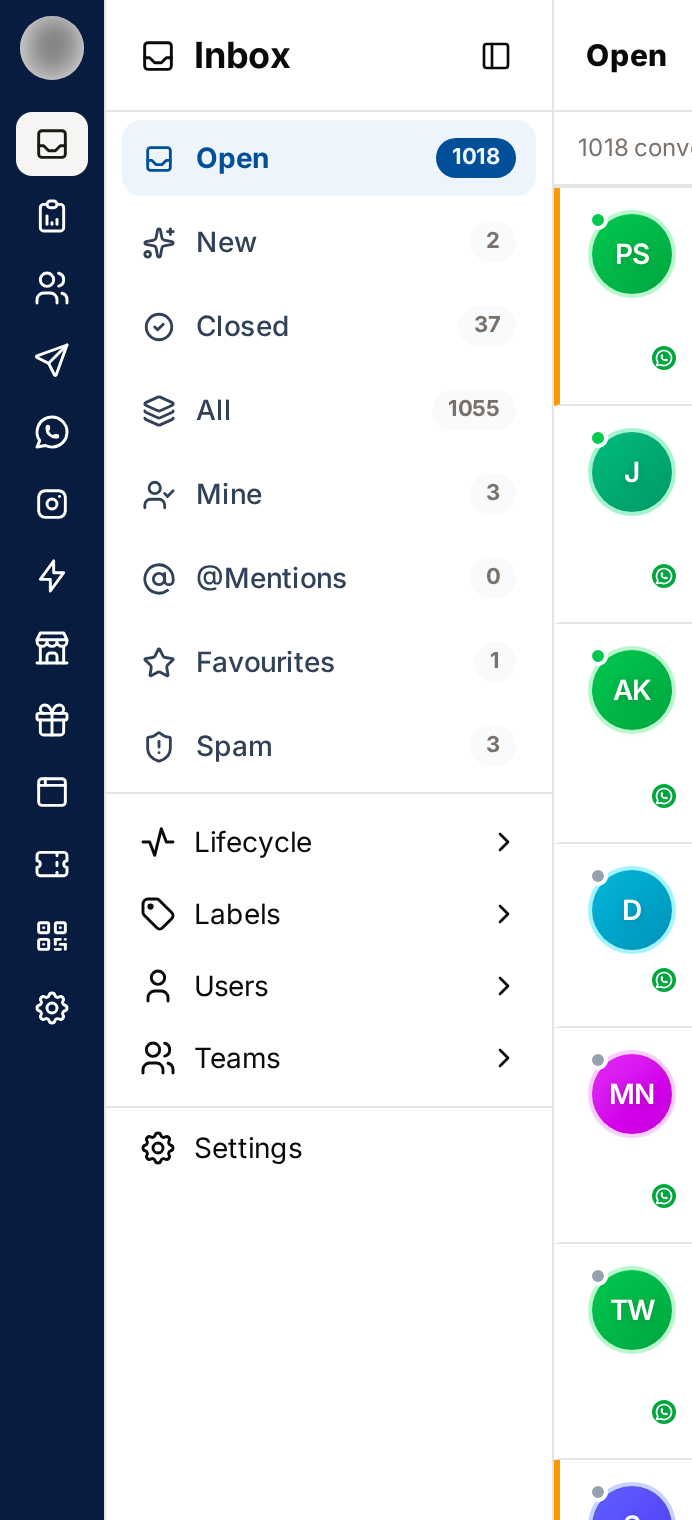
At a Glance
| View | Contains | Mainly used by |
|---|---|---|
| Open | Every active ticket, assigned or not | Managers |
| New | Active tickets with no owner and a message in the last 24 hours | Everyone |
| Closed | Finished tickets | Everyone |
| All | Every ticket, any status | Anyone searching |
| Mine | Tickets assigned to you | Agents |
| @Mentions | Tickets where a colleague mentioned you | Everyone |
| Favourites | Tickets you starred | Everyone |
| Spam | Contacts flagged as spam — one row each | Admins |
How the Views Overlap
The views are not mutually exclusive — the same ticket can appear in several at once.
- New and Mine are both subsets of Open
- A ticket is in New only while nobody owns it and it has had a message in the last 24 hours; assign it and it moves to Mine, leave it quiet for a day and it stays only in Open
- @Mentions and Favourites cut across status — a closed ticket can still be starred
- All contains every ticket, open and closed
Spam sits outside all of it. Flagging a contact as spam removes them from every other view, including All, and the badges stop counting them.
All
├── Open
│   ├── New      (no owner, active in the last 24h)
│   └── Mine     (owner = you)
└── Closed

@Mentions and Favourites overlap with all of the above.
Spam is separate: contacts in it appear nowhere else.
Which View Should I Work From?
| If you are… | Start in | Then check |
|---|---|---|
| An agent handling customers | Mine | @Mentions, then New to pick up more |
| A manager balancing workload | Open | New for anything unowned |
| An admin auditing history | All | Closed and Spam |
Views vs Filters
Views and filters do different jobs and work together:
- A view decides which tickets are in the list (status and ownership)
- Filters narrow that list further — by channel, lifecycle stage, label, user or team
Filters live in the sidebar, below the views, and stay applied as you move between views — they are remembered until you clear them, in this browser. If a view looks emptier than it should, check the filter sections for an active selection.
Sidebar filters → · Search & sorting →
Related Pages
- Tickets & Conversations — what each row actually is
- Inbox Layout — where the views sit on screen