New
The New view holds recent tickets without an owner — the queue that needs attention first.
New shows every open ticket that is not yet assigned to anyone and has had a message in the last 24 hours.
It is the queue of fresh, unowned work, which makes it the first place any agent or manager should look.
New means unassigned and recent. A ticket leaves this view the moment someone is assigned — even if nobody has replied yet. It also drops out once 24 hours pass without a message. It is still open and unowned, but you now find it only in Open.
An empty New view does not mean nothing is waiting. Unowned tickets older than a day are only in Open. Look for rows with a New status pill there, and sort by Oldest First to find them.
What You See
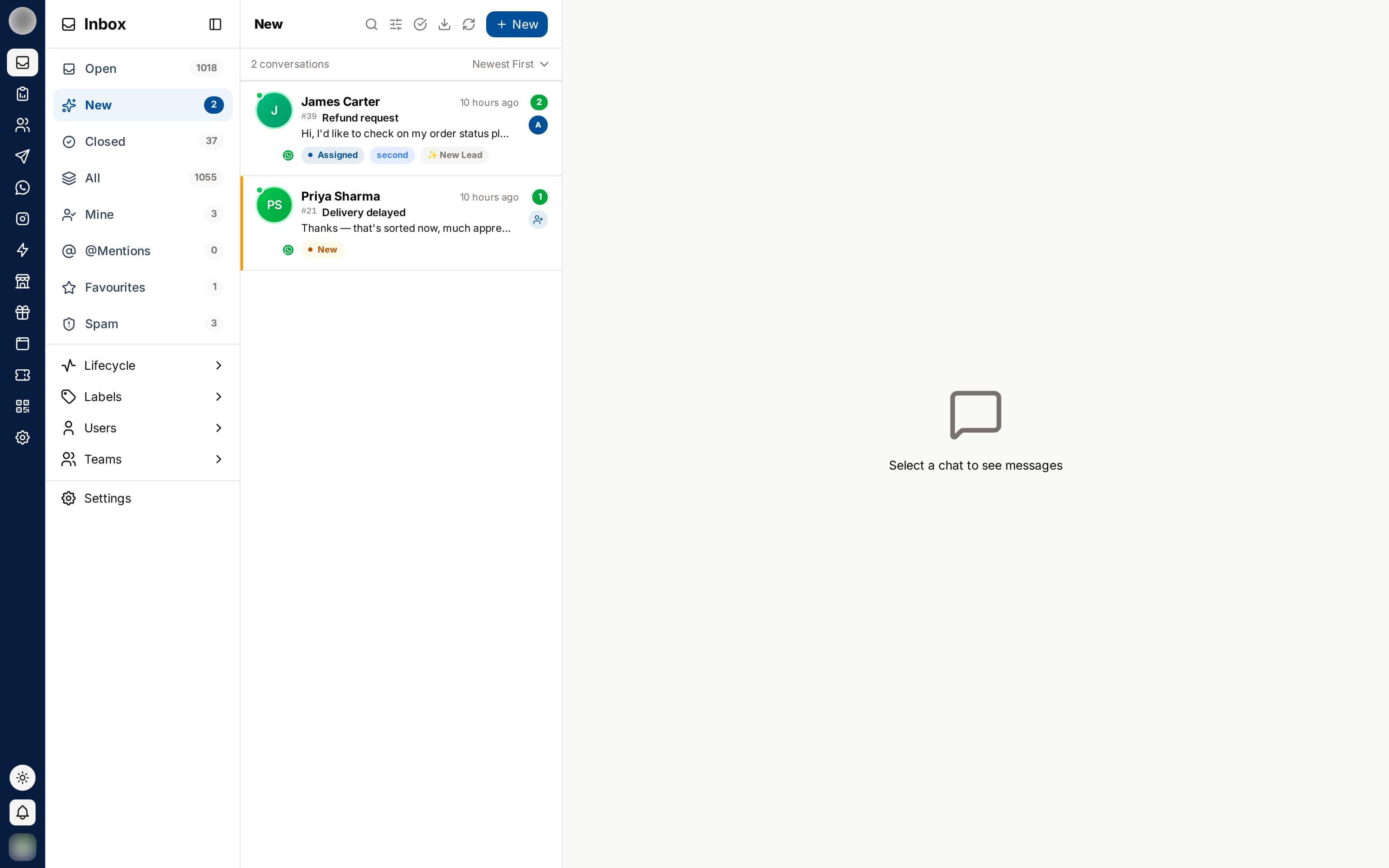
- Every ticket is unassigned
- Rows carry a cream background, an amber left edge and a filled Unassigned badge
- Each row shows the customer, ticket number and title, last message and time
- The person + button on the right assigns the ticket to you instantly
Assign a Ticket to Yourself
The fastest route does not require opening the ticket at all.
Hover the row in the New view.
Click the person + button on the right of the row.
The ticket moves to Mine and disappears from New. A system note records that you took it.
You can also open the ticket and use the Assign to me bar shown above the reply box.
Assign to Someone Else
Open the ticket from the New view.
Click the dropdown next to Assign to me, or open the Ticket Details panel and click Change under Assignment.
Pick a team or an individual. Availability (online / offline) is shown to help you choose.
The ticket is assigned immediately and moves to that person's Mine view.
Why Replying Is Blocked Here
Until a ticket has an owner, the composer is replaced by an Assign to me bar.
This is deliberate: it prevents two agents answering the same customer at the same time, and it guarantees every conversation has someone accountable for it.
Keeping New Empty
New works best as a queue you actively drain:
- Check it frequently — a ticket sitting here has nobody watching it
- Assign first, investigate second; ownership can always be changed later
- Route to a team when you are not sure who should handle it
- Use auto-close rules so genuinely dead tickets do not pile up
Related Pages
- Open — the full active workload
- Mine — what you picked up
- Assignment & Reassignment