Inbox Settings
Auto-close rules, conversation tags and quick replies — with images, voice notes and videos — for your whole Inbox.
Inbox Settings is where you configure how the Inbox behaves for everyone: when quiet tickets close, how tickets are tagged, and what agents can insert with a quick reply.
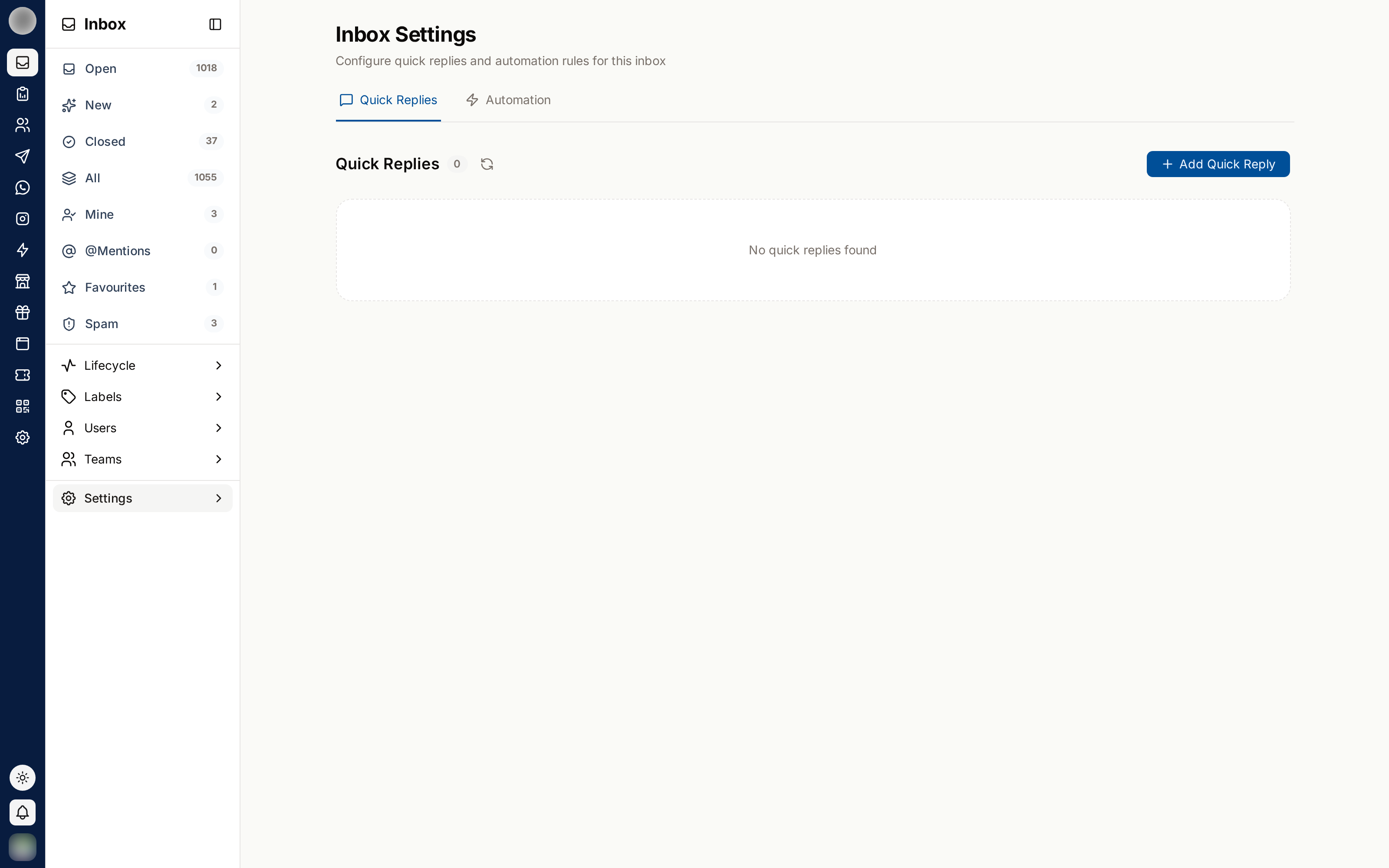
Open it from Inbox settings at the foot of the Inbox section in the sidebar. The page — "Manage automation, conversation tags and quick replies." — has three tabs.
| Tab | What it covers |
|---|---|
| Automation | Auto-close rules for tickets that go quiet |
| Conversation tags | Tags that describe a single ticket — see Conversation Tags |
| Quick replies | Saved answers, with attachments, that agents insert in the composer |
Teams are managed under Settings → Teams, channels under Settings → Channels, and contact labels under Contacts → Labels.
These settings apply to the whole organisation. Changing them affects every agent's Inbox immediately.
Close Quiet Tickets Automatically
The Automation tab holds Auto-close: "Close conversations that have gone quiet, so the inbox only shows what still needs a reply." There are two rules, each with its own switch:
| Rule | Applies to |
|---|---|
| New and unassigned conversations | Tickets nobody has picked up yet |
| Assigned conversations | Tickets an agent owns but has stopped replying to |
Turn on the rule's switch. It starts at 24 hours — "Auto-close turned on" confirms it.
Pick a period in the Close after select: 1, 2, 4, 6, 8 or 12 hours, 1, 2 or 3 days, or 1 week.
For anything else, choose Custom…, type a number of hours from 1 to 720, and click the tick.
Each change saves straight away — "Closes after … now". The rule's description then reads, for example, "Closed after 2 days without a new message."
Choosing sensible periods
| Rule | Typical | Why |
|---|---|---|
| New and unassigned | Shorter — 1–2 days | If nobody claimed it in two days, nobody will |
| Assigned | Longer — 3 days or more | An owner may legitimately be waiting on the customer |
Set the assigned period too short and you will close tickets agents are still working on. Start generous and tighten it once you have seen the effect.
Auto-closed tickets behave exactly like manually closed ones: read-only, no assignees, and reopenable. If a customer writes again, a new ticket is created.
Quick Replies
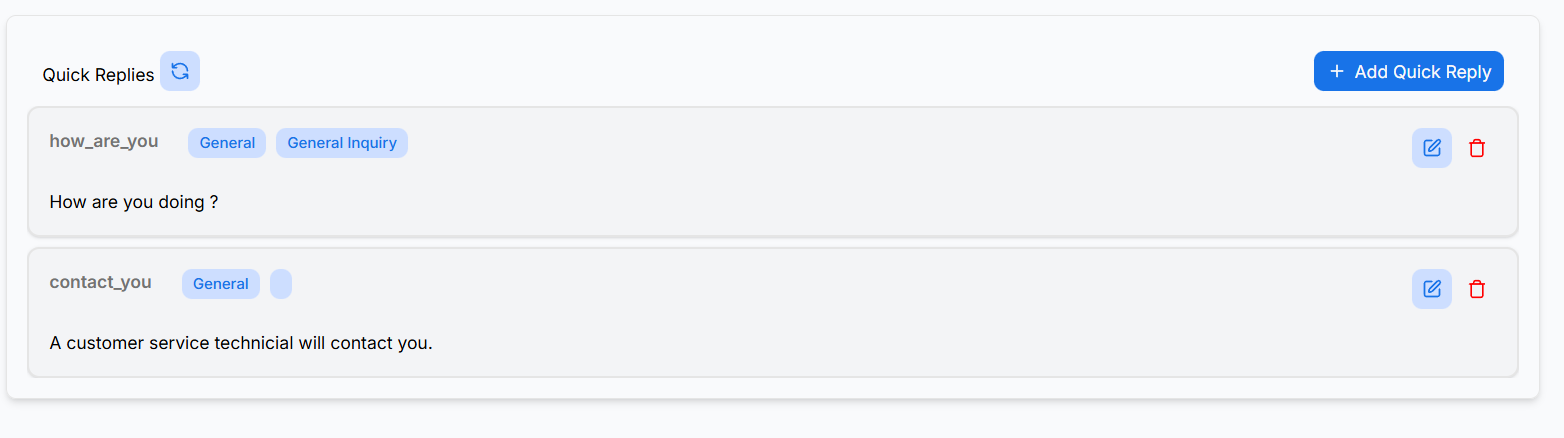
Quick replies are saved answers agents insert instead of retyping the same thing all day. A quick reply can carry images, voice notes and videos as well as text.
Agents reach them by clicking the lightning button in the composer, or by typing / in the
message box.
Add a quick reply
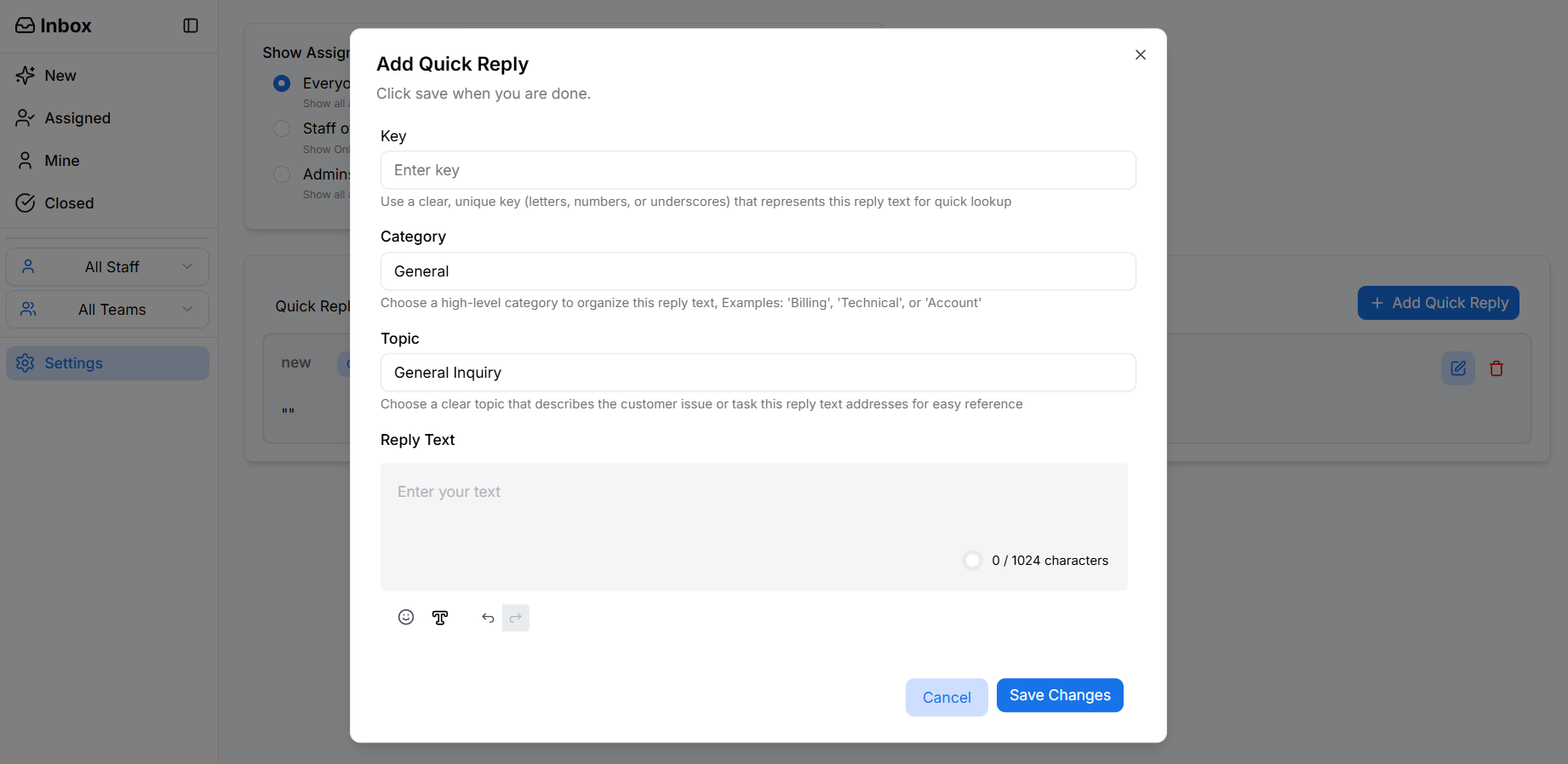
Open the Quick replies tab and click Add Quick Reply.
Enter a Key — the short handle agents type after /. Keep it memorable: refund-policy beats
qr-14.
Enter a Topic, e.g. Pricing. Agents can search by topic as well as by key.
Write the Message. Use the format button for bold, italics and lists.
Optionally, under Attachments, click Attach image, audio or video and pick files.
Click Add quick reply.
A quick reply needs a message, an attachment, or both — an empty one gives "Add a message or an attachment". It is available in every conversation straight away.
Attachment limits
| Type | Formats | Largest file |
|---|---|---|
| Image | PNG, JPEG | 5 MB |
| Audio | AAC, AMR, MP3, MP4 audio, OGG | 10 MB |
| Video | MP4, 3GP | 10 MB |
Up to 5 attachments per quick reply. A file outside these limits is refused with a message saying why, e.g. "… is larger than 10 MB".
Files upload as soon as you pick them. If you close the dialog without saving, the uploads are thrown away.
What agents see
Quick replies with attachments show a paperclip in the composer's list. Picking one inserts the text and adds the files to the message as attachments, where the agent can remove any they do not want before sending. Removing an attachment from the message never removes it from the saved quick reply.
Attachments are added only in the Inbox composer.
Manage quick replies
From the list you can edit and delete replies. Changes apply instantly across the Inbox.
Writing good quick replies
- Keep them short — agents will edit them before sending anyway
- Leave the greeting out, so agents can personalise the opening line
- Cover the questions you answer daily, not the rare ones
- Attach the price list or the how-to video once, instead of every agent hunting for the file
- Review them quarterly; outdated policies in a quick reply spread fast
- Remember customer messages cap at 1024 characters
Related Pages
- Replying to Customers — where quick replies are used
- Closing & Reopening — what closing does
- Conversation Tags — tags and labels, and how they differ
- Accessing the Inbox — roles and permissions