Tickets & Conversations
How the Inbox turns customer messages into tickets, and how ticket numbers, titles, status and history work.
The RateUp Inbox is organised around tickets. Everything else in this section — views, assignment, closing, reporting — is built on this one idea, so it is worth reading properly.
What Is a Ticket?
A ticket is one topic with one customer, from the first message about it until it is closed.
Each ticket has:
| Number | #1042 — unique in your organisation, never reused |
| Title | A short summary of the topic |
| Description | Optional longer context |
| Owner | One agent, several agents, or a team |
| Status | New, Assigned or Closed |
| Result | How it ended, if it was closed with an outcome |
| Messages | Only the messages that belong to this topic |
One Customer, Several Tickets
A customer can have any number of tickets, and several can be open at once.
Each ticket:
- Appears as its own row in the Inbox
- Has its own status, owner and result
- Shows only its own messages when you open it
Opening a ticket shows that ticket's messages only. You will never see a different topic's messages mixed into the thread — but the customer's history is always one click away.
Why It Works This Way
Before tickets, the Inbox showed one row per customer, so every message a person had ever sent lived in one endless thread. That made three things hard:
| Problem | How tickets fix it |
|---|---|
| A resolved issue reopened when the customer asked something unrelated | The new question opens a new ticket; the old one stays closed |
| Two agents worked on different issues in one thread | Each issue has its own owner |
| "How long did that take to resolve?" had no answer | Each ticket has its own created, closed and result data |
Ticket Status
The status pill appears on the row, in the chat header, and in the history bar — always the same three values:
| Status | Meaning | When it changes |
|---|---|---|
| New | Nobody is assigned yet | The moment someone is assigned |
| Assigned | At least one agent or team owns it | When it is closed, or all assignees are removed |
| Closed | Closed, resolved or unresolved | When it is reopened — as a new ticket |
Status is worked out automatically from assignment and closure. There is no status field to keep in sync by hand.
Ticket History
When a customer has more than one ticket, an amber bar appears under the chat header:
🕘 3 previous conversations · last on Mar 12, 2026
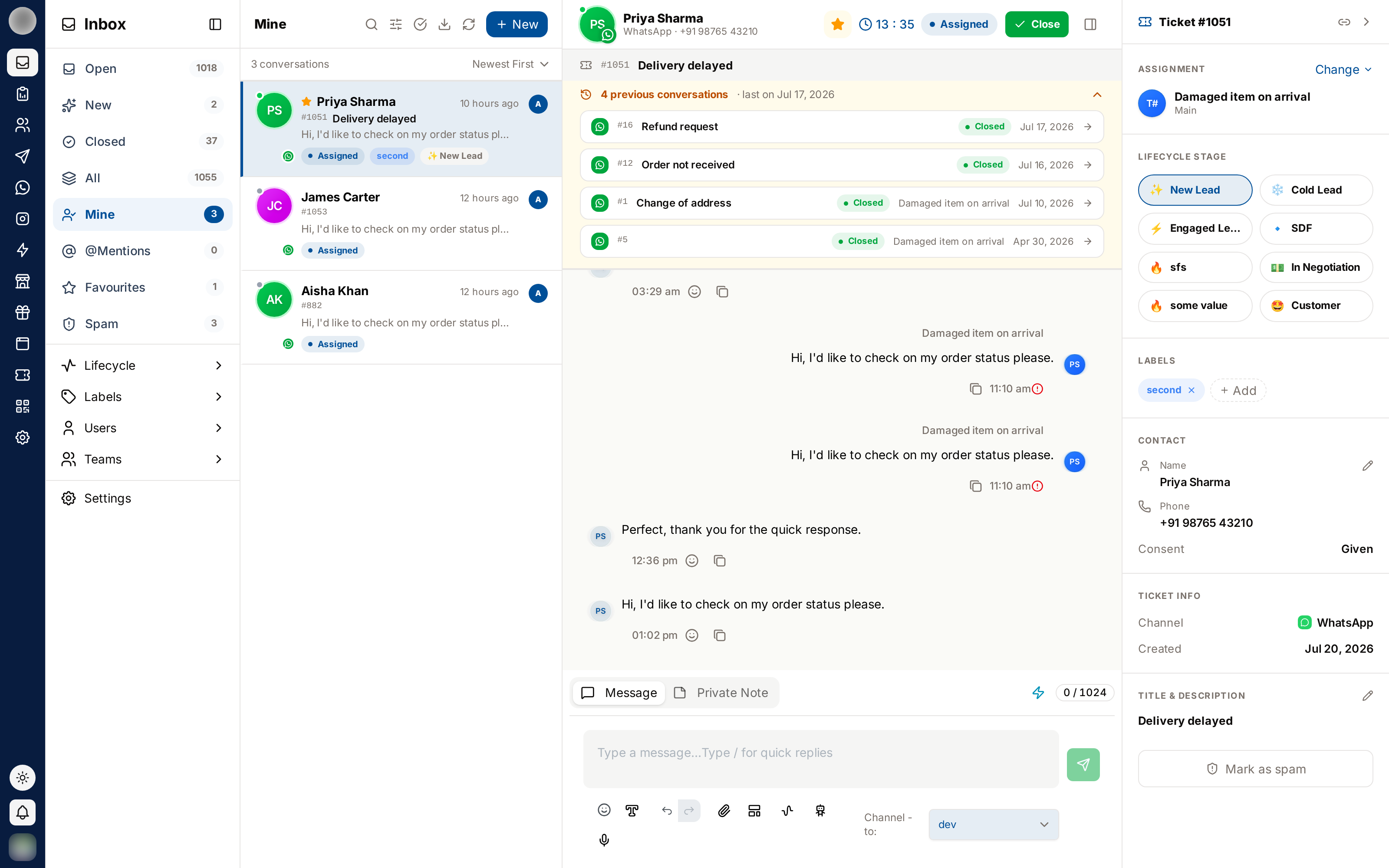
Click the bar to expand it. Each earlier ticket shows:
- Channel icon
- Ticket number and title
- Status pill
- Assigned agents
- Close result, if it had one
- Creation date
Click any entry to open that ticket. Use this before replying to a returning customer — it is the fastest way to see what your team already told them.
Editing a Ticket's Title & Description
Titles matter: they are what your team reads in the conversation list.
Open the ticket and click the panel icon in the chat header.
Scroll to Title & Description and click the pencil icon.
Write a short, specific title — "Refund not received for order 8821" beats "Question".
Add a description if there is context the messages do not make obvious, then click Save.
The title and description belong to this ticket only. Contact details — name, phone, labels, lifecycle — are shared across all of that customer's tickets.
The Life of a Ticket
A customer writes in. A ticket is created with status New and appears in the New and Open views.
Someone takes ownership. Status becomes Assigned; the ticket appears in that person's Mine view. Replying is only possible once a ticket has an owner.
The team works on it. Replies go to the customer; private notes and @mentions stay internal.
It is closed with an outcome — resolved, closed or unresolved. Assignees are cleared and the ticket moves to Closed.
The customer comes back. A new ticket is created. The closed one keeps its record and shows up in the history bar.
Frequently Asked
Related Pages
- Inbox Views — how tickets are grouped into tabs
- Assignment & Reassignment — giving a ticket an owner
- Closing & Reopening — how a ticket ends
- Ticket Details — the right-hand panel