Conversation Tags & Contact Labels
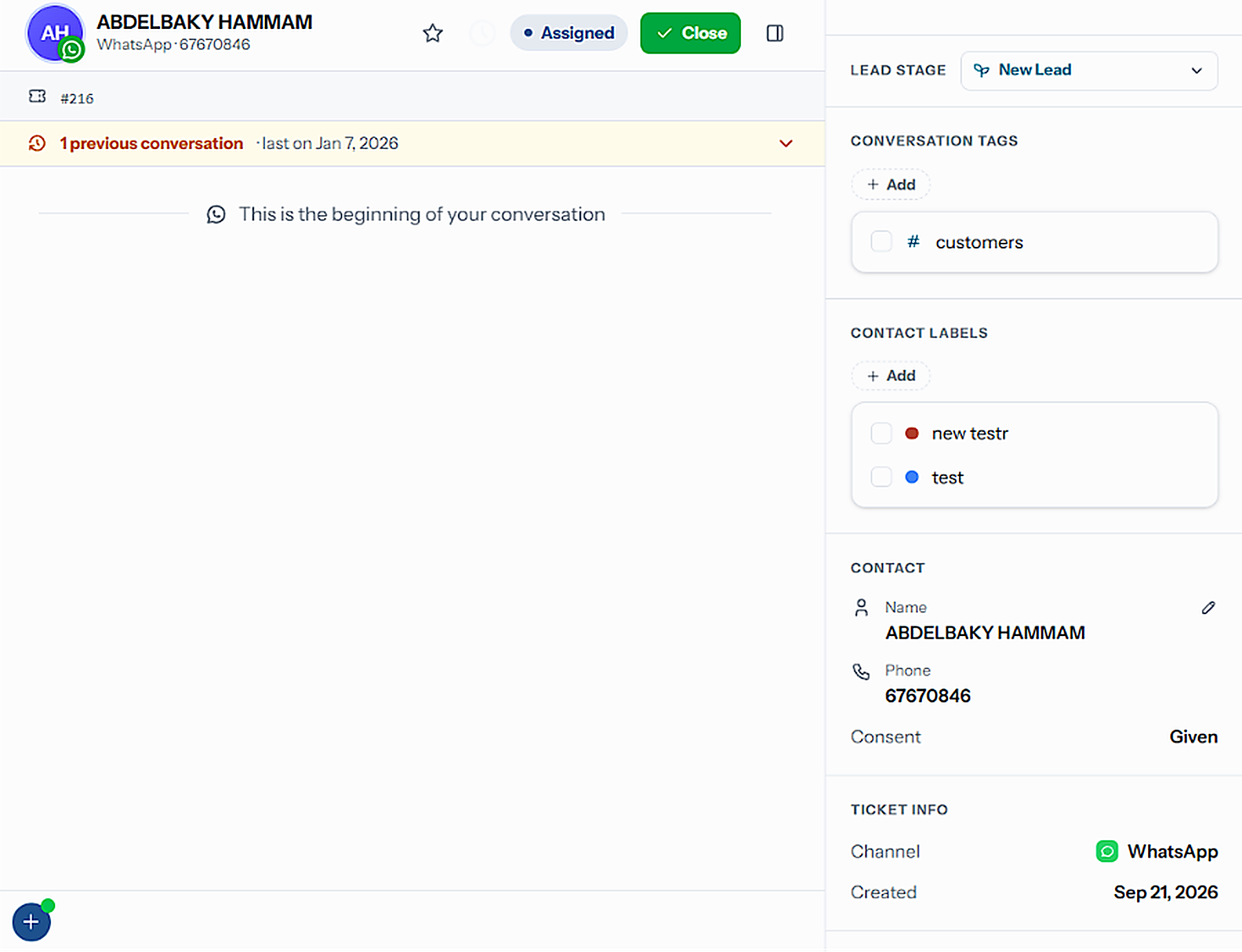
Tag a single ticket, or label the customer behind it — two separate taxonomies, both of which filter the Inbox.
The Inbox classifies work at two different grains, and mixing them up is the usual mistake.
| Conversation tag | Contact label | |
|---|---|---|
| Describes | One ticket | The customer |
| Shows on | Only the conversation you tagged | Every ticket that customer ever opens |
| Good for | Bug Report, Escalated, Follow-up, Refund | VIP, Wholesale, Churn risk |
| Sidebar section | Conversation Tags | Contact Labels |
A tag describes what this conversation was about. A label describes who you are talking to.
Create a Tag or a Label
Tags and labels are created in different places, because they belong to different things.
Each tag row shows how many conversations currently carry it, so you can see what is actually in use before renaming or deleting. An empty tab reads "No conversation tags yet."
Use Edit to rename or recolour, and Delete to remove one. Deleting takes the tag off every conversation carrying it.
Tag a Conversation
Contact labels sit in the same panel under Contact labels, and are added the same way, with Search labels — but they attach to the customer, so they will appear on their next ticket too.
Tags also show as chips on the conversation row in the list, so you can see them without opening the ticket.
Filter by Tag or Label
The Inbox sidebar carries a section for each, listed under the views:
| Section | Filters to |
|---|---|
| Contact Labels | Every ticket belonging to a customer carrying the label |
| Conversation Tags | Only the conversations carrying the tag |
Each section only appears once at least one tag or label exists, and has its own clear control once a filter is active. Both combine with the rest of the sidebar — views, channel, teams, users and lifecycle — see Filtering the Inbox.
Filtering by a contact label is the wider of the two: it pulls in that customer's whole history, not just the conversation you had in mind.
Related Pages
- Ticket Details — the panel where both are applied
- Filtering the Inbox
- Inbox Settings — where conversation tags are created
- Labels — contact labels from the Contacts side
Search, Selection & Sorting
Every control in the Inbox toolbar — search, compact list, bulk select, close, assign and delete, export, sorting and adding a contact.
Sidebar Filters
Narrow any Inbox view by channel, lifecycle stage, contact label, conversation tag, agent or team — all from the sidebar, under the views.