Private Notes & @Mentions
Discuss a ticket internally, pull colleagues in with @mentions, and manage the mentions addressed to you.
Private notes let your team talk about a ticket without the customer seeing any of it. They live on the ticket, are visible only to your team, and are never delivered to WhatsApp, Instagram or any other channel.
Message vs Private Note
The composer has two tabs, and they behave differently:
| Message | Private Note | |
|---|---|---|
| Goes to | The customer | Your team only |
| Colour | Blue | Amber |
| Character limit | 1024 | None |
| @mentions | Typing one switches you to Private Note | Yes |
| Appears in thread as | A normal message | Centred, with a padlock |
Write a Private Note
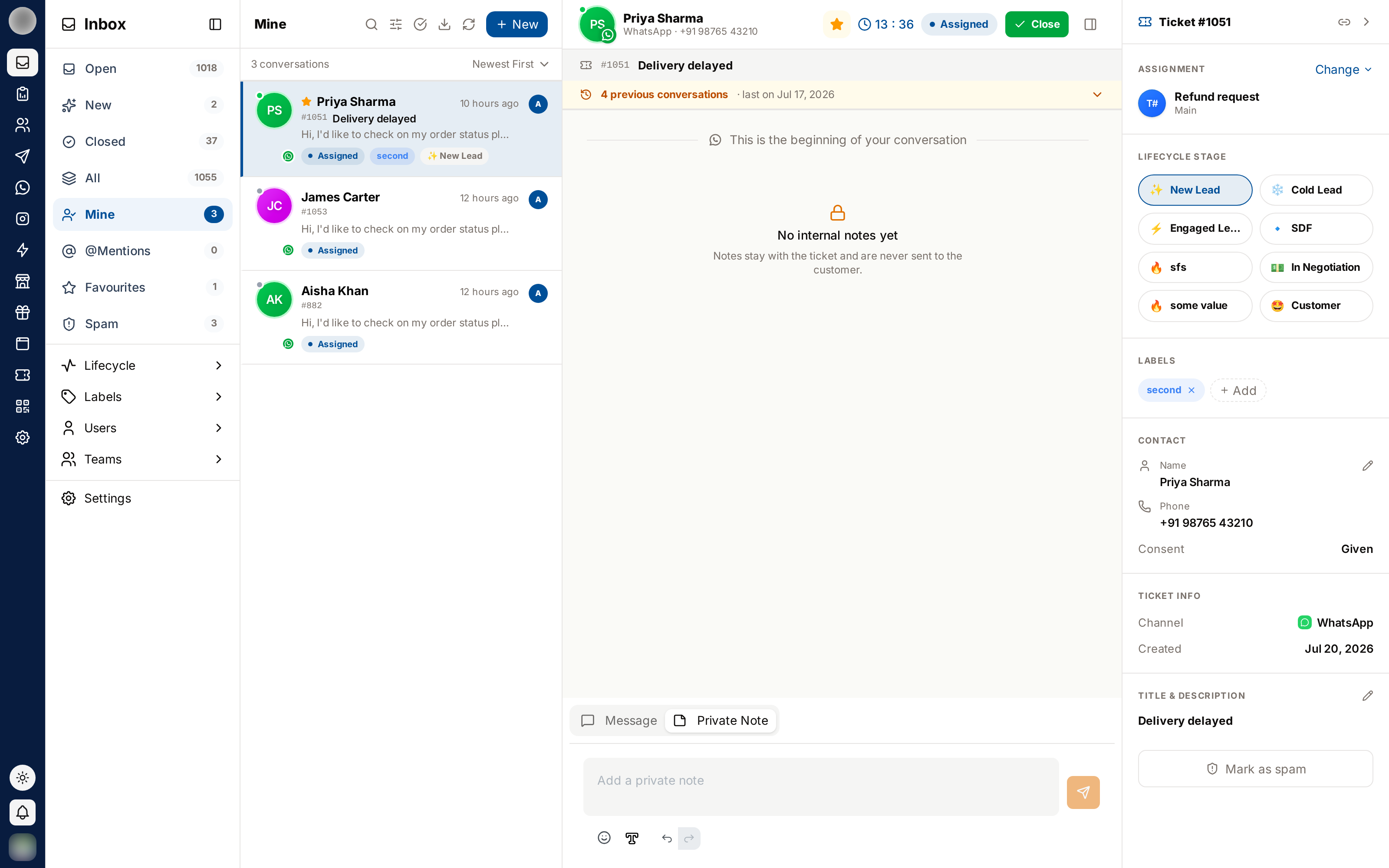
Open the ticket and click the Private Note tab.
Type your note. The box reads "Internal note — only your team sees this. @ to mention", and the tab turns amber to signal that this is internal.
Use the emoji picker and Format Message (T) for bold, italic, strikethrough, code, quotes and lists — handy for a structured handover.
Click Add note, or press Enter.
The note is added to the thread immediately, labelled Internal note with your name and the time.
Notes Sit in the Thread
Notes appear in the conversation in the order they were written, between the customer's messages, in amber with a padlock. Switching to the Private Note tab does not hide the customer's messages, so you can write a note while reading what the customer said.
You can still write notes after the WhatsApp 24-hour window has closed: the Message tab goes, but Private Note stays.
Mention a Colleague
Type @ in the message box. If you were on the Message tab, adding a mention switches you to
Private Note — "Mentioning a teammate turns this into an internal note." — so a mention is
never sent to the customer. Click Message to switch back if you meant to.
A list of your organisation's members appears. Keep typing to narrow it, or use the arrow keys.
Press Enter or click a name to insert the mention. It appears highlighted in the note.
Finish the note and click Add note.
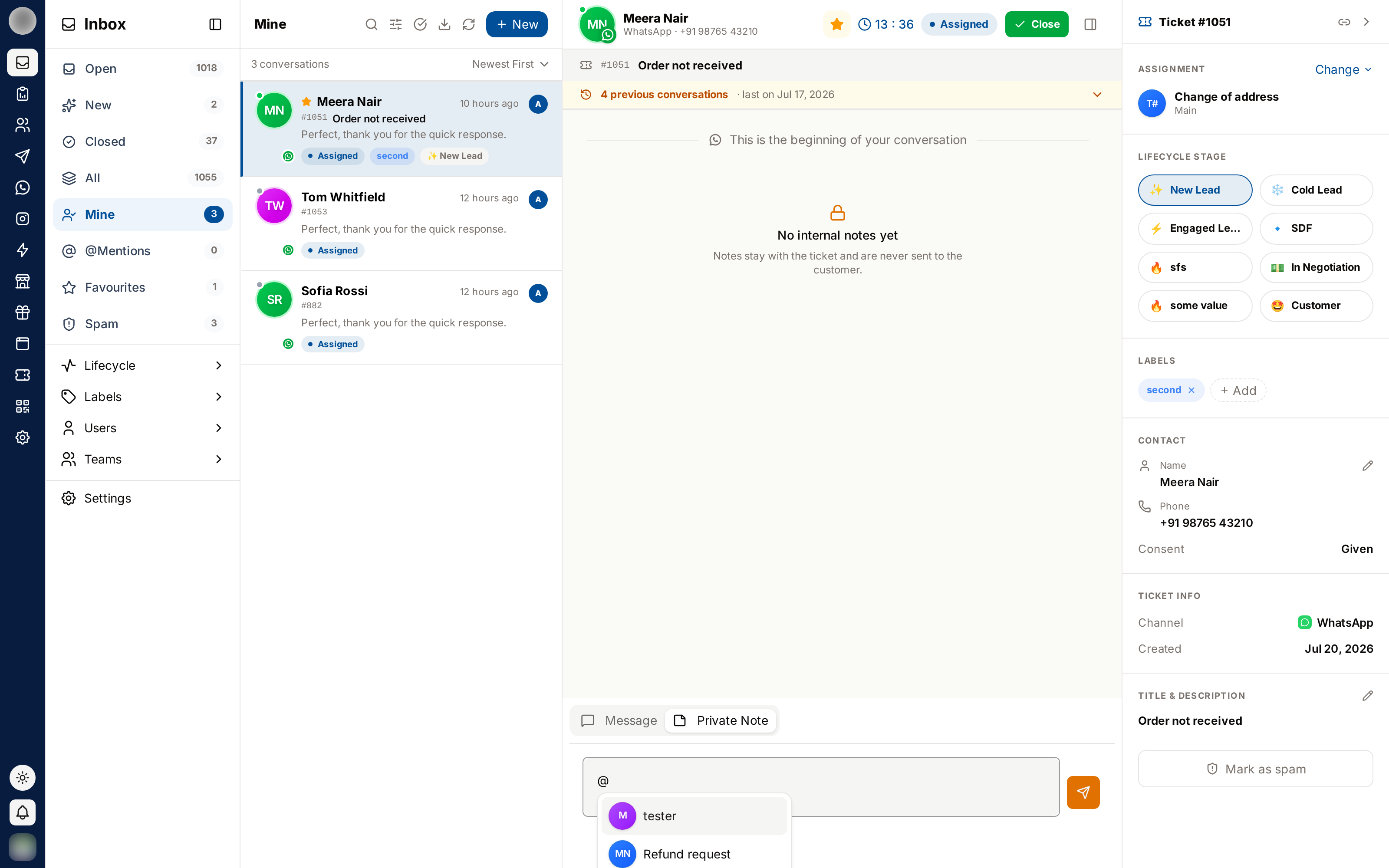
You can mention anyone in your organisation, not just members of your own team. Mention several people in one note if the question concerns all of them.
What the Mentioned Person Sees
When you are mentioned:
- The ticket appears in your @Mentions view
- The @Mentions count in the sidebar goes up
- The ticket row shows an @ Mention chip — with a number if you were mentioned more than once
- An @ button appears in that ticket's chat header
Mentions are personal: you only see mentions addressed to you.
Clearing a Mention
Opening or reading a mentioned ticket does not clear the mention. It stays until you dismiss it deliberately, so it cannot disappear because you glanced at the row.
Open the ticket from @Mentions.
Do whatever was asked — usually a reply in a private note.
Click the @ button in the chat header, next to the star.
The ticket leaves @Mentions and the sidebar count goes down.
Clearing affects you only. The note stays on the ticket, and colleagues mentioned in the same note keep their own mention until they clear it.
What to Use Notes For
| Situation | Note to write |
|---|---|
| Handover | What has been done, what is outstanding, what you promised the customer |
| Escalation | Why it is being escalated and what decision you need — mention the decision-maker |
| Context | Anything you learned that is not in the messages (a phone call, a system check) |
| Decisions | Why you offered the refund, why the exception was approved |
Avoid using notes for anything the customer should be told — switch to Message for that.
Frequently Asked
Best Practices
- Write the handover note before reassigning, not after
- Mention people instead of messaging them outside RateUp — the context stays on the ticket
- Clear your mentions once handled, so @Mentions stays a real to-do list
- Keep notes factual; they are part of the permanent ticket record
Related Pages
WhatsApp Voice Calls
Answer customers' WhatsApp voice calls in your browser, call a customer from their chat once they allow it, and find every call in the thread and in Analytics.
Closing & Reopening Tickets
The ticket lifecycle end to end — the three close outcomes, closing in bulk, blocking, reopening, and permanently deleting a conversation.