@Mentions
Tickets where a colleague mentioned you in a private note, and how to clear them.
@Mentions collects every ticket where a colleague mentioned you by name in a private note.
Treat it as your personal to-do list for internal requests: questions, handovers and escalations that were addressed to you specifically.
What You See
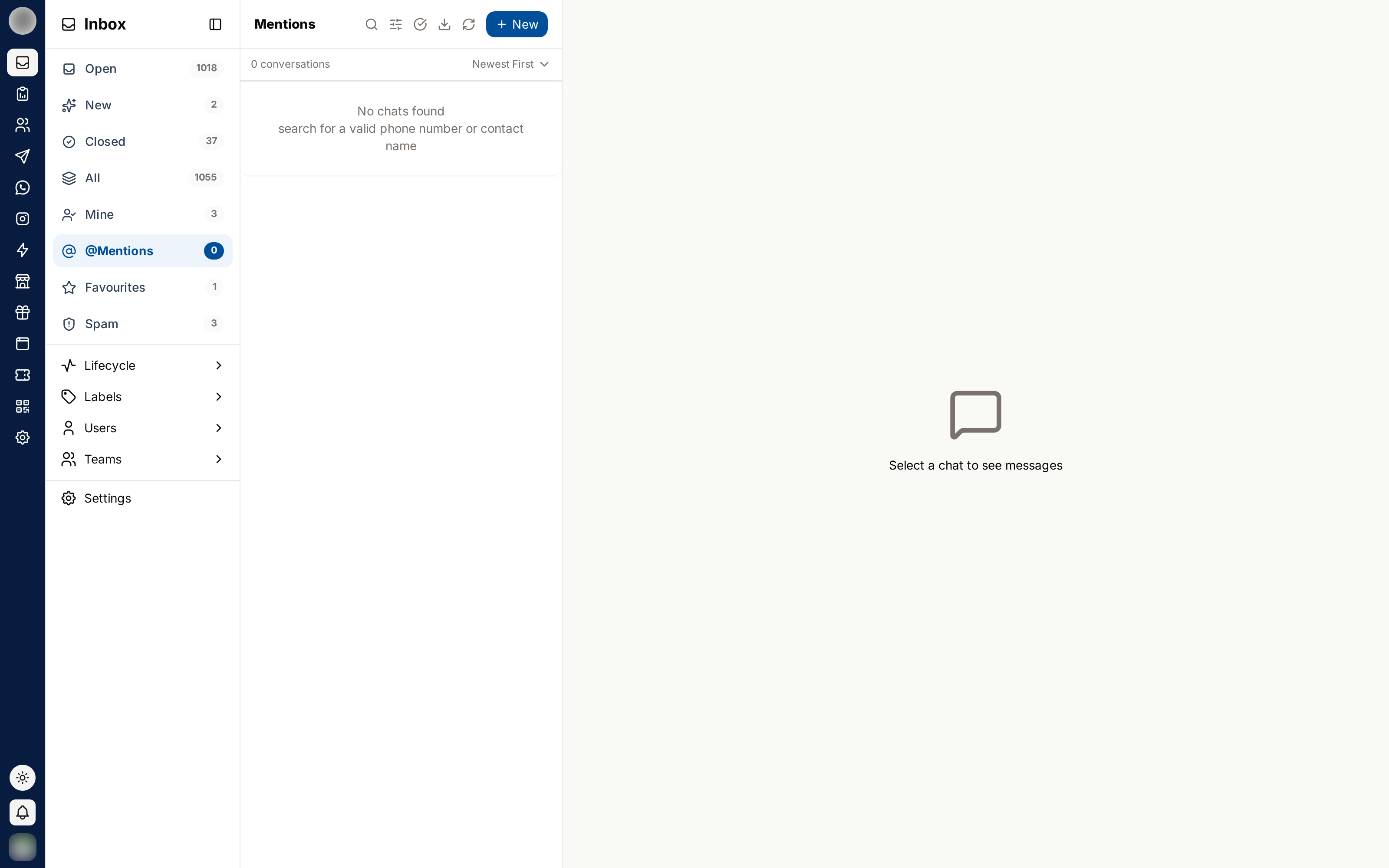
- Each row shows an @ Mention chip beside the status pill
- If you were mentioned more than once on a ticket, the chip shows the count
- The sidebar count tells you how many tickets are waiting on you
Mentions are personal — you only ever see mentions addressed to you.
Reading a Mention Does Not Clear It
Opening a mentioned ticket leaves the mention exactly where it is.
This is deliberate. A mention should not vanish because you clicked the row while scanning the Inbox — it stays until you dismiss it on purpose.
Clear a Mention
Open the ticket from the @Mentions view.
Read the note and do whatever was asked of you.
Click the @ button in the chat header, next to the star.
The ticket leaves @Mentions and the sidebar count goes down.

Clearing a mention only affects you. The private note stays on the ticket, and any colleague mentioned in the same note keeps their own mention until they clear it themselves.
Troubleshooting
| Symptom | Explanation |
|---|---|
| The @ button is not in the header | You have no uncleared mention on this ticket |
| A ticket reappeared in @Mentions | Someone mentioned you again in a newer note |
| The count does not match the rows | Refresh the list — one ticket can hold several mentions |
| You cannot see a mention a colleague swears they sent | Check they mentioned you and not a similarly named teammate |
Best Practices
- Work @Mentions before your own queue — someone is waiting on you
- Clear a mention only once you have actually acted on it
- Reply in a private note on the same ticket, so the answer stays with the context
- Mention colleagues instead of messaging them outside RateUp
Related Pages
- Private Notes & @Mentions — how mentions are written
- Mine — your own workload