Spam
Flag a contact as spam to take them out of every working view — and take them back out of it.
Spam holds the contacts you have flagged as junk — promotional blasts, automated noise, and anyone who is not a genuine customer.
Spam is a flag on the contact, not a status on a ticket. Flag someone once and they leave every working view, however many tickets they have.
This is the one tab that lists contacts rather than tickets — one row per spam contact, and the row count reads "12 contacts" instead of "12 conversations". Every other tab is one row per ticket.
Mark a Contact as Spam
Two routes, same result:
| From | How |
|---|---|
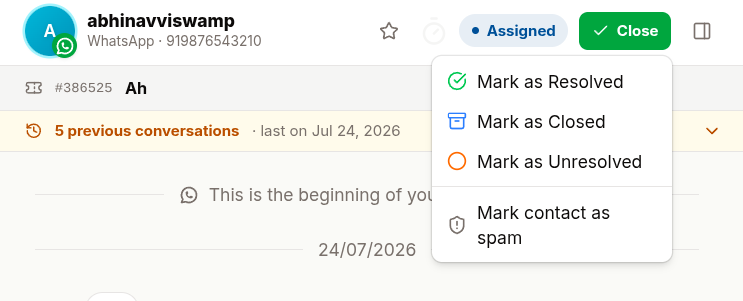
| The Close menu | Open a ticket → Close → Mark contact as spam. On an already-closed ticket it sits in the ⋮ overflow menu |
| Ticket Details panel | Open the panel → Mark contact as spam at the bottom |
You are asked to confirm — "Mark Priya Sharma as spam" — with a warning that their open tickets will be closed. Click Mark as spam.
What Happens
- Every open ticket for that contact is closed, with the close reason Spam
- All assignees are cleared
- The contact disappears from Open, New, Closed, All, Mine, @Mentions and Favourites, and stops counting towards their badges
- They appear once in Spam, with a red Spam pill on the row
- A system note records who flagged them and when
- The composer is replaced by a banner: "This contact is marked as spam."
New messages from a spam contact still arrive — WhatsApp is not told anything — but they land on that contact's row in Spam rather than in New.
Because the flag is on the contact, there is no Close or Reopen on a spam ticket, and selection mode in the Spam tab offers no bulk assign or close. Only Not spam moves the contact forward.
Take a Contact Back Out of Spam
Open the contact from the Spam tab.
Click Not spam — in the chat header, in the banner above the composer, or at the bottom of the Ticket Details panel.
Confirm. The flag is cleared and the contact returns to your working views.
Their old tickets stay closed — they were genuinely finished. The contact's next message opens a fresh ticket in New.
Spam vs Blocking
Both apply to the contact. The difference is whether the messages still reach you.
| Mark contact as spam | Block contact | |
|---|---|---|
| Scope | The contact, and all their tickets | The contact |
| Effect | Open tickets close; the contact moves to Spam | Neither side can message the other |
| Future messages | Still arrive, into the Spam tab | Do not arrive at all |
| Reversible | Yes, with Not spam | Yes, by unblocking |
To block: open a ticket, use the Close menu — or the ⋮ overflow menu if the ticket is already closed — and choose Block contact. You will be asked to confirm.
Blocking cuts communication in both directions. Use it for repeat offenders; use spam for noise you simply do not want in the queue.
A contact who is both spam and blocked still appears in Blocked, so they never vanish entirely.
Clearing Out Spam for Good
Admins can permanently delete spam conversations, one at a time from the ⋮ menu or in bulk: Select Chats, tick the rows or use select-all, then Delete selected chats. The contact stays flagged as spam, so anything they send afterwards still lands here.
Deleting cannot be undone. Only delete spam you are sure you will never need as evidence — abuse reports and chargeback disputes sometimes do.
Best Practices
- Use Spam for people, and the close statuses for conversations that are finished
- Review the tab occasionally — genuine customers do end up here by accident
- Block only when flagging as spam is not enough