Bulk Actions
Bulk Actions allow you to manage multiple contacts at once, saving time and ensuring consistency when updating contact data.
When Bulk Actions Are Available
Bulk actions appear when one or more contacts are selected from the Contacts List.
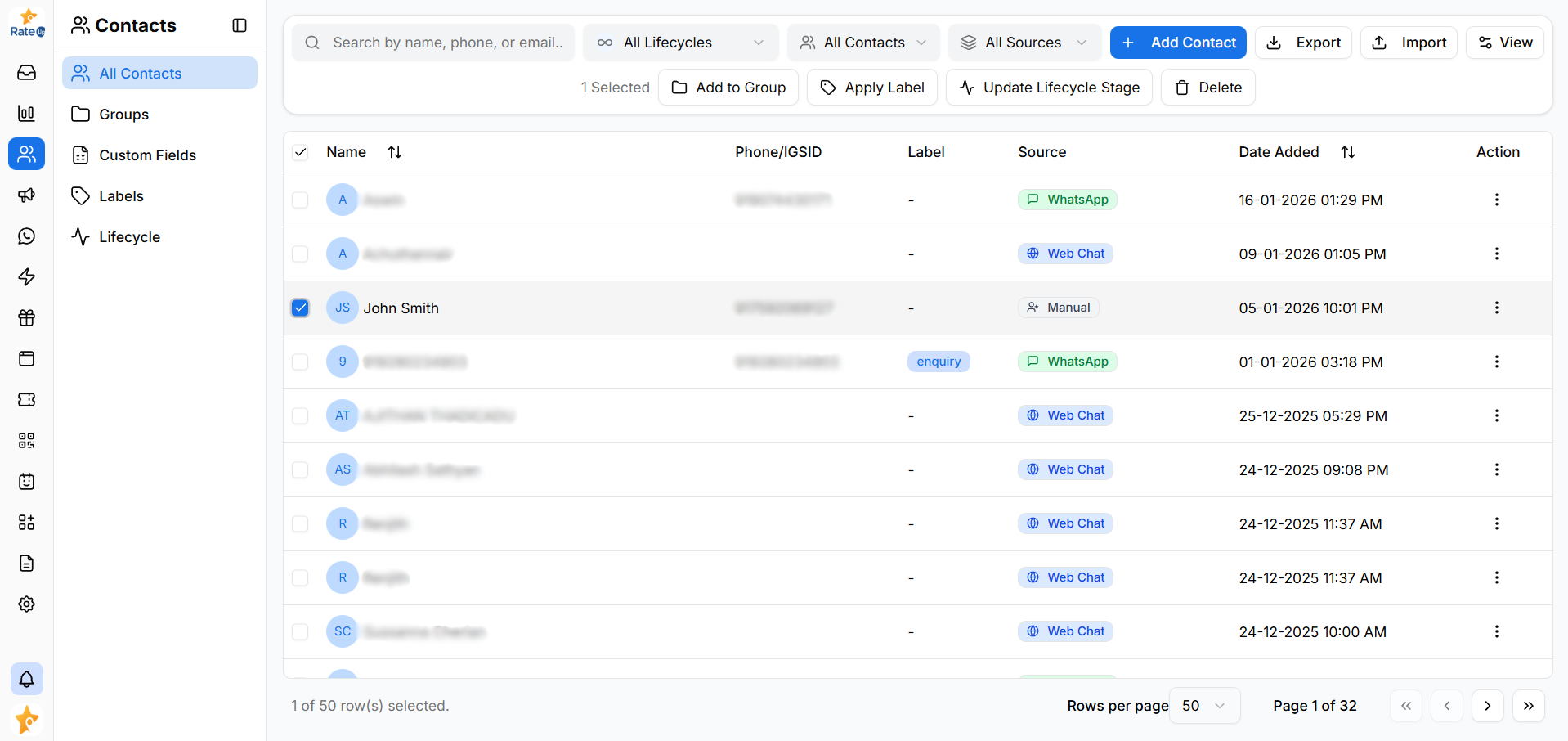
To enable bulk actions:
- Open the Contacts List
- Select one or more contacts using the checkboxes
- Bulk action options appear at the top
Available Bulk Actions
The following actions are available for selected contacts:
- Add to Group
- Apply Label
- Update Lifecycle Stage
- Delete
Add to Group
Use this action to add selected contacts to an existing group.
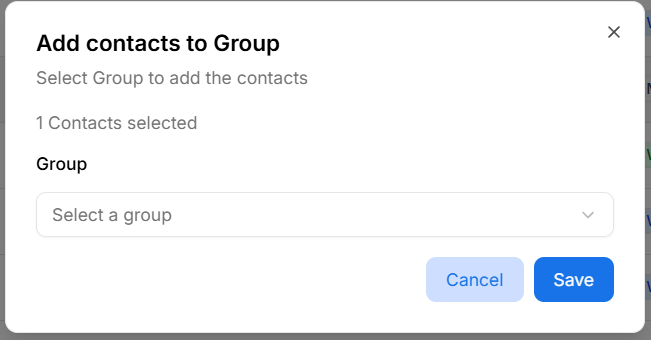
To add contacts to a group:
- Select the required contacts
- Click Add to Group
- Choose a group from the dropdown
- Click Save to confirm
- Click Cancel to exit without applying changes
Selected contacts are added to the chosen group immediately.
Apply Label
Labels help identify and distinguish contacts.
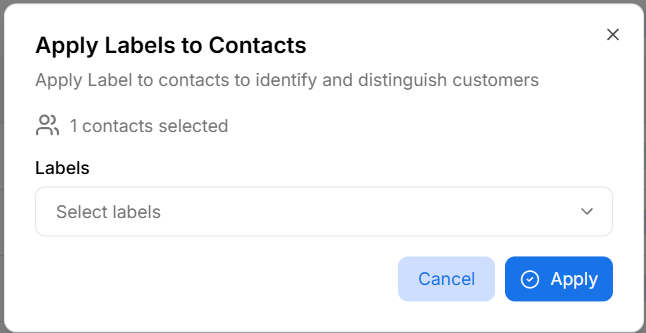
To apply labels:
- Select the contacts
- Click Apply Label
- Select one or more labels
- Use the search field to quickly find labels
- Click Apply to assign labels
- Click Cancel to discard changes
Applied labels appear in the Label column for all selected contacts.
Update Lifecycle Stage
Lifecycle stages represent the current status of a contact.
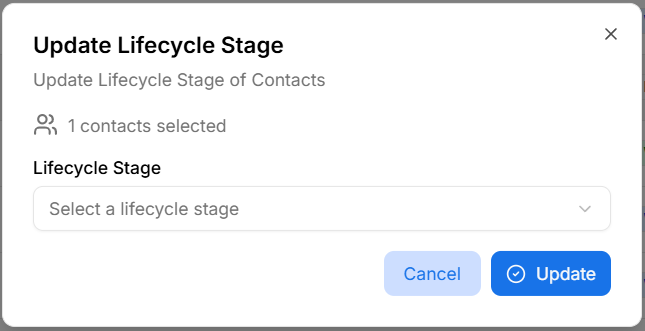
To update lifecycle stage:
- Select the required contacts
- Click Update Lifecycle Stage
- Choose a lifecycle stage from the list
- Click Save
The selected lifecycle stage is applied to all chosen contacts.
Delete Contacts
- Permanently removes selected contacts
- This action cannot be undone
- Use with caution when deleting multiple contacts
Why Bulk Actions Matter
Bulk actions help teams:
- Update multiple contacts quickly
- Maintain consistent labels and lifecycle stages
- Organize contacts efficiently
- Reduce repetitive manual work