Custom Fields
Custom Fields allow teams to extend contact information by adding additional attributes that are specific to their workflows. These fields can be created, edited, hidden, and used consistently across contacts, groups, and imports.
Accessing Custom Fields
Custom Fields are managed from the Contacts → Custom Fields section.
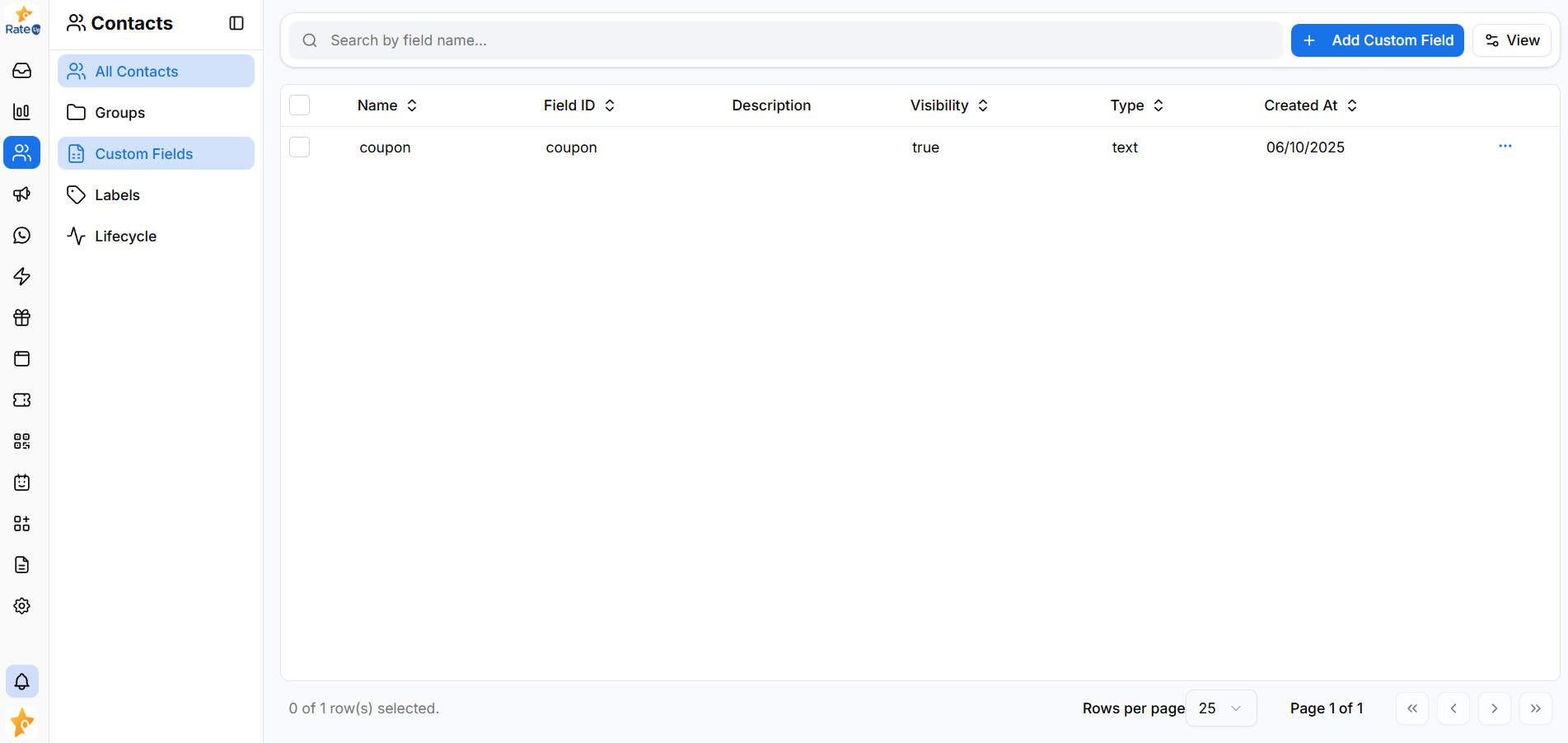
This page displays all existing custom fields and serves as the central place to create or manage them.
Creating a Custom Field
To create a new custom field:
- Click Add Custom Field
- Fill in the required configuration
- Save the field
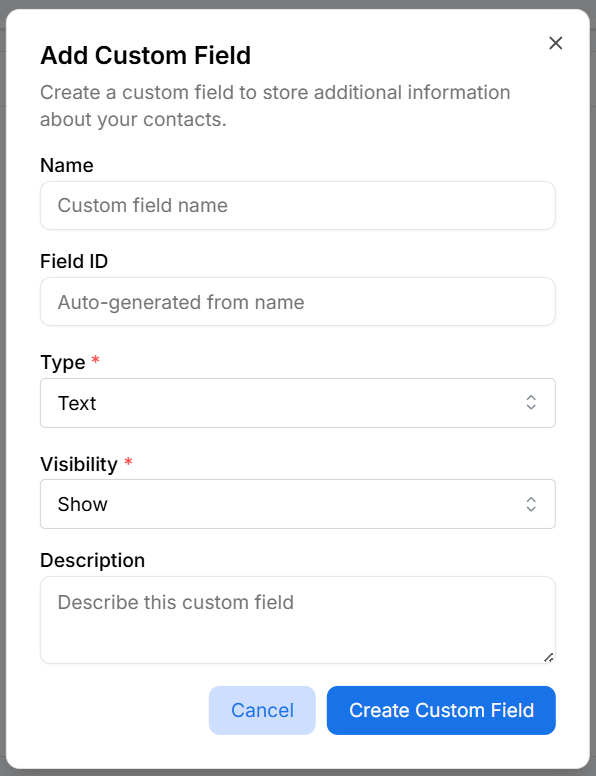
Field Configuration Options
-
Name
The display name shown across contact views (for example: Blood Group, Location). -
Field ID
Auto-generated from the name and used internally, especially during imports. -
Type
Defines the kind of data the field accepts.
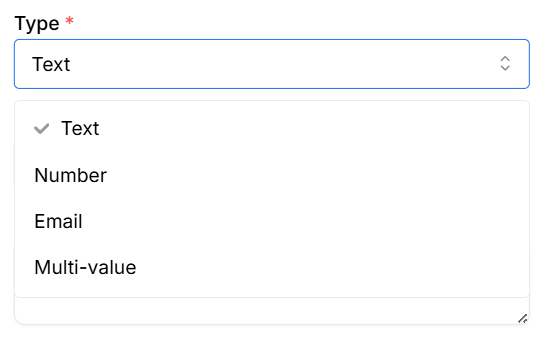
Available types:
-
Text – General-purpose text
-
Number – Numeric values
-
Email – Email-specific validation
-
Multi-value – Multiple values per contact
-
Visibility
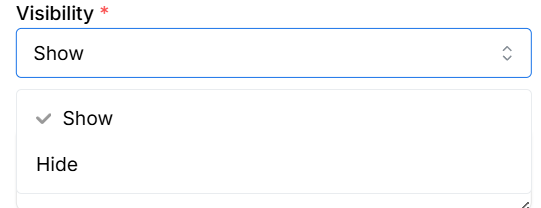
Controls whether the field appears in contact views.
-
Show – Field is visible in tables and contact details
-
Hide – Field remains stored but hidden from views
-
Description (optional)
Internal context for the field’s purpose.
Click Create Custom Field to finish.
Editing a Custom Field
Existing custom fields can be updated to adjust naming, visibility, or descriptions.
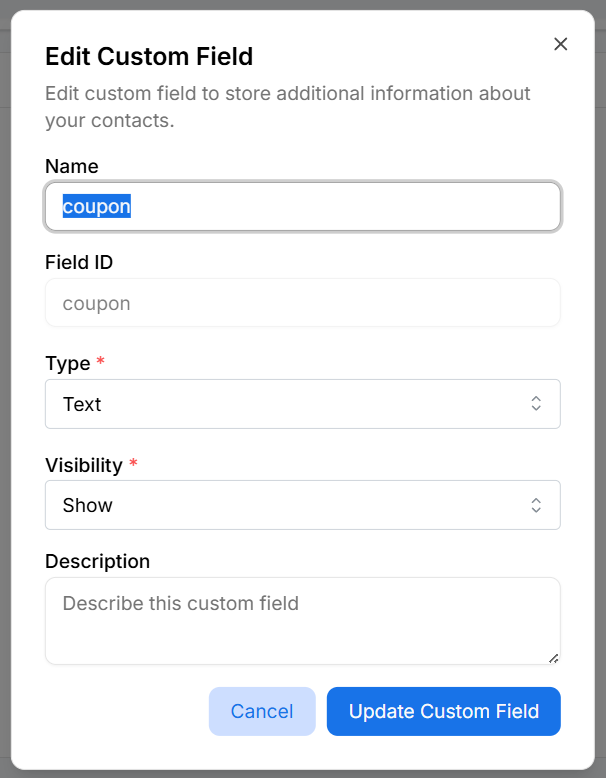
Editable attributes include:
- Field name
- Visibility
- Description
Field ID and Type cannot be changed after creation to protect existing data.
Viewing Custom Fields in a Table
All custom fields are displayed in a structured table format.

Each row shows:
- Field Name
- Field ID
- Description
- Visibility status
- Field Type
- Created date
The table supports sorting and searching for easier management.
Customizing the Table View
You can control which columns are visible using View → Toggle Columns.

This allows teams to focus only on relevant metadata when managing many fields.
How Custom Fields Are Used
Once created, custom fields automatically become available in:
- Contact creation and editing
- Group member management
- CSV/XLSX contact imports
- Contact detail views
For example:
- Store Blood Group for healthcare use cases
- Capture Location for regional segmentation
- Track Coupons during marketing campaigns
Best Practices
- Use meaningful and specific field names
- Choose the correct data type from the start
- Hide unused fields instead of deleting them
- Avoid creating multiple fields with overlapping purposes
Why This Matters
Custom Fields provide flexibility without compromising structure, allowing teams to adapt contact data to evolving business needs while maintaining consistency across the system.