Reset Password
This guide explains how to reset your password if you forget it or are unable to log in to your RateUp account.
When to Use Password Reset
Use the Reset Password option if:
- You forgot your password
- You entered an incorrect password multiple times
- You want to create a new password for security reasons
Resetting Your Password
Follow the steps below to reset your RateUp password.
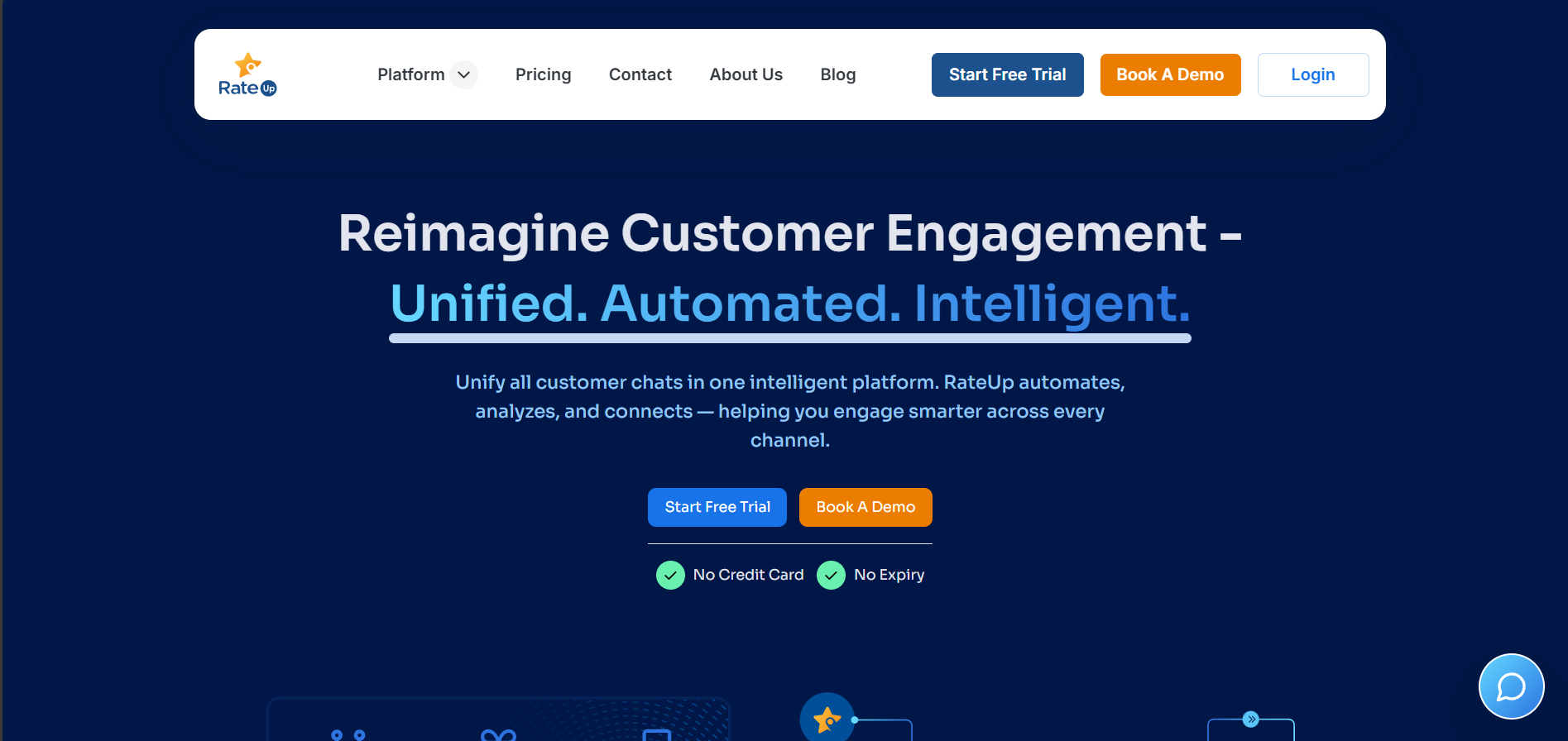
Step 1: Open Login Page
- Visit https://rateup.app
- Click the Login button on the landing page
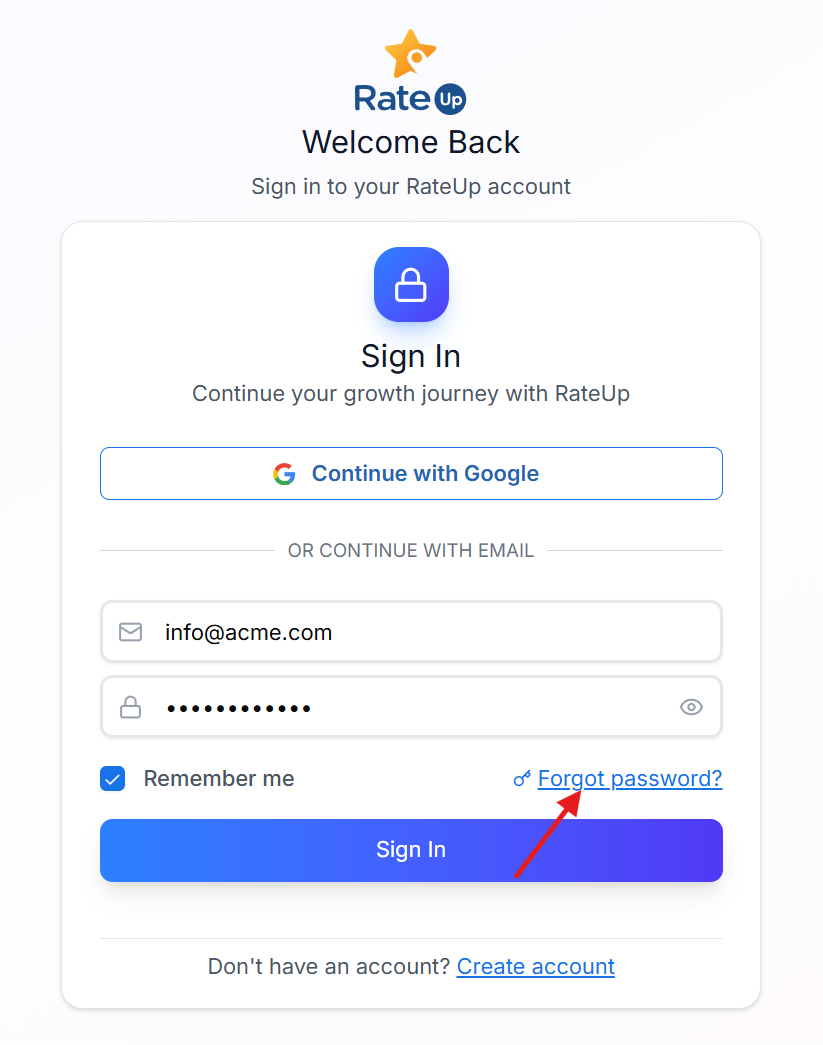
Step 2: Click “Forgot Password”
On the Login page:
- Click Forgot password?
This will redirect you to the password recovery screen.
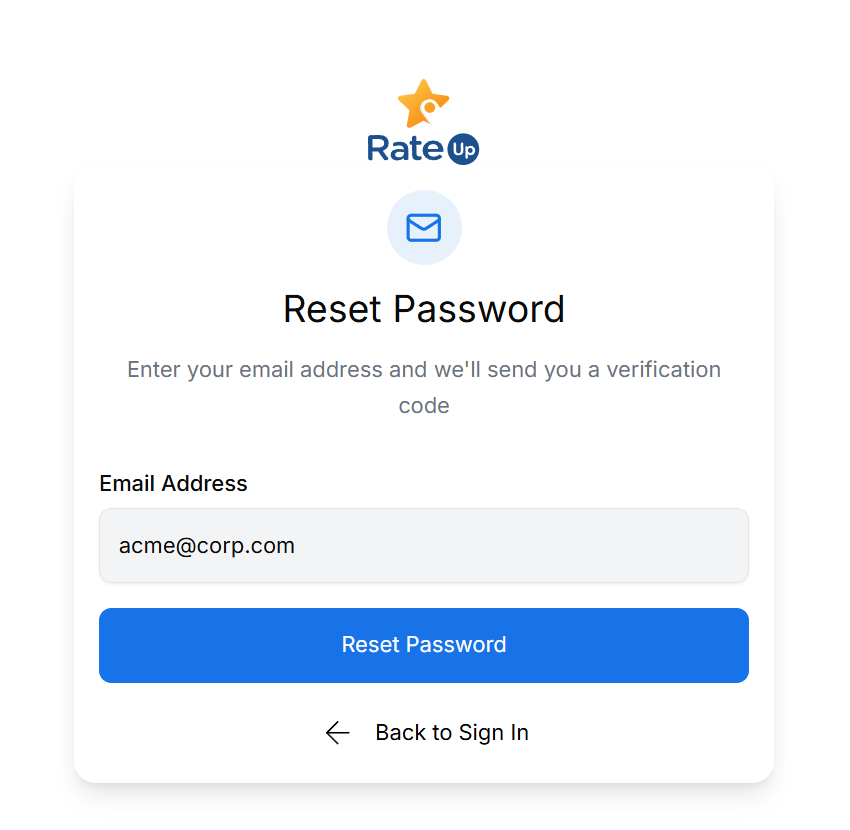
Step 3: Enter Your Email Address
- Enter the email address associated with your RateUp account
- Click Reset Password
📧 A password reset email will be sent to your inbox.
Step 4: Check Your Email
- Open the email from RateUp
- Click the Reset Password link inside the email
🔐 The reset link is time-sensitive and can be used only once.
Step 5: Create a New Password
On the Reset Password page:
- Enter your new password
- Confirm the password
- Click Update Password
Once successful, your password will be updated immediately.
After resetting your password, continue to the
👉 Login to RateUp documentation.
Troubleshooting
Didn’t receive the reset email?
- Check your Spam / Promotions folder
- Ensure the email address is correct
- Wait a few minutes and try again
Reset link expired?
- Request a new reset link from the Forgot password page
Security Tips
- Use a strong password (mix of letters, numbers, symbols)
- Do not reuse old passwords
- Avoid sharing your login credentials