Groups List
The Groups List displays all contact groups in a card-based layout. It allows teams to quickly browse, filter, create, and manage groups used for organizing contacts.
Groups Dashboard
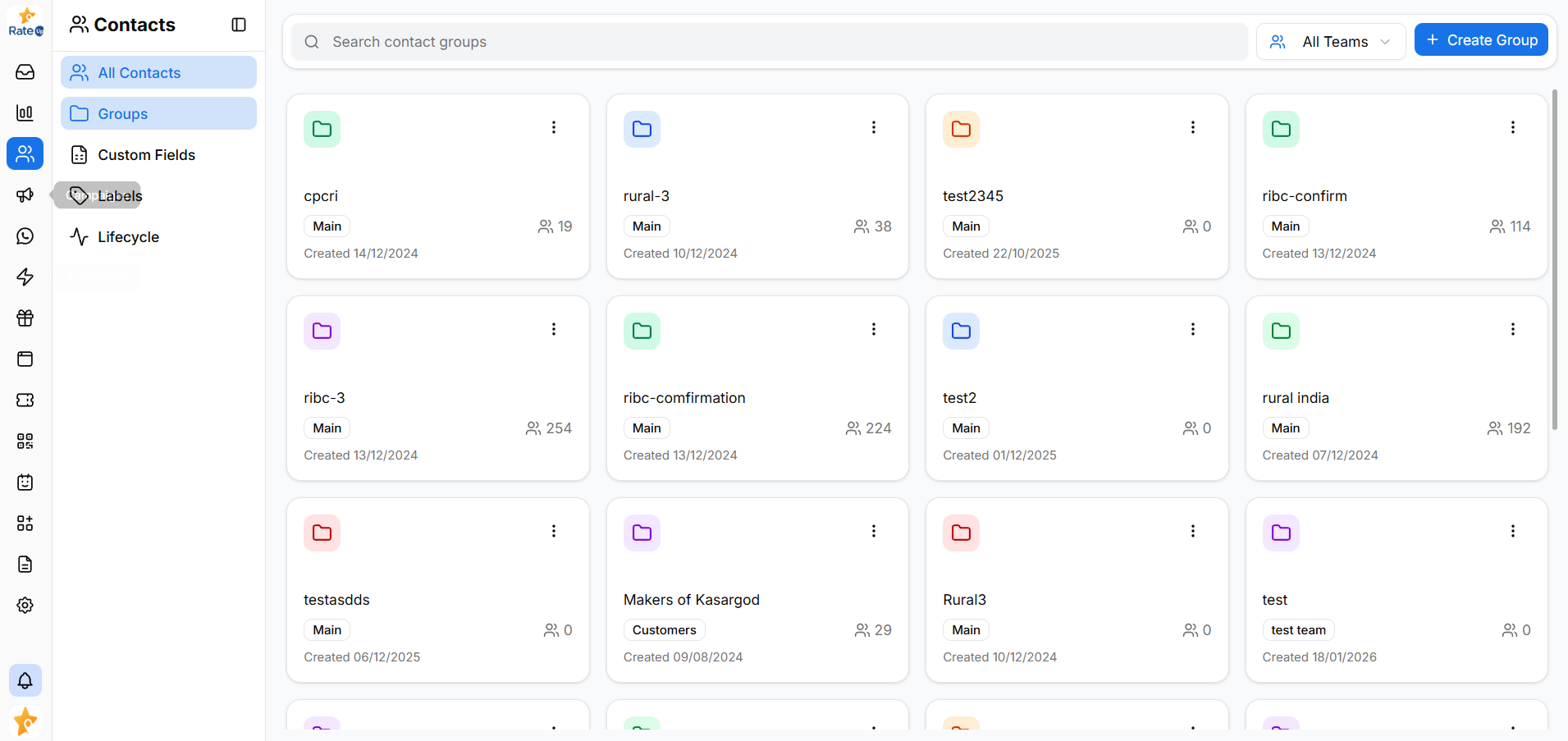
The Groups dashboard shows all available groups as cards. Each card represents a single contact group.
Group Card Details
Each group card displays key information at a glance:
- Group Name – The name of the contact group
- Team – The team the group belongs to
- Total Members – Number of contacts in the group
- Created Date – When the group was created
- Action Menu (⋮) – Access group actions
This layout makes it easy to identify and manage groups quickly.
Create Group
You can create a new contact group directly from the Groups List.
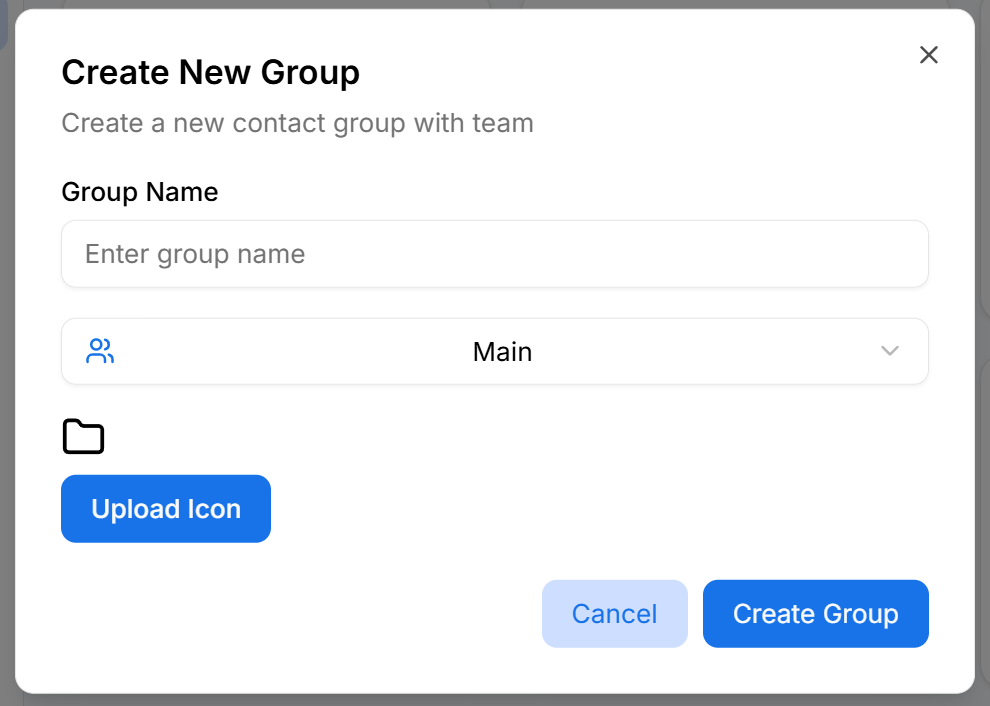
To create a group:
- Click Create Group
- Enter a Group Name
- Select the Team
- (Optional) Upload a Group Icon
- Click Save to create the group
Click Cancel to exit without creating a group.
Team Filter
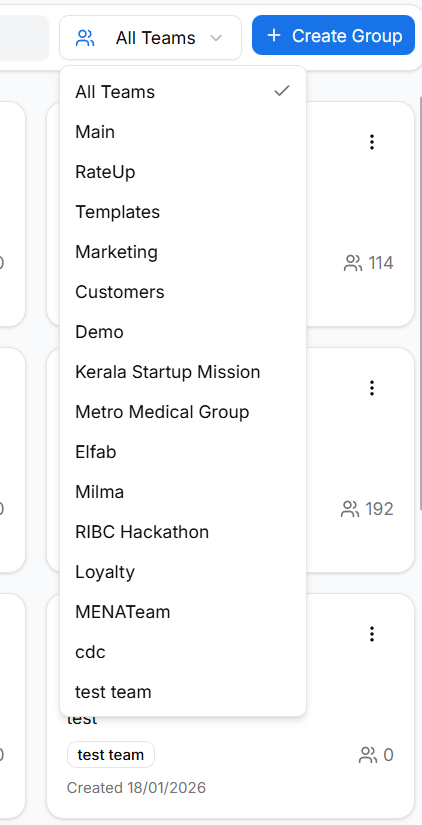
Use the Team filter to view groups associated with a specific team.
Available options include:
- All Teams
- Individual teams such as Main, Marketing, Customers, Demo, and others
This helps teams focus only on the groups relevant to them.
Group Actions
Each group card includes an Action Menu (⋮) for managing the group.
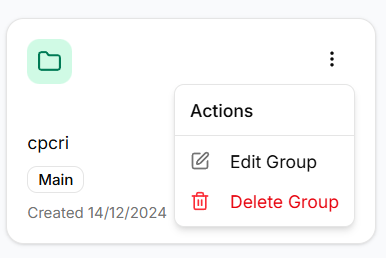
Available actions include:
- Edit Group – Update the group name, team, or icon
- Delete Group – Permanently remove the group
Deleting a group does not delete the contacts inside it.
Opening a Group
Clicking on a group card opens the Group Details view, where you can:
- View group members
- Add or remove contacts
- Manage group-specific settings
Learn more in Group Details.
Why the Groups List Matters
The Groups List helps teams:
- Organize contacts efficiently
- Manage groups across multiple teams
- Quickly access group members
- Maintain a clear overview of all contact groups