Group Details
The Group Details page is used to view and manage a specific contact group. From this page, you can review group information, manage members, and perform group-level actions.
Opening a Group
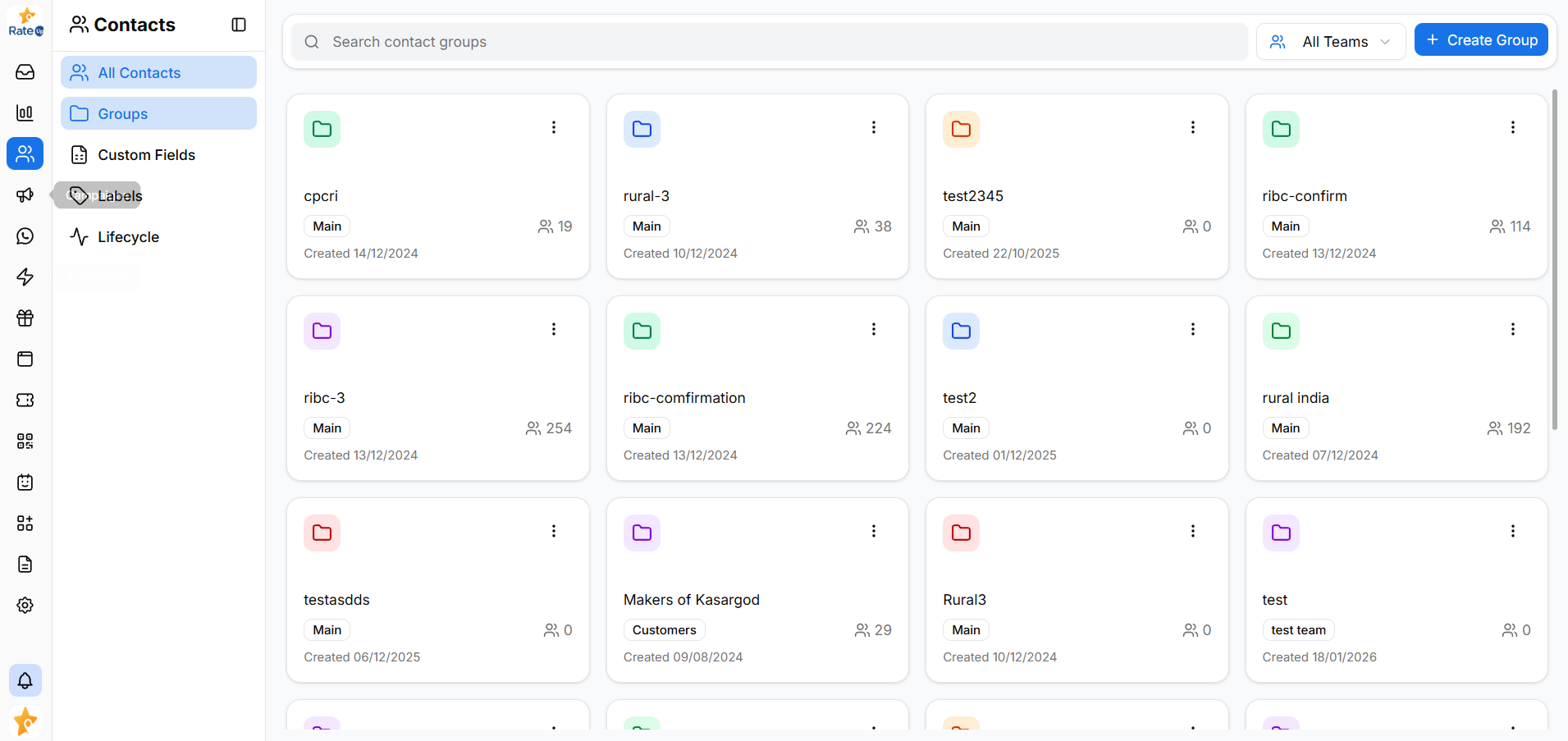
To open a group:
- Navigate to the Groups List
- Click on the required group card
The Group Details page opens for the selected group.
Group Header

At the top of the page, the group header displays:
- Group Name
- Team associated with the group
- Total Members count
- Back to Groups button
- Delete Group action
Use the header to quickly understand the group context or navigate back.
Viewing Group Members
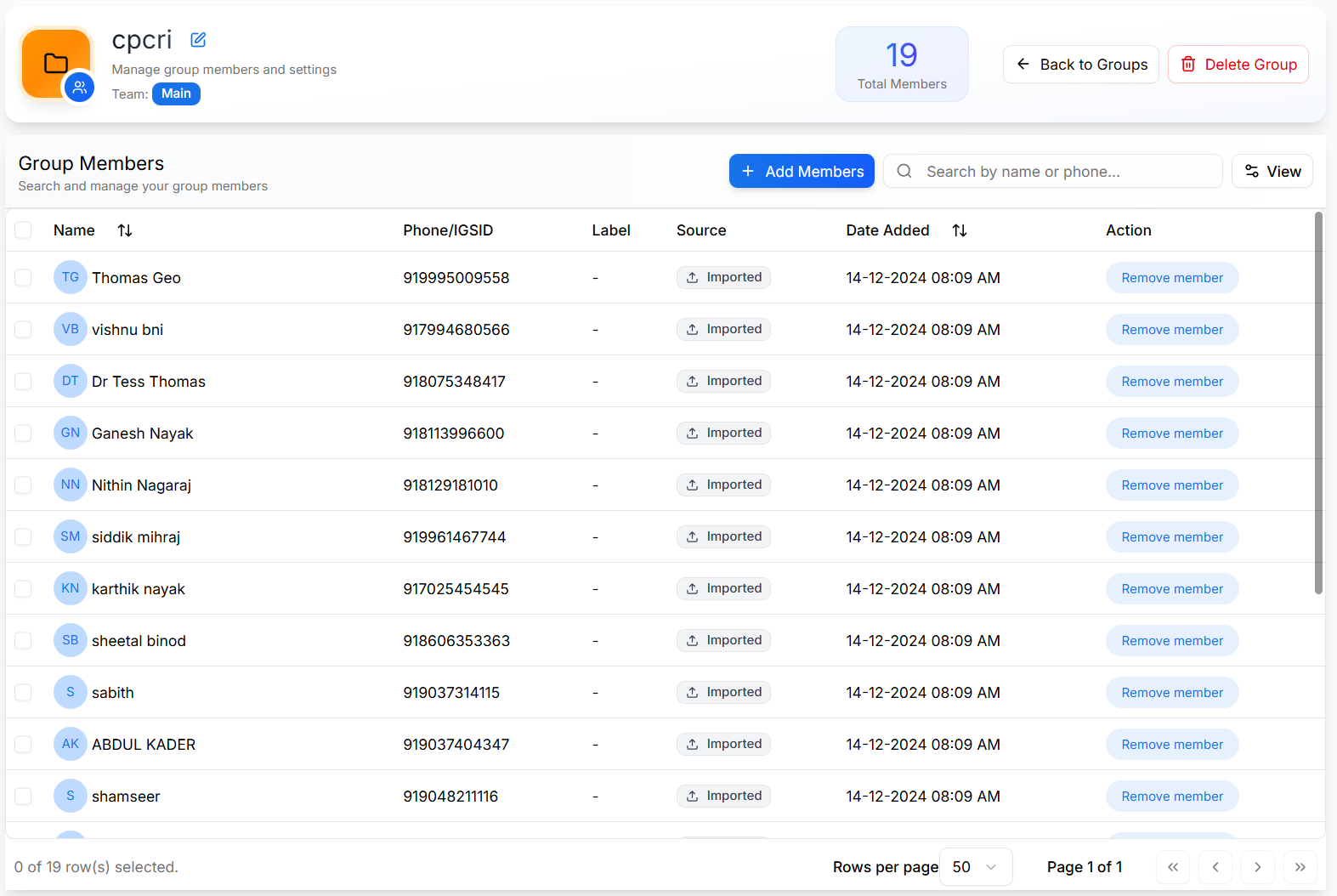
To view contacts in the group:
- Scroll through the Group Members list
- Each row represents one contact in the group
For each contact, the list shows:
- Contact name and avatar
- Phone / IGSID
- Label (if assigned)
- Source (Manual, Imported, WhatsApp, etc.)
- Date added to the group
- Available actions
Searching Group Members
To find a specific member within the group:
- Use the search input above the members list
- Enter a contact name or phone number
- Review the filtered results as they update in real time
This is especially useful for groups with many members.
Adding Members to a Group
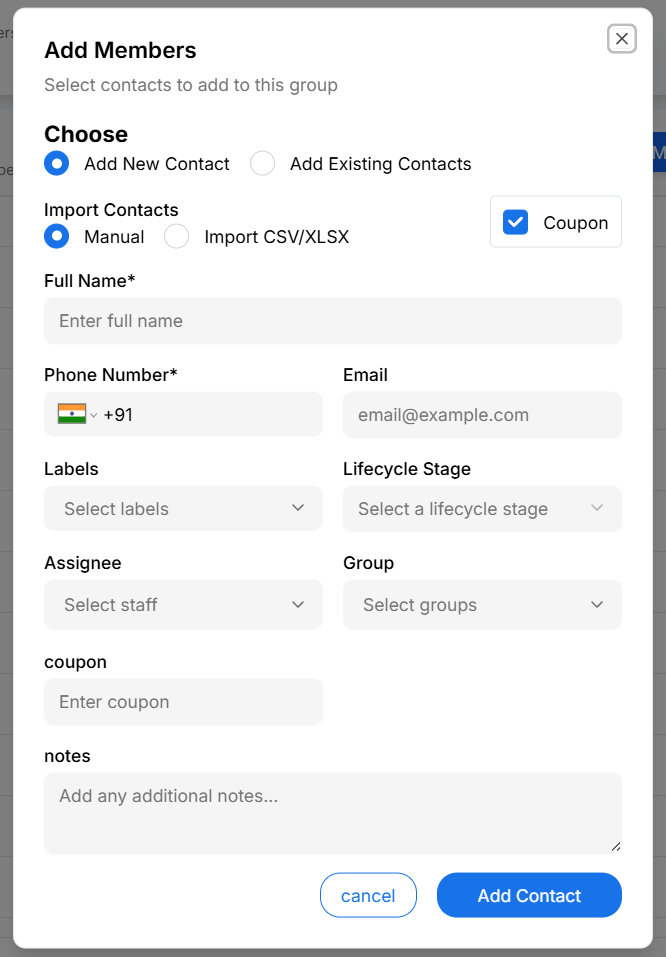
To add members:
- Click Add Members
- Choose one of the following options:
- Add a new contact
- Select existing contacts
- Import contacts using CSV / XLSX
- Fill in any optional fields if required:
- Labels
- Lifecycle stage
- Assignee
- Custom fields (for example, coupon)
- Notes
- Save to add contacts to the group
New members appear immediately in the group list.
Customizing the Members List View
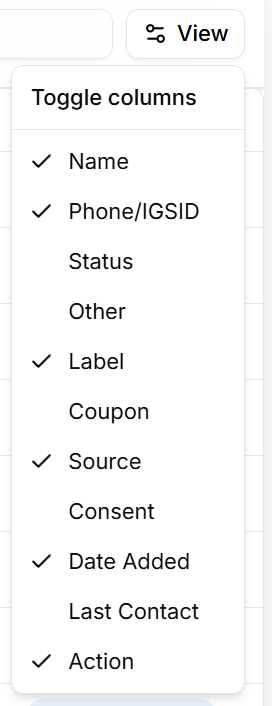
To customize visible columns:
- Click View Settings
- Enable or disable required columns
Available columns include:
- Name
- Phone / IGSID
- Label
- Source
- Date Added
- Last Contact
- Action
Changes apply instantly and affect only your current view.
Removing Members from a Group
To remove a contact from the group:
- Locate the contact in the members list
- Click Remove member
The contact is removed from the group but remains available in the Contacts List.
Group-Level Actions
You can perform the following actions from the Group Details page:
- Delete Group – Permanently deletes the group
- Back to Groups – Returns to the Groups List
Deleting a group does not delete the contacts inside it.
Why Group Details Matter
The Group Details page allows teams to:
- Manage group membership effectively
- Add or remove contacts as needed
- Search within large groups
- Customize member list views
- Keep contact groups organized