Sending Templates
WhatsApp Templates allow you to message customers both before and after the 24-hour messaging window.
Templates are required after the 24-hour window expires, but they can also be used within the 24-hour window for structured or predefined communication.
When Should You Send a Template?
Templates can be sent in two scenarios:
✅ After the 24-Hour Window (Required)
- Direct chat replies are disabled
- Templates are the only allowed way to message the customer
- Used to re-engage inactive conversations
✅ Before the 24-Hour Window (Optional)
- Normal chat replies are still available
- Templates can be used for:
- Structured messages
- Consistent responses
- Business updates or notifications
How to Send a Template
Templates are sent directly from an Inbox conversation.
Step-by-Step: Sending a Template
- Open the customer conversation in the Inbox
- Click the Send Template option in the chat window
- Select an approved template
- Review the template content
- Click Send
The template message is delivered immediately to the customer.
Sending Templates After the 24-Hour Window
When the 24-hour window has expired:
- The normal message input is disabled
- You will see an option to Send Template
- Only approved WhatsApp templates can be sent
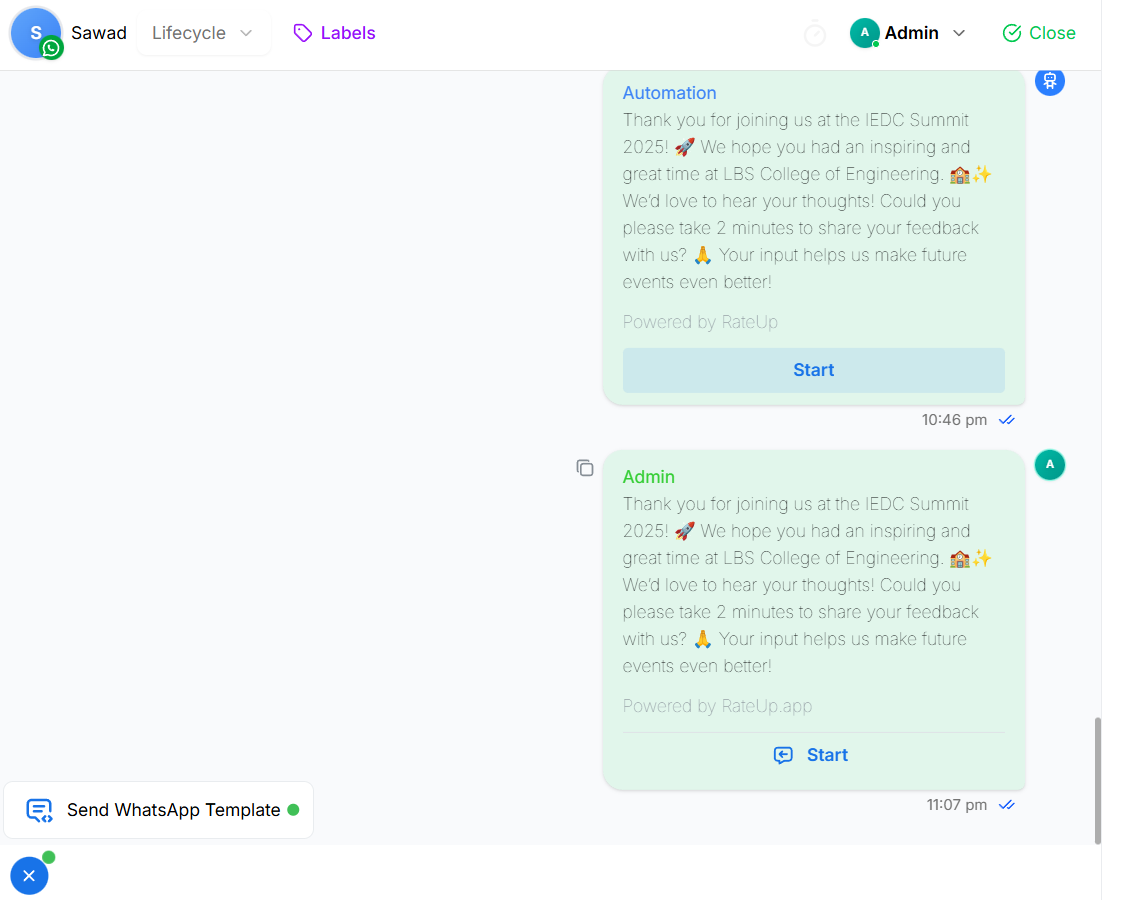
Once the customer replies:
- A new 24-hour window starts automatically
- Normal chat replies and flows become available again
Sending Templates Within the 24-Hour Window
Even when the 24-hour window is active, you can still send templates.
Use templates within the window when:
- You want consistent messaging
- You are sending structured updates
- You prefer predefined content
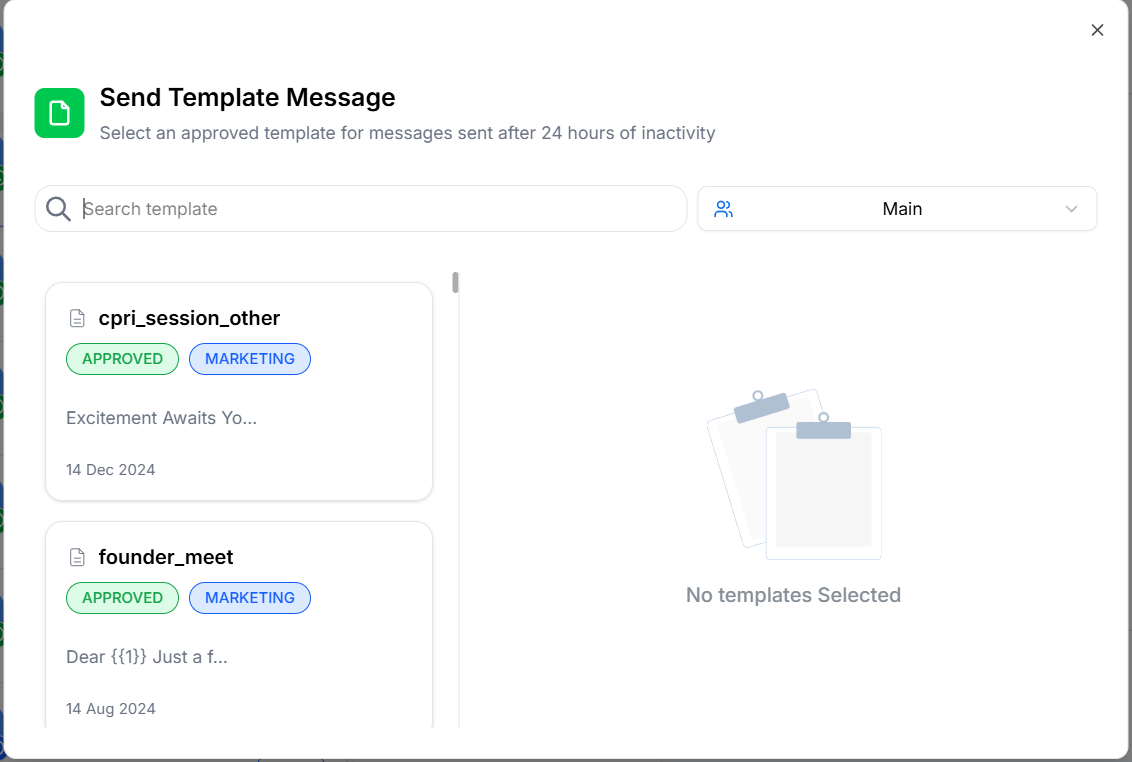
Both manual replies and templates can coexist in the same conversation.
Templates vs Manual Messages
| Feature | Manual Message | Template |
|---|---|---|
| Availability | Only within 24 hours | Anytime |
| Approval required | No | Yes (WhatsApp approval) |
| Personalization | High | Limited |
| Use case | Live conversation | Re-engagement & structured messages |
Role-Based Access
Business Admin
- Can send templates
- Can manage and create templates
Manager
- Can send approved templates
Agent
- Can send approved templates
- Cannot create or edit templates
Best Practices
- Use templates only when necessary
- Keep template content clear and relevant
- Avoid overusing templates within the 24-hour window
- Monitor customer replies to reopen conversations quickly
- Ensure templates are approved before relying on them
Common Scenarios
- Following up after customer inactivity
- Sending reminders or updates
- Reopening a closed or inactive conversation
- Maintaining compliance with WhatsApp policies
What’s Next?
Learn how templates are created and approved in Templates, or explore Flows to automate conversations inside the Inbox.