Import and Export Contacts
The Import and Export feature allows you to add contacts in bulk and download contact data for reporting, backups, or external use. These options are available from the top bar of the All Contacts page.
Import Contacts
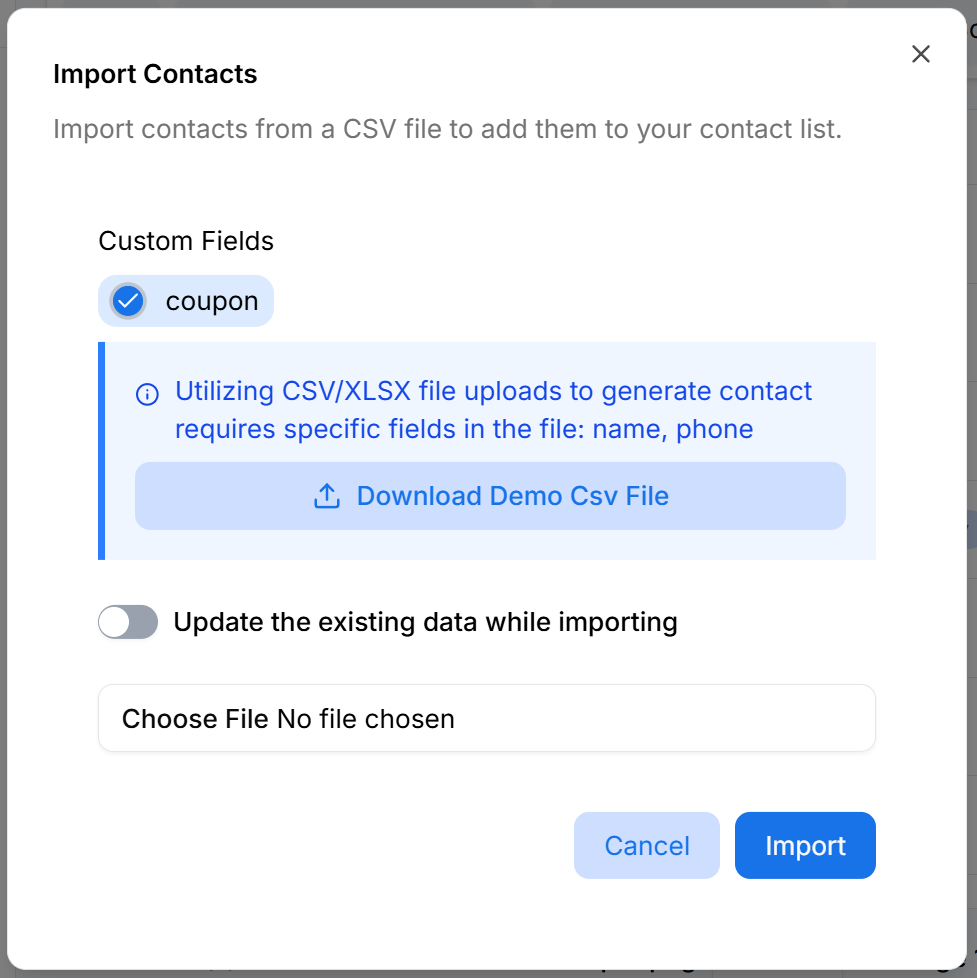
Import contacts in bulk using CSV or Excel files. This is useful when migrating data or adding large contact lists at once.
Supported File Formats
- CSV (.csv)
- Excel (.xlsx)
Required Fields
To successfully import contacts, the file must include the following required fields:
- name
- phone
If these fields are missing, the import will fail.
Custom Fields
- Custom fields (for example, coupon) can be included during import.
- Custom fields must already exist in the system before importing.
- Values from the file will be mapped to the corresponding custom fields.
Update Existing Contacts
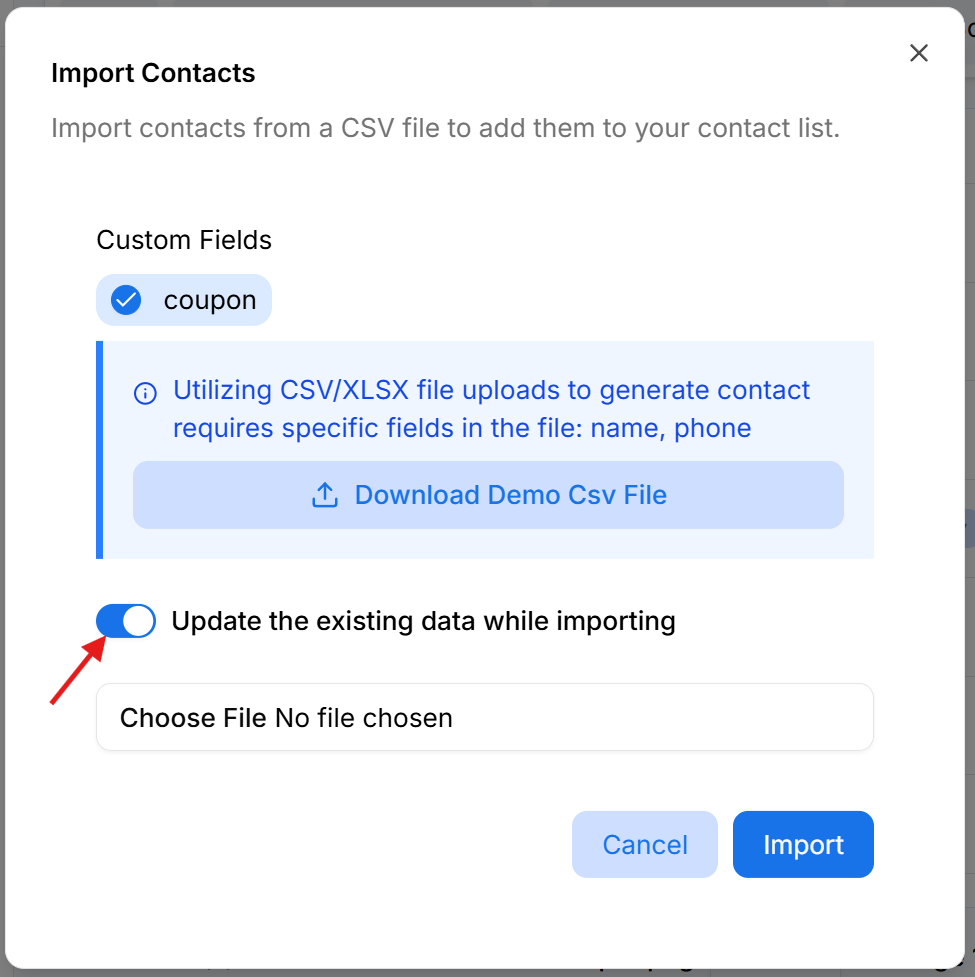
To update existing contacts:
- Enable Update the existing data while importing
- Upload the import file
- Matching is done using the contact’s phone number
- Existing contact values are replaced with imported values
Use this carefully, as existing data will be overwritten..
Demo CSV File
- Click Download Demo CSV File to get a sample file format.
- Use this file as a reference before preparing your own import file.
Completing the Import
- Choose the file to upload
- Review selected options
- Click Import to start the process
- Click Cancel to exit without importing
Export Contacts
Export allows you to download contact data from RateUp for offline use or reporting.
Export Formats
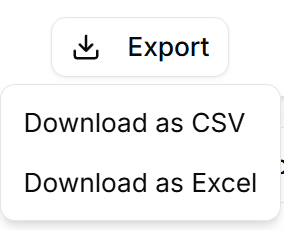
To export contacts:
- Open the export options
- Select the required format:
- CSV
- Excel
- Start the export process
The file is downloaded to your device.
Export Behavior
- Exported data includes all visible and relevant contact fields.
- If filters are applied, only the filtered contacts are exported.
- Export respects the current contact list view.
Common Use Cases
- Creating backups
- Sharing contact data with external tools
- Offline analysis and reporting
Best Practices
- Always validate files before importing
- Use the demo CSV to avoid formatting issues
- Apply filters before exporting to limit data
- Handle exported files securely
Why Import and Export Matter
Import and Export help teams:
- Save time when adding large contact lists
- Maintain clean and up-to-date contact data
- Perform analysis outside the platform