Search and Filters
The Search and Filters section helps you quickly find and narrow down contacts from large contact lists. Using search and filters together allows teams to focus on the most relevant contacts.

Search Contacts
Use the search input to find contacts by:
- Name
- Phone number
Search works in real time and updates the contact list as you type.
Contact Type Filter
The Contact Type filter allows you to view contacts based on their current classification.
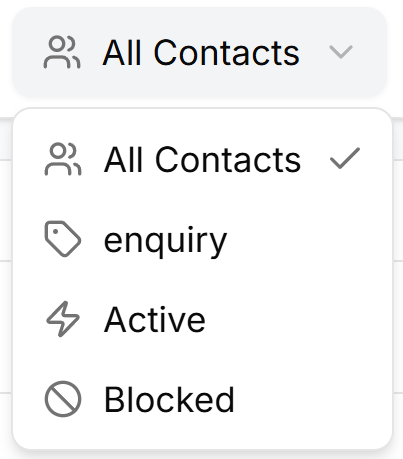
Available options include:
- All Contacts – Displays all contacts
- Enquiry – Contacts marked as enquiries
- Active – Contacts currently active
- Blocked – Contacts that are blocked
This filter helps separate contacts based on their engagement status.
Source Filter
Use the Source filter to view contacts based on where they originated from.
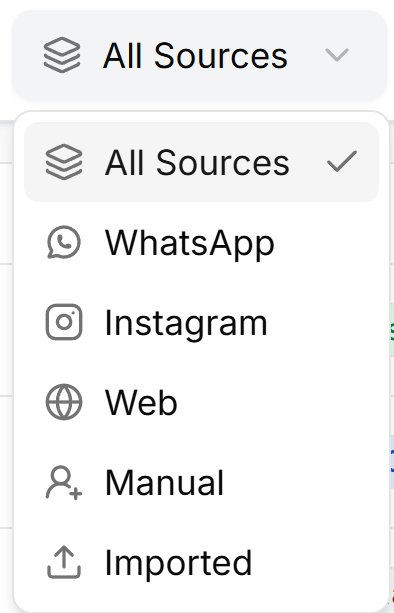
To apply a source filter:
- Open the Source dropdown
- Select the required source
Available source options include:
- All Sources – Shows contacts from all sources
- WhatsApp – Contacts created via WhatsApp
- Instagram – Contacts created via Instagram
- Web – Contacts created through web chat
- Manual – Contacts added manually
- Imported – Contacts added via import
This filter is useful for analyzing channel performance.
Lifecycle Filter
The Lifecycle filter allows you to view contacts based on their lifecycle stage.
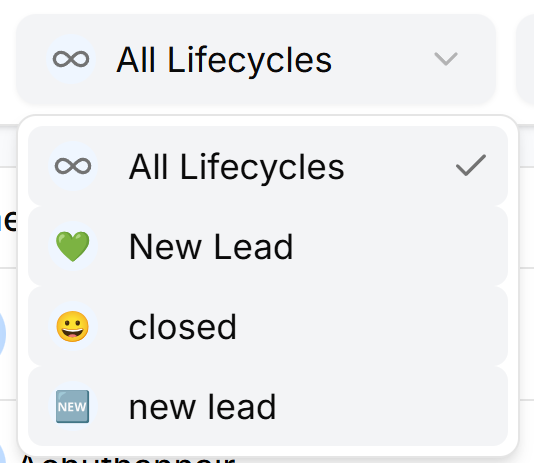
To apply a lifecycle filter:
- Open the Lifecycle dropdown
- Select the required lifecycle stage
Available options may include:
- All Lifecycles – Displays contacts in all stages
- New Lead – Newly added or unqualified contacts
- Closed – Contacts marked as completed
- Custom lifecycle stages defined by your team
Lifecycle filtering helps track contact progress and status.
To clear applied filters:
- Select All Contacts, All Sources, or All Lifecycles to reset individual filters
- Clear the search input to reset search results
The contact list returns to its default state.
Combining Filters
You can use Search, Contact Type, Source, and Lifecycle filters together to narrow down results.
For example:
- Find WhatsApp contacts that are New Leads
- View Imported contacts marked as Active
- Search for a specific name within a lifecycle stage
Why Search and Filters Matter
Search and filters help teams:
- Locate contacts quickly
- Segment contacts efficiently
- Manage large datasets without confusion
- Focus on high-priority contacts