Assignment & Reassignment
Assignment and reassignment allow you to control who is responsible for a conversation.
This helps teams manage workload, avoid duplicate replies, and ensure timely responses.
Assignment actions are available across Inbox views such as New, Assigned, and Mine, based on your role permissions.
Assigning a Conversation
Assigning a conversation means assigning ownership to yourself, a specific team member, or a team.
When to Assign a Conversation
You should assign a conversation when:
- A new message arrives in the New tab
- A conversation needs a clear owner
- You want to route the chat to the correct team
Step-by-Step: Assigning a Conversation
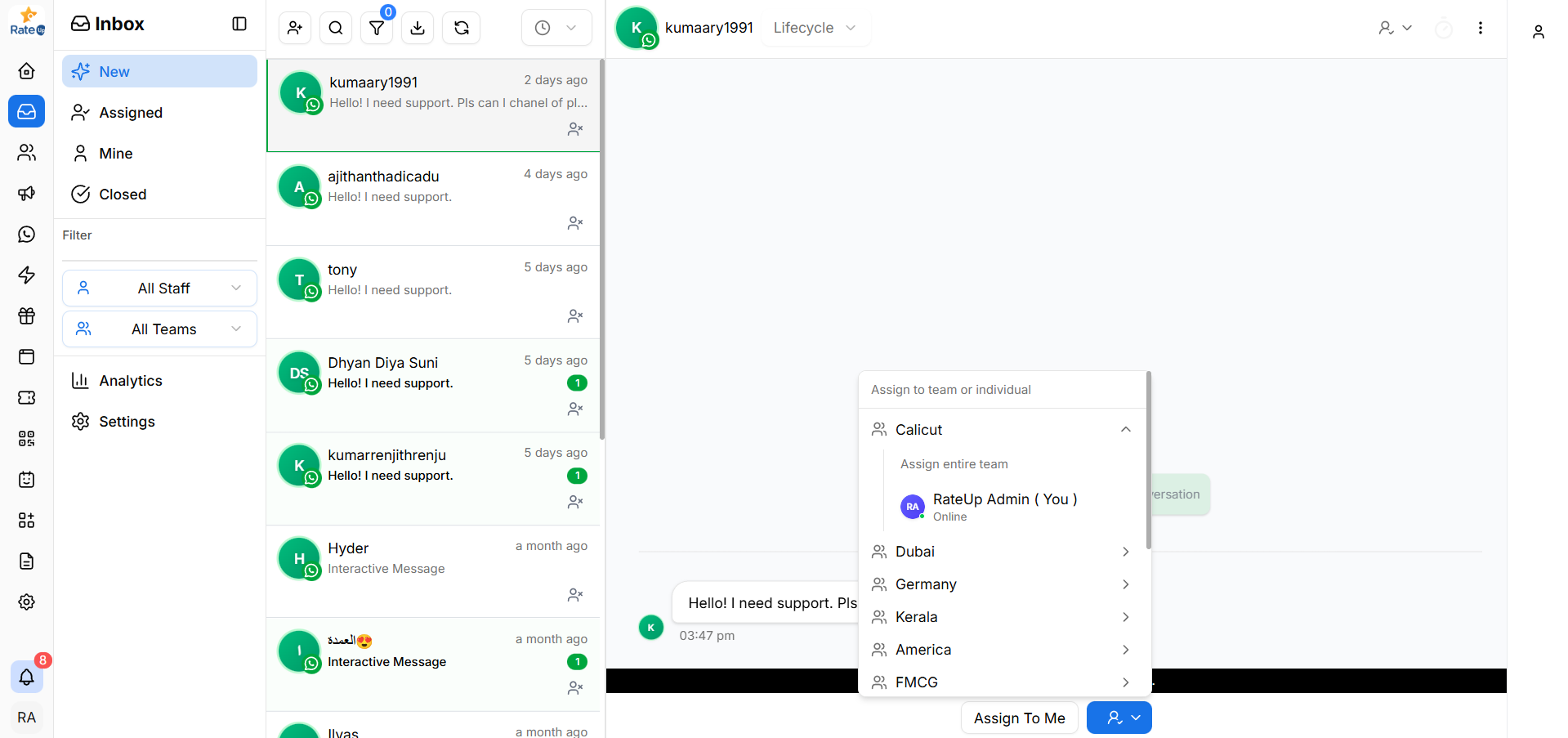
- Open a conversation from the New tab
- In the chat window, locate the assignment options at the bottom
- Click Assign to Me
or - Click the dropdown icon next to Assign
- Select:
- A team, or
- An individual team member
- The conversation is assigned immediately
Once assigned, the conversation moves out of New and appears under Assigned (and Mine, if assigned to you).
Assigning to a Team vs Individual
-
Assign to Team
- The conversation is visible to the entire team
- Any team member can pick up the conversation
-
Assign to Individual
- Ownership is clearly defined for one person
- The conversation appears in that user’s Mine view
Reassigning a Conversation
Reassignment allows you to change the owner of an already assigned conversation.
This is useful when:
- An agent is unavailable
- The issue needs escalation
- The conversation should be handled by another team
Step-by-Step: Reassigning a Conversation
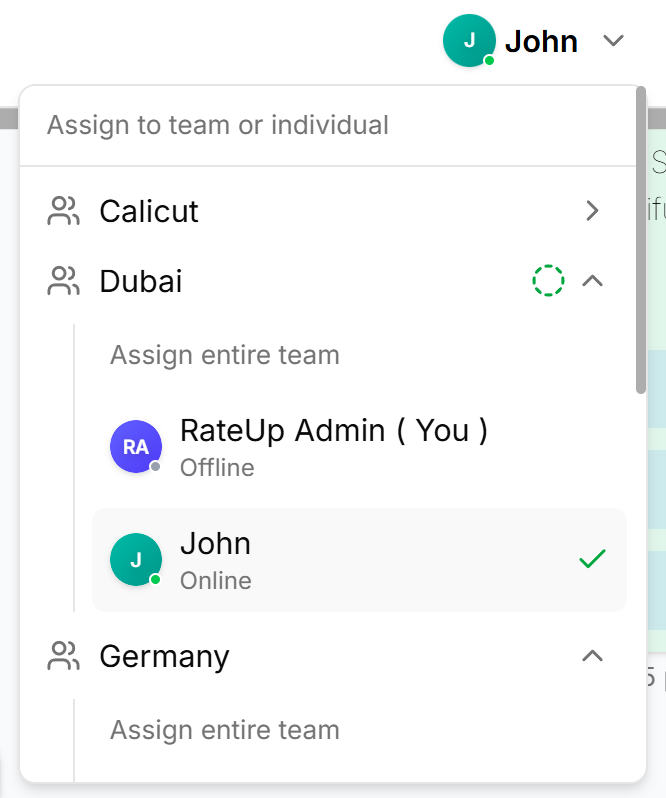
- Open an assigned conversation
- Click the assigned user name at the top-right of the chat window
- The Assign to team or individual panel opens
- Select another:
- Team, or
- Team member
- The conversation is reassigned instantly
The new assignee becomes responsible for responding and closing the conversation.
Reassigning Closed Conversations
Closed conversations can also be reassigned if follow-up is required.
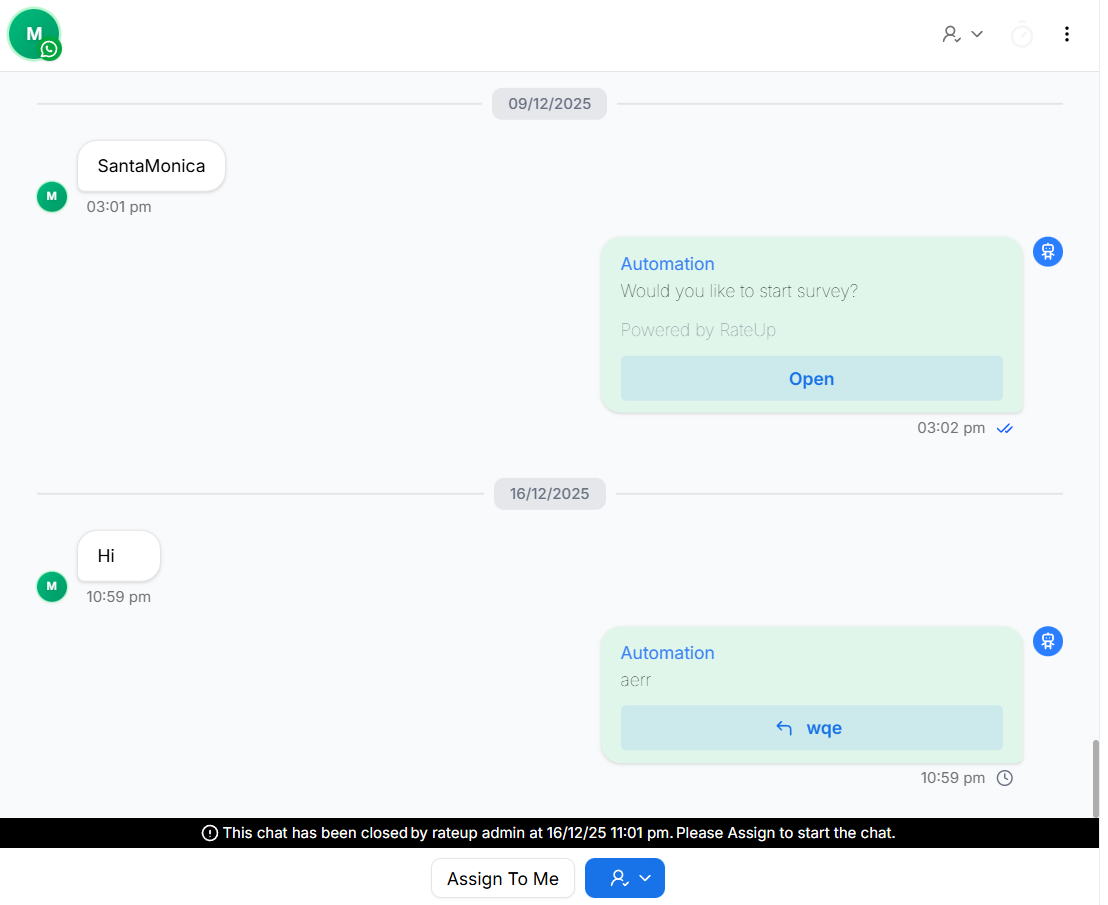
To reopen a closed conversation:
- Open the conversation from the Closed tab
- Click Assign to Me or assign to another user
- The conversation becomes active again
- It moves out of the Closed view
ℹ️ Reassigning a closed conversation does not override the WhatsApp 24-hour messaging window.
Role-Based Assignment Permissions
Business Admin
- Can assign and reassign any conversation
- Can assign across all teams and users
Manager
- Can assign and reassign conversations within their teams
Agent
- Can assign conversations to themselves
- Reassignment permissions depend on role settings
Best Practices
- Assign conversations as soon as they arrive
- Ensure every conversation has a clear owner
- Reassign when availability changes
- Avoid frequent reassignment to reduce confusion
- Close conversations once resolved
What’s Next?
Continue to Conversation Lifecycle to learn how conversations move between states such as New, Assigned, and Closed.