Inbox Settings
Inbox Settings allow you to control how conversations are displayed and how agents respond faster using predefined replies.
These settings help teams maintain clarity, consistency, and efficiency while working in the Inbox.
Show Assigned Chats
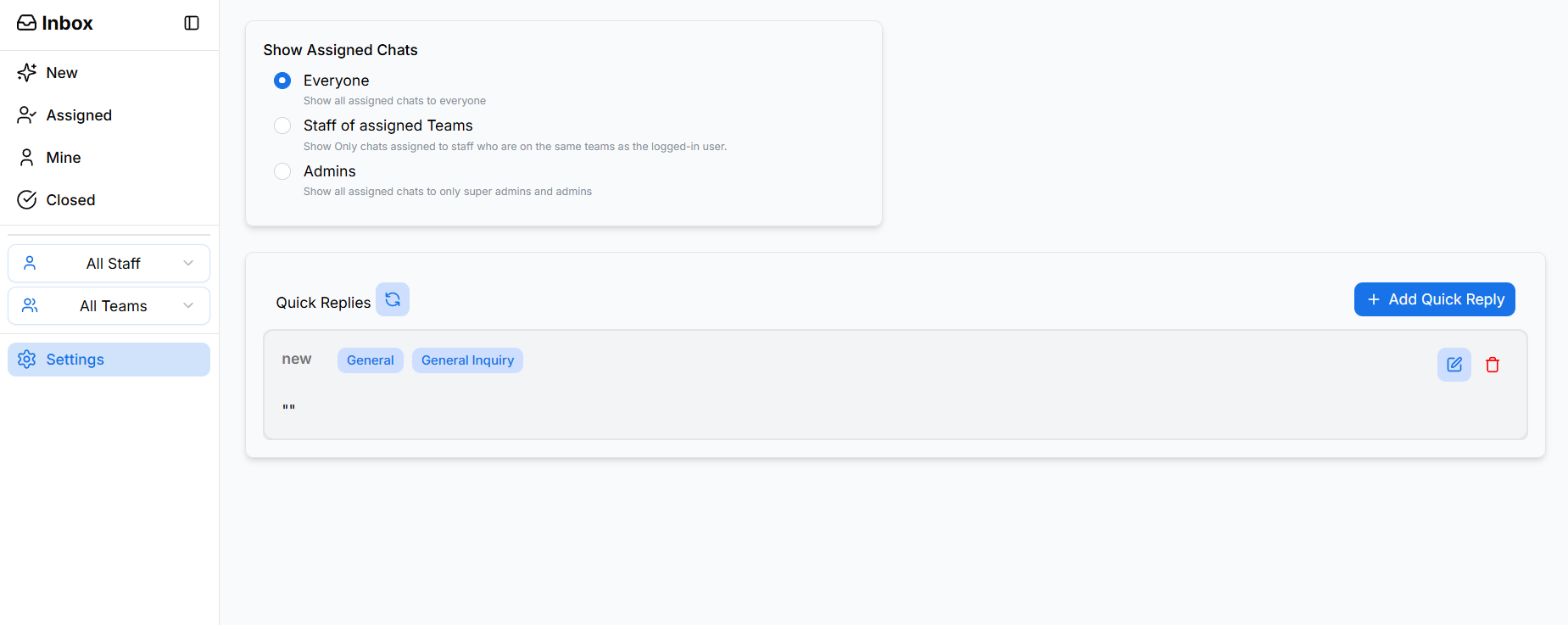
The Show Assigned Chats setting controls who can see assigned conversations in the Inbox.
Available Options
Everyone
- Shows all assigned conversations to all users
- Useful for open collaboration and transparency
Staff of Assigned Teams
- Shows conversations only to staff who belong to the same assigned teams
- Helps limit visibility to relevant team members
Admins
- Shows assigned conversations only to Admins and Super Admins
- Useful for restricted or sensitive workflows
When to Use Each Option
- Use Everyone for shared support environments
- Use Staff of Assigned Teams for team-based routing
- Use Admins when tighter access control is required
Quick Replies
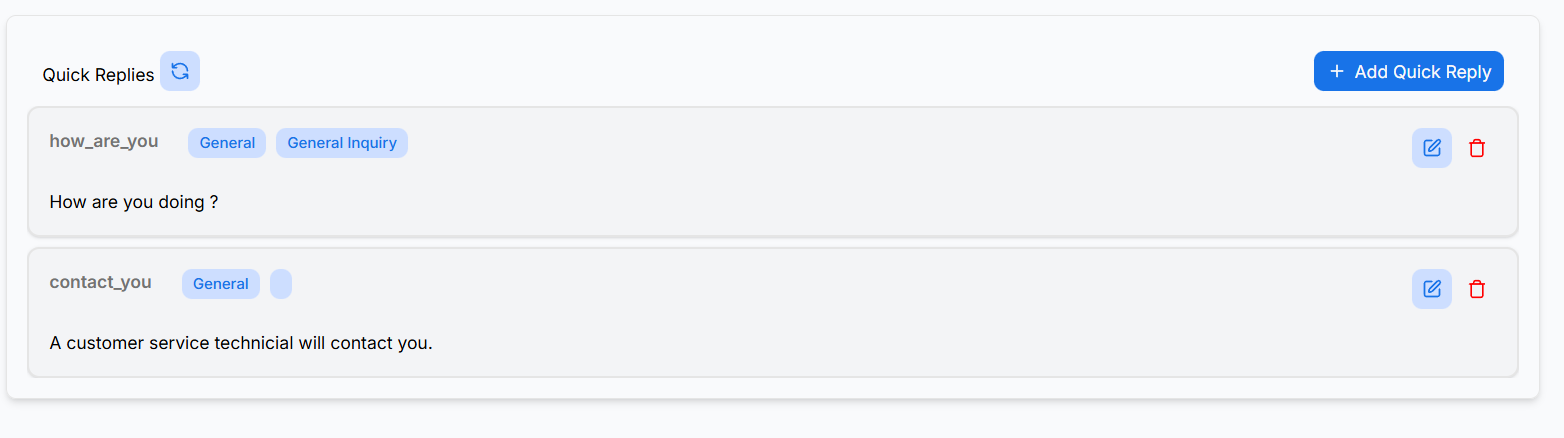
Quick Replies are predefined response messages that agents can quickly insert into conversations.
They help:
- Reduce typing time
- Maintain consistent responses
- Speed up customer interactions
Quick Replies are especially useful for frequently asked questions.
Adding a Quick Reply
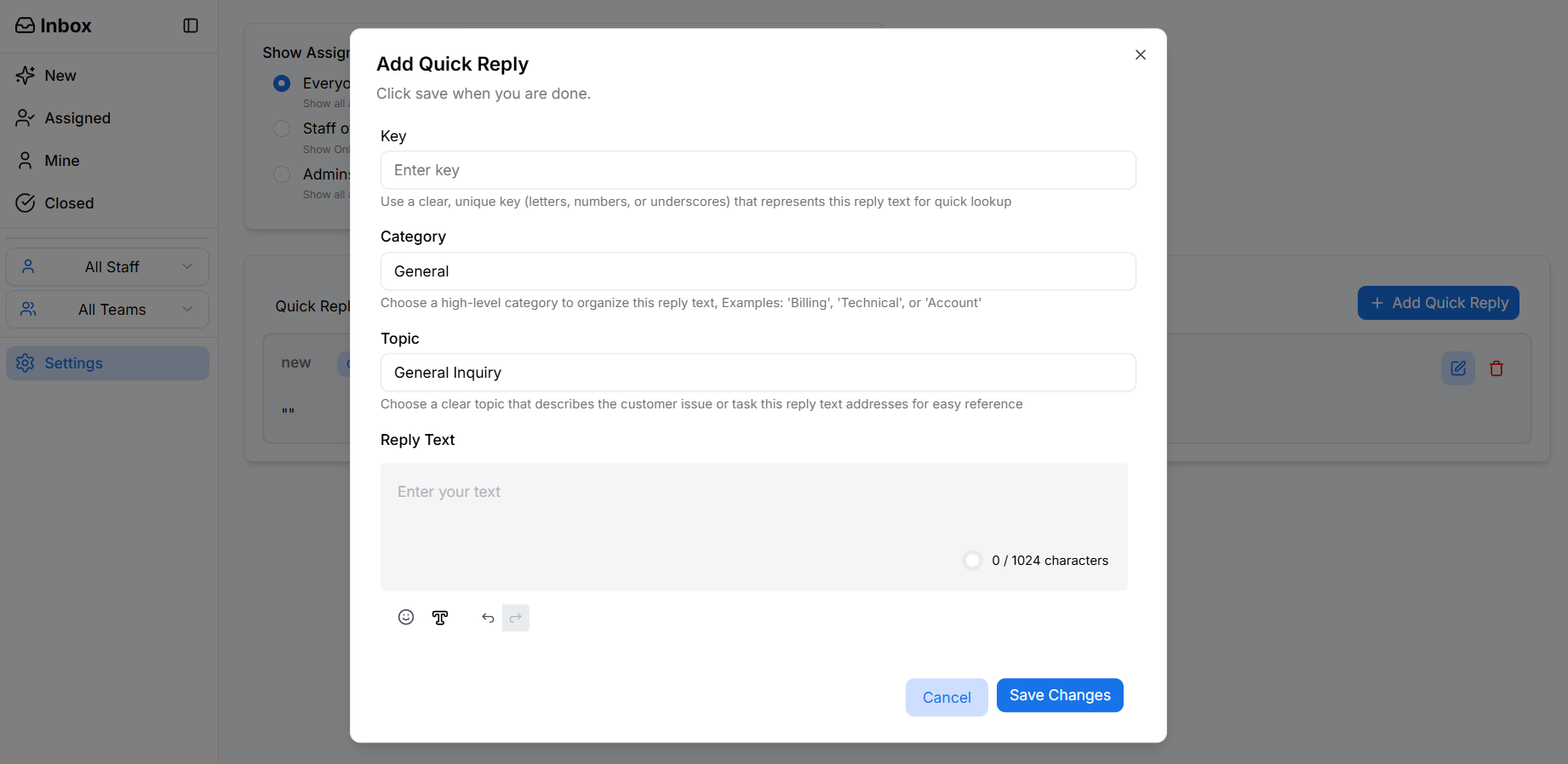
To create a new Quick Reply:
- Click Add Quick Reply
- Enter a Key
- A short, unique identifier used for quick lookup
- Select a Category
- High-level grouping (e.g., Billing, Technical, General)
- Select a Topic
- More specific context (e.g., General Inquiry)
- Enter the Reply Text
- Click Save Changes
The Quick Reply becomes immediately available for use in conversations.
Managing Quick Replies
From the Quick Replies list, you can:
- ✏️ Edit an existing reply
- 🗑️ Delete a reply
- Organize replies by category and topic
Changes apply instantly across the Inbox.
Best Practices
- Keep reply text short and clear
- Use categories and topics for easy organization
- Regularly review and update outdated replies
- Avoid overusing quick replies—personalize when needed
What’s Next?
Continue to Quick Replies Usage to learn how agents can insert and use Quick Replies directly while responding to conversations.