Inbox Filters
Inbox Filters help you narrow down conversations based on assigned staff members and teams.
They are especially useful for admins and managers handling a large number of conversations.
Filter Overview
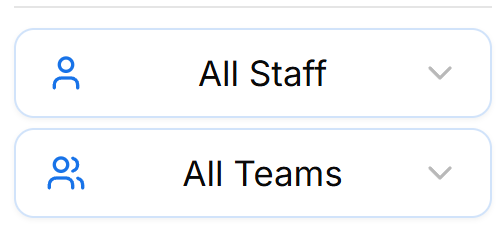
The Inbox filter section includes two main filters:
- All Staff
- All Teams
These filters allow you to control which conversations appear in the Inbox list.
All Staff Filter
The All Staff filter lets you view conversations based on assigned users.
Using this filter, you can:
- View conversations assigned to all staff members
- Select a specific agent to see only their conversations
- Monitor individual workloads
This filter is commonly used by:
- Business Admins
- Managers
All Teams Filter
The All Teams filter lets you view conversations based on team assignments.
Using this filter, you can:
- View conversations assigned to all teams
- Select a specific team to focus on its conversations
- Manage department or region-based workloads
This is useful when conversations are routed to different teams.
Using Staff and Team Filters Together
You can apply both filters at the same time to create a more specific Inbox view.
For example:
- Conversations assigned to Team Support and handled by Agent John
- Conversations belonging to a specific region and agent
This helps quickly locate and manage conversations.
Access & Permissions
Filter visibility depends on user role:
Business Admin
- Can view all staff and all teams
Manager
- Can view staff and teams they manage
Agent
- May have limited visibility based on permissions
Best Practices
- Use filters to quickly locate conversations
- Clear filters when switching tasks
- Managers can use All Staff to monitor workload
- Team leads can use All Teams to focus on team queues
What’s Next?
Continue to Inbox Settings to learn how Inbox preferences and configuration options can be customized.