Responding to Conversations
This section explains how to respond to customer messages inside the RateUp Inbox, including manual replies, automation, and WhatsApp messaging limitations.
Responding to conversations is possible from multiple Inbox views such as New, Assigned, and Mine.
Opening a Conversation
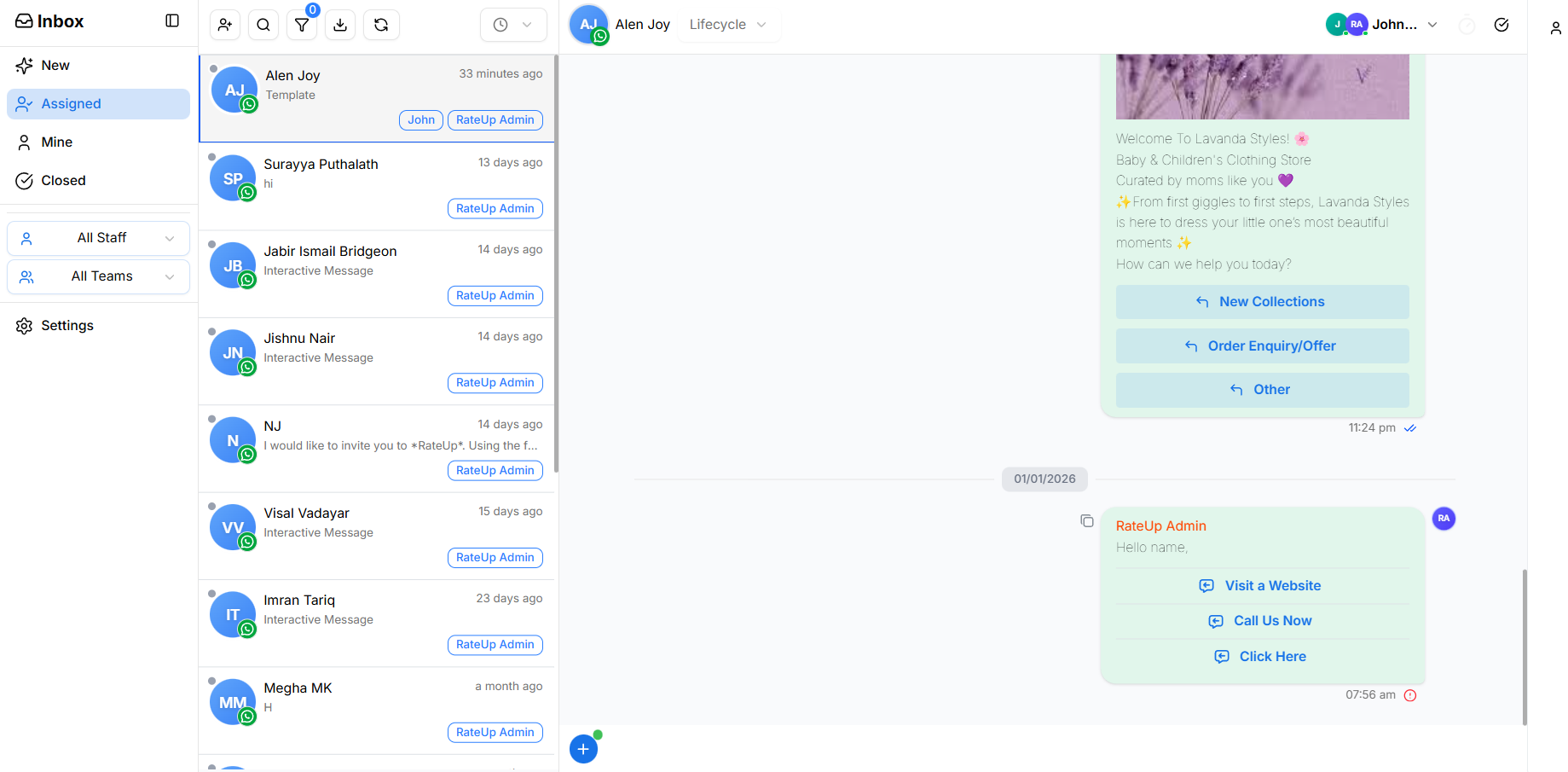
To respond to a customer:
- Select a conversation from the Inbox list
- The chat opens in the right panel
- Review the message history and assigned owner before replying
Sending a Manual Reply
To send a message:
- Click the message input box at the bottom of the chat
- Type your response
- Click Send or press Enter
Your message is delivered instantly to the customer.
Automation vs Manual Replies
Conversations can contain both automated messages and manual replies.
Automated Messages
- Triggered by flows or automation rules
- Often include buttons or predefined options
- Clearly marked as system-generated
Manual Replies
- Sent by agents, managers, or admins
- Used for personalized communication
- Appear with the sender’s name
Both types of messages can appear in the same conversation.
Using Quick Actions & Buttons

Some messages include quick action buttons to guide the customer.
Customers can:
- Click a button to continue an automated flow
- Send a manual reply alongside automation
Quick actions help reduce response time and improve customer experience.
Message Status Indicators
Messages may display delivery status indicators:
- Sent – Message sent successfully
- Delivered – Delivered to the customer
- Read – Read by the customer
These indicators help track engagement and follow-ups.
Responding Based on Assignment
- In Mine, you are the owner and should respond directly
- In Assigned, response access depends on your role
- Business Admins and Managers can respond across all views
- Agents typically respond to conversations assigned to them
WhatsApp 24-Hour Messaging Window
Direct chat replies in RateUp are subject to WhatsApp’s 24-hour messaging window policy.
What Is the 24-Hour Window?
The 24-hour window starts when a customer sends a message to your business.
Within this window, you can:
- Send manual replies
- Continue the conversation freely
- Use quick actions and follow-up messages
What Happens After 24 Hours?
If the customer does not reply within 24 hours:
- Manual messaging is disabled
- You cannot send free-form messages
- The reply input may be unavailable
This is a WhatsApp platform restriction.
How to Message After 24 Hours
To continue a conversation after the 24-hour window:
- Use approved WhatsApp Templates
- Templates are the only allowed way to message customers after 24 hours
Templates can also be sent within the 24-hour window when structured or predefined messaging is preferred.
Once a customer replies to a template:
- A new 24-hour window starts automatically
- Normal chat replies and automation become available again
ℹ️ Learn how to send templates in detail in
Sending Templates.
Best Practices
- Respond to customers as quickly as possible
- Read message history before replying
- Use automation for common questions
- Personalize replies when needed
- Monitor the 24-hour window to avoid blocked replies
- Close conversations once the issue is resolved
What’s Next?
Continue to Assignment & Reassignment to learn how conversation ownership is managed across teams.