Cashier Portal
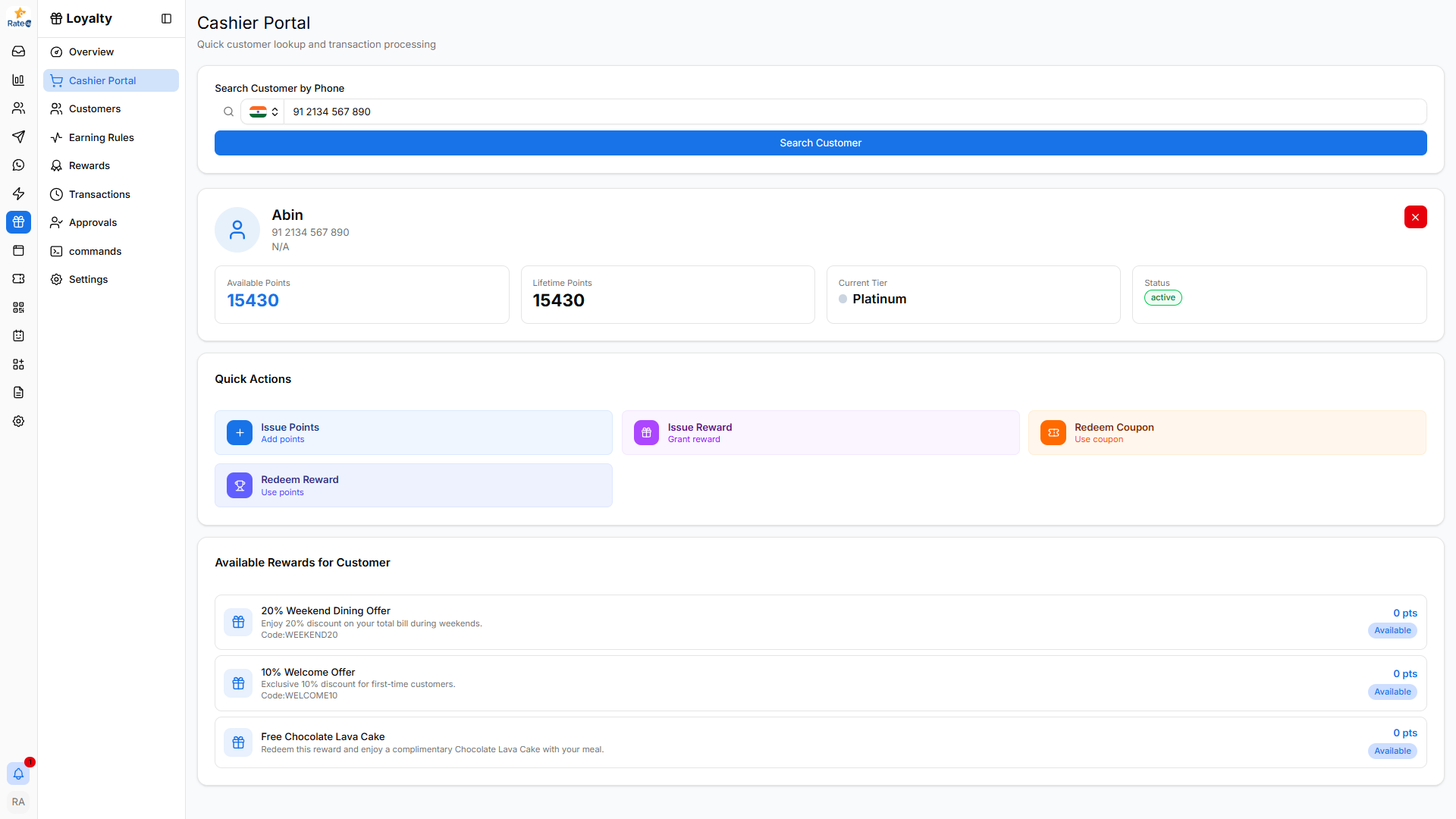
The Cashier Portal allows store staff to quickly find loyalty customers and process loyalty transactions during checkout. It is designed for fast customer lookup using a phone number and provides quick access to actions such as issuing points, redeeming rewards, and applying coupons.
Opening the Cashier Portal
To open the Cashier Portal:
- Navigate to the Loyalty module from the sidebar.
- Click Cashier Portal.
The page opens with a search interface where staff can locate loyalty members during transactions.
Searching for a Customer
The Cashier Portal allows staff to quickly locate customers using their phone number.

To search for a customer:
- Select the country code from the dropdown.
- Enter the customer’s phone number.
- Click Search Customer.
If the customer exists in the loyalty program, their profile and loyalty details will appear below the search bar.
This helps staff identify the correct loyalty member during checkout.
Viewing Customer Loyalty Information
Once a customer is found, the system displays key loyalty details.

The summary section displays:
- Customer Name – The loyalty member’s name.
- Phone Number – The registered phone number.
- Available Points – The number of points currently available for redemption.
- Lifetime Points – Total points the customer has earned.
- Current Tier – The loyalty tier of the customer (e.g., Platinum).
- Status – Indicates whether the loyalty account is active.
These details help staff understand the customer’s loyalty status before applying rewards.
Using Quick Actions
The Quick Actions section allows staff to perform common loyalty operations directly from the Cashier Portal after locating a customer.
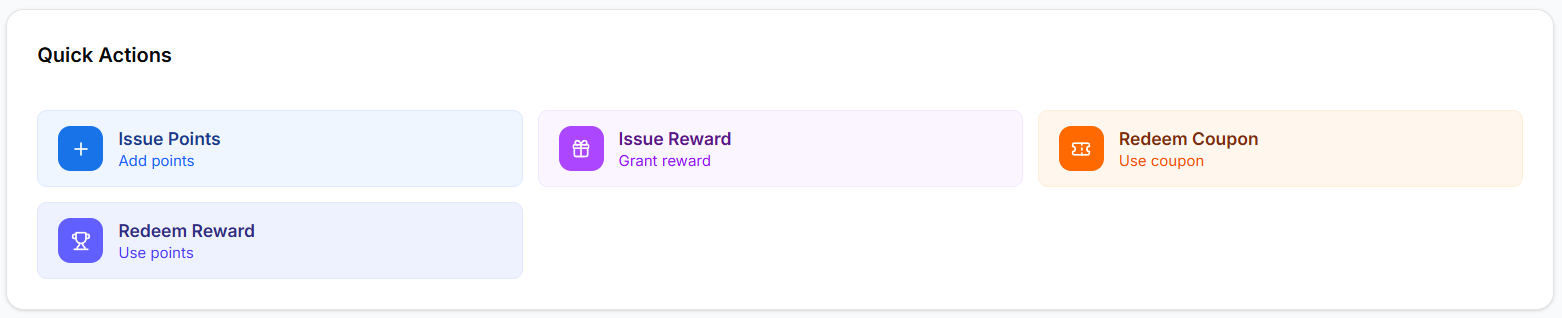
These actions allow staff to quickly manage loyalty points, rewards, and coupons during a customer transaction.
Issue Points
The Issue Points action allows staff to add loyalty points to a customer’s account.
To issue points:
- Click Issue Points.
- Enter the number of points to add.
- Confirm the transaction.
This is typically used when a customer completes a purchase.
Issue Reward
The Issue Reward option allows staff to grant a reward directly to the customer.
To issue a reward:
- Click Issue Reward.
- Select the reward to grant.
- Confirm the action.
This can be used for promotions or manual reward distribution.
Redeem Coupon
The Redeem Coupon action allows staff to apply a coupon during a transaction.
To redeem a coupon:
- Click Redeem Coupon.
- Enter or select the coupon code.
- Confirm redemption.
The coupon will then be applied to the purchase.
Redeem Reward
The Redeem Reward action allows customers to redeem loyalty points for rewards.
To redeem a reward:
- Click Redeem Reward.
- Choose the reward the customer wants.
- Confirm the redemption.
Points will be deducted from the customer’s account.
Viewing Available Rewards
The Available Rewards for Customer section displays rewards that the customer can redeem.
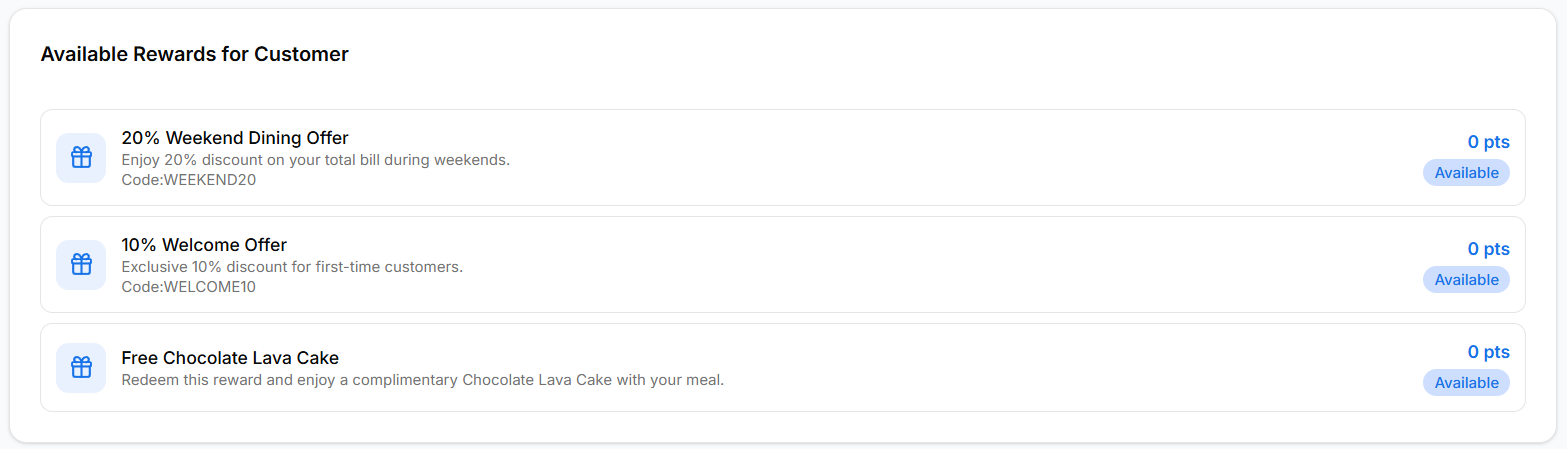
Each reward card includes:
- Reward Name – The name of the reward.
- Reward Description – Details about the reward.
- Reward Code – A code used for redemption.
- Points Required – Number of points required for the reward.
- Availability Status – Indicates whether the reward is currently available.
Staff can review these rewards and help customers redeem them during checkout.
Why the Cashier Portal Matters
The Cashier Portal helps businesses:
- Quickly identify loyalty customers
- Issue or redeem loyalty points instantly
- Apply rewards during purchases
- Improve in-store customer experience
- Reduce checkout time for loyalty members
This ensures loyalty benefits are seamlessly integrated into the point-of-sale workflow.