Conversation Lifecycle
Every conversation in the RateUp Inbox follows a lifecycle.
The lifecycle helps teams track progress, take action, and manage conversations efficiently from start to closure.
What is Conversation Lifecycle?
Conversation lifecycle represents the current state of a customer conversation, such as new, resolved, or closed.
The lifecycle control is available in every Inbox view and can be updated at any time.
Lifecycle Control Location
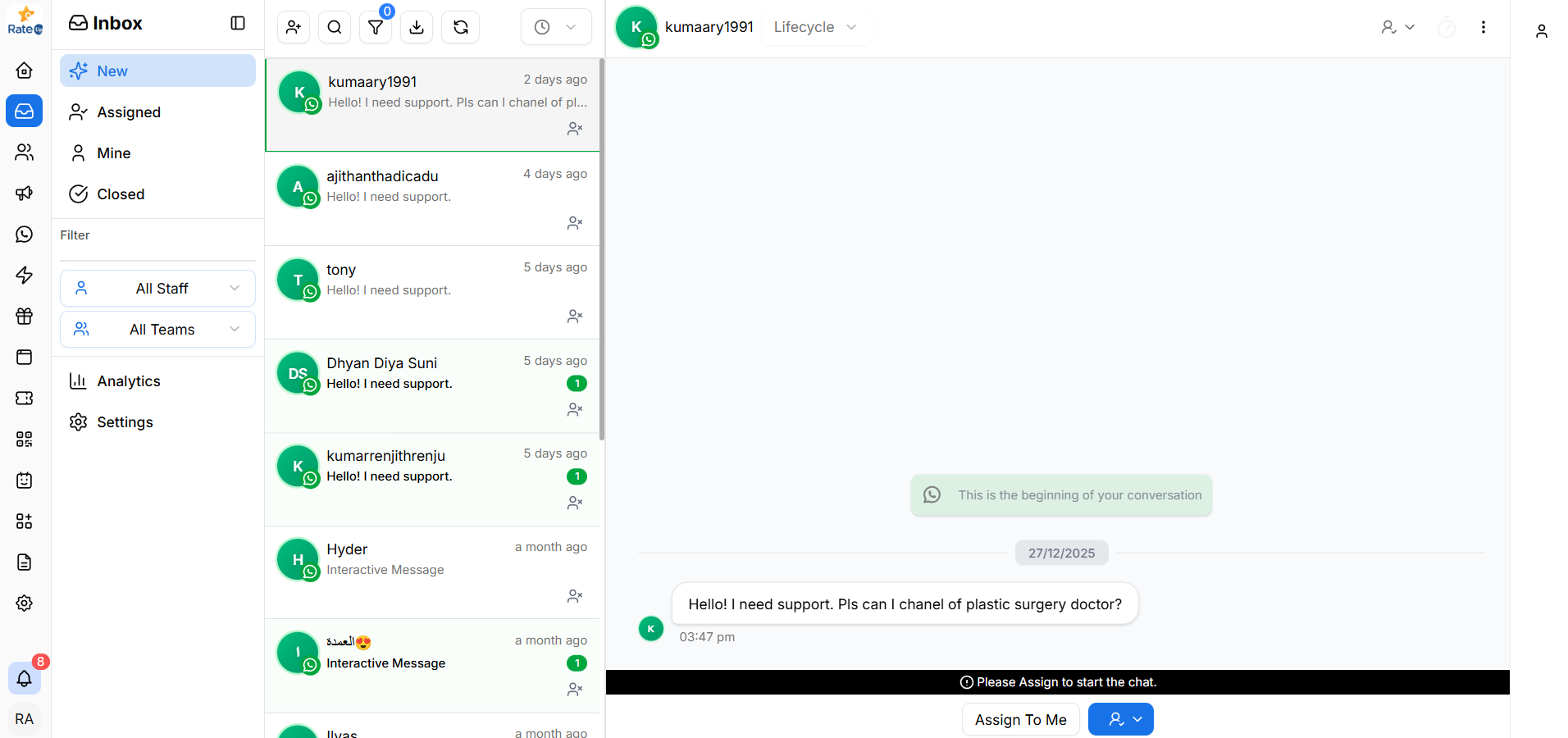
The lifecycle control is located at the top-right corner of the chat window.
It is visible in all Inbox views including New, Assigned, Mine, and Closed.
Lifecycle Options
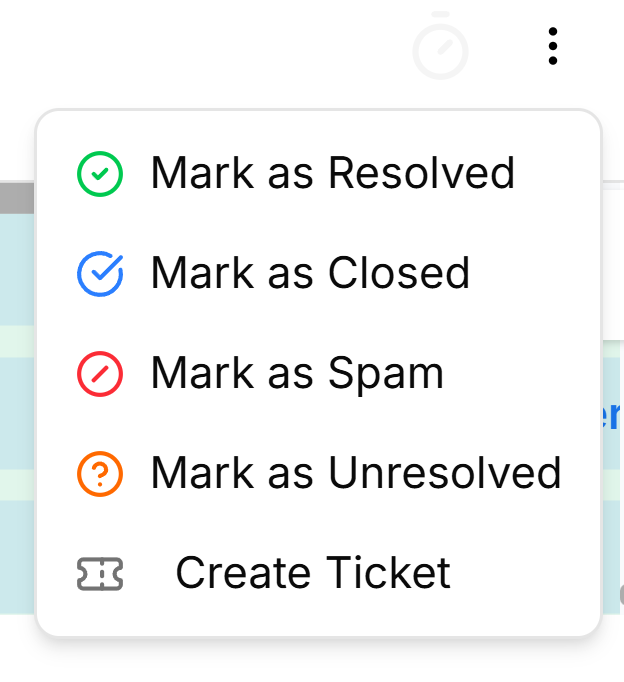
Clicking the lifecycle dropdown allows you to change the conversation status.
Available options include:
Mark as Resolved
- Indicates the issue has been addressed
- Conversation may still be visible for reference
Use when:
The customer’s query has been answered successfully.
Mark as Closed
- Closes the conversation completely
- Conversation moves to the Closed tab
Use when:
No further action is required.
Mark as Spam
- Marks the conversation as irrelevant or unwanted
- Helps keep Inbox clean
Use when:
Messages are promotional, automated, or not genuine customer queries.
Mark as Unresolved
- Reopens the conversation for further action
Use when:
The issue could not be resolved and needs follow-up.
Create Ticket
- Converts the conversation into a support ticket
- Useful for tracking complex issues
Use when:
The issue requires long-term tracking or escalation.
Closed Conversations
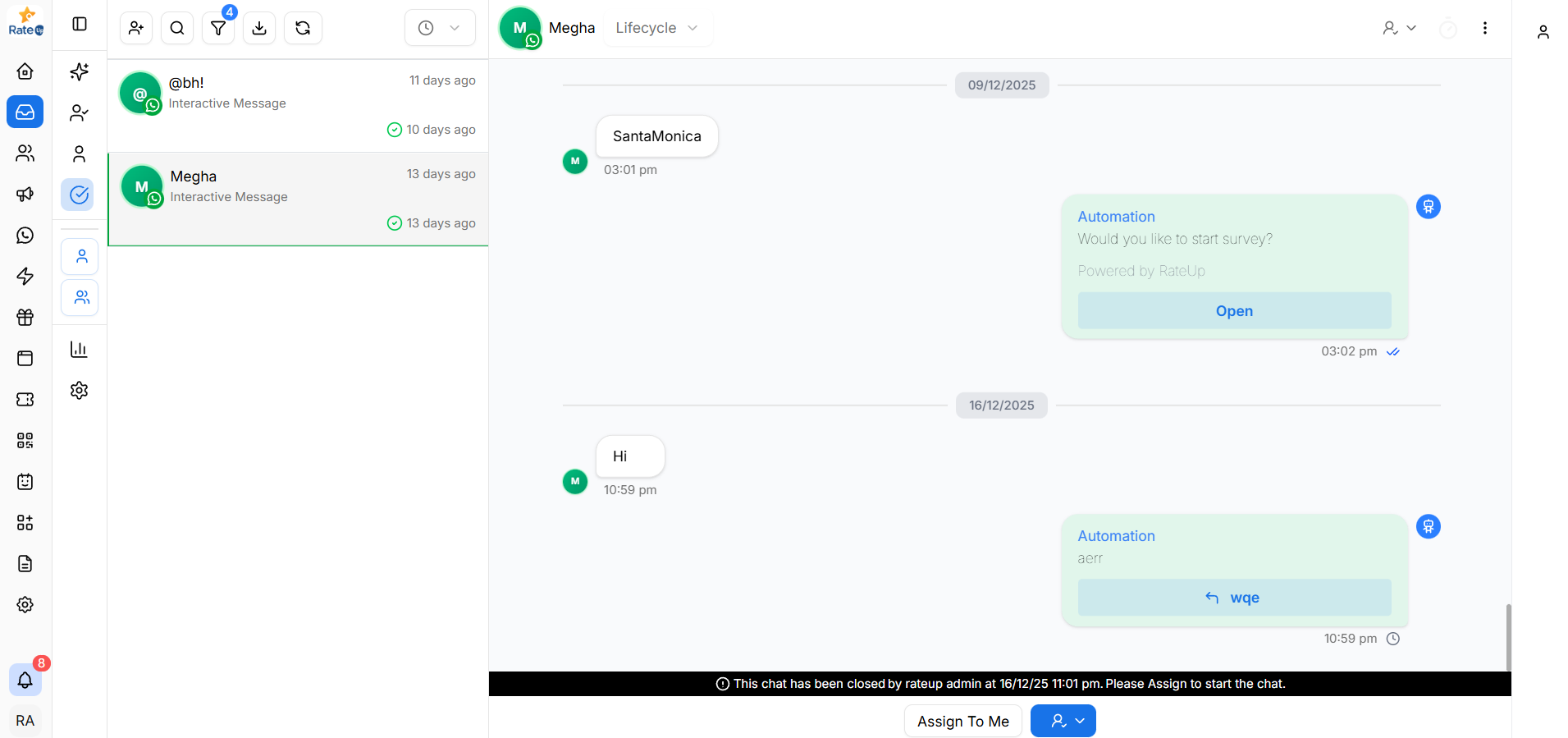
Once a conversation is closed:
- It moves to the Closed tab
- It remains available for reference
- Follow-up messages may reopen the conversation automatically
Role-Based Behavior
- Business Admins can change lifecycle status for any conversation
- Agents may have limited lifecycle permissions based on role settings
Reassigning a Closed Conversation
When a conversation is marked as Closed, it is considered resolved and moved to the Closed tab.
However, closed conversations can be reassigned and reactivated if further action is required.
Closed Conversation Message
When viewing a closed conversation, you will see a system message like:
This chat has been closed
by RateUp Admin at 16/12/25 11:01 PM.
Please assign to start the chat.
This message indicates that the conversation is currently inactive.
Assign to Restart the Chat
Below the system message, an Assign to Me button is available.
To reopen the conversation:
- Click Assign to Me
- The conversation will be reassigned to you
- The chat becomes active again
- You can now respond to the customer
Once assigned, the conversation moves out of the Closed state and follows the normal lifecycle.
When to Reassign a Closed Conversation
Reassigning a closed conversation is useful when:
- A customer replies after the conversation was closed
- Additional follow-up is required
- The issue was not fully resolved
- The conversation was closed by mistake
Role-Based Behavior
- Business Admins can reassign any closed conversation
- Agents can reassign conversations based on their role permissions
Best Practices
- Close conversations only after full resolution
- Reassign closed chats only when follow-up is genuinely required
- Avoid reopening conversations unnecessarily to keep the Inbox clean
- Create tickets for issues needing extended support
- Keep the Inbox clean by closing completed chats
What’s Next?
Continue to Inbox Views to learn how conversations are organized and how to work with different Inbox states such as New, Assigned, Mine, and Closed.