Contact Details
The Contact Details view allows you to view and manage all information related to a specific contact. This includes contact information, group membership, activity history, and internal notes.
Opening Contact Details
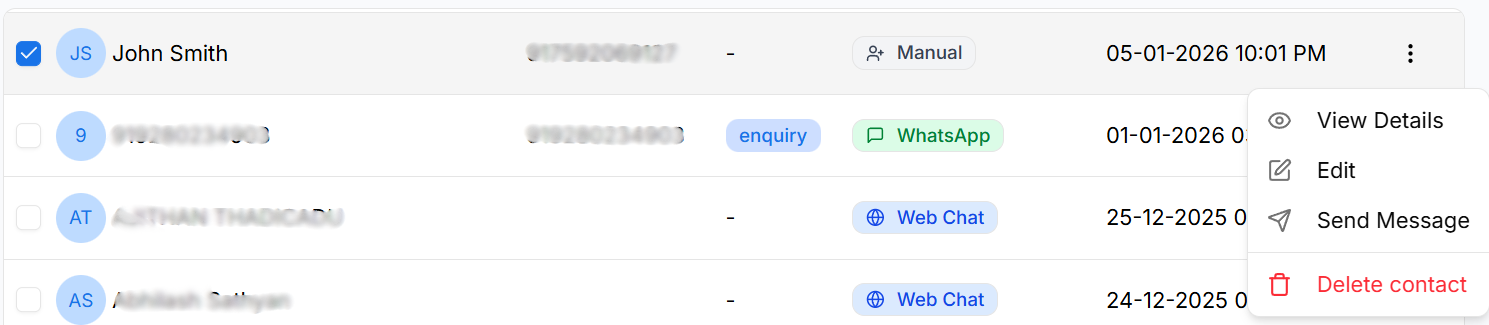
To open the Contact Details view:
- Go to the Contacts List
- Locate the required contact
- Click the three-dot Action Menu (⋮)
- Select View Details
The Contact Details modal opens for the selected contact.
Contact Details Overview
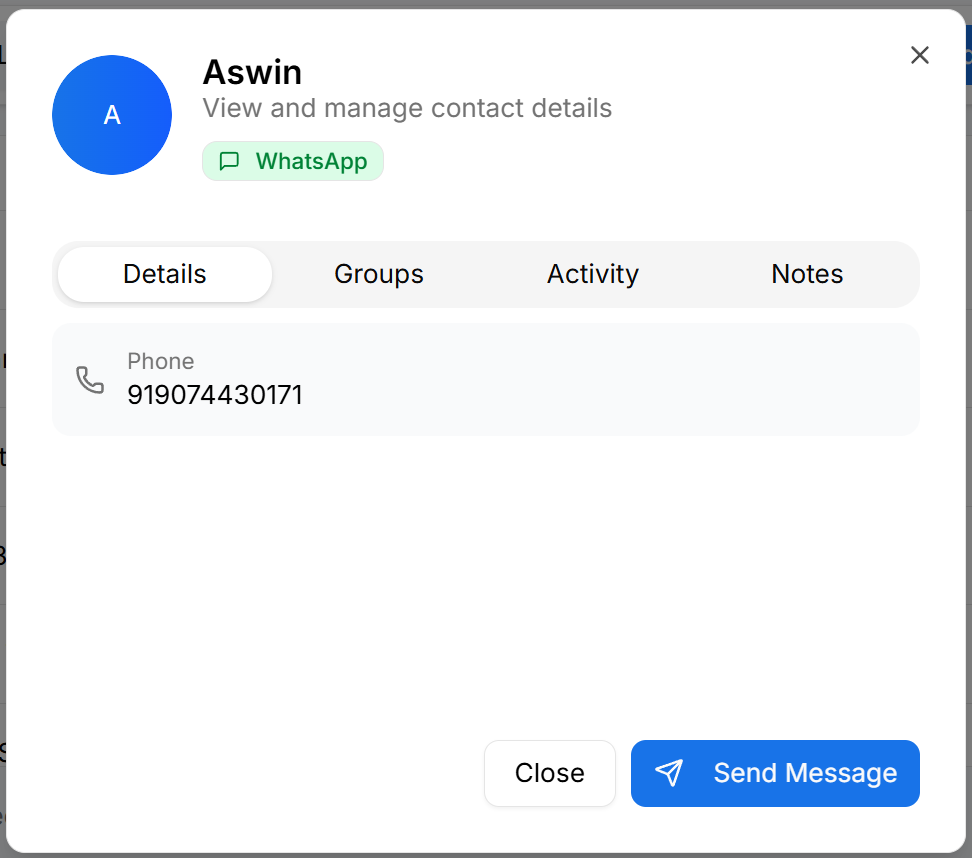
The Contact Details modal displays:
- Contact avatar with initials
- Contact name
- Subtitle indicating contact management
- Contact source (for example, WhatsApp)
- Tabs for navigating between different sections
- Action buttons at the bottom
Tabs Overview
The Contact Details view is organized into four tabs:
- Details
- Groups
- Activity
- Notes
Each tab focuses on a specific aspect of the contact.
Viewing Contact Details
To verify basic contact information:
- Open the Details tab
- Review the displayed information
This tab shows:
- Phone number
- Primary contact identifier
Use this tab to quickly confirm the contact’s identity.
Managing Groups
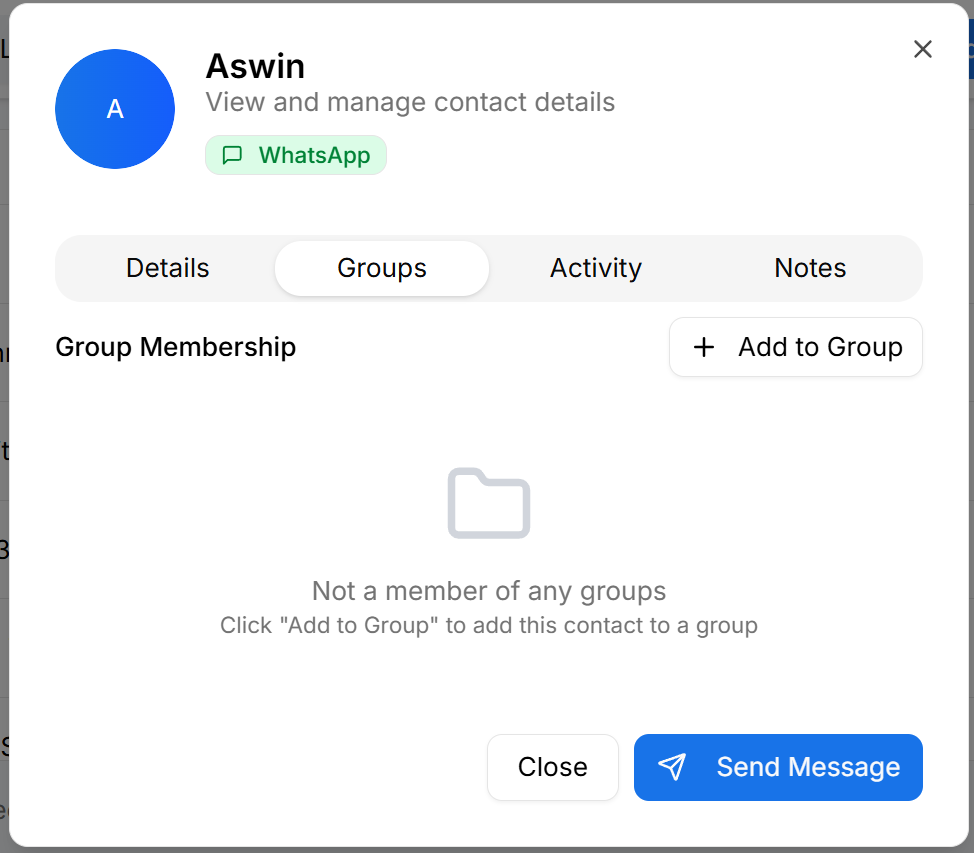
To view or update group membership:
- Open the Groups tab
- Review the list of groups the contact belongs to
- If the contact is not part of any group, a placeholder message is shown
- Click Add to Group to add the contact to an existing group
Groups help organize contacts into structured collections.
Viewing Activity History
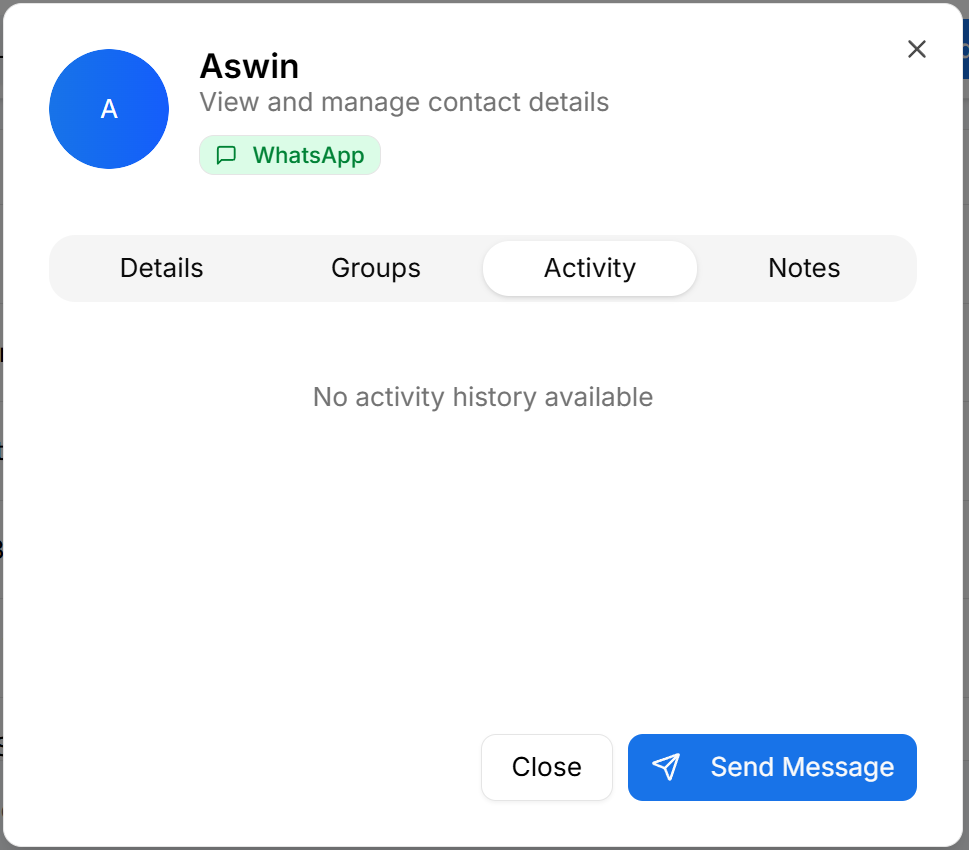
To review contact interactions:
- Open the Activity tab
- Review available activity records
If no activity exists, a message is displayed.
Use this tab to understand past engagement and actions.
Adding and Editing Notes
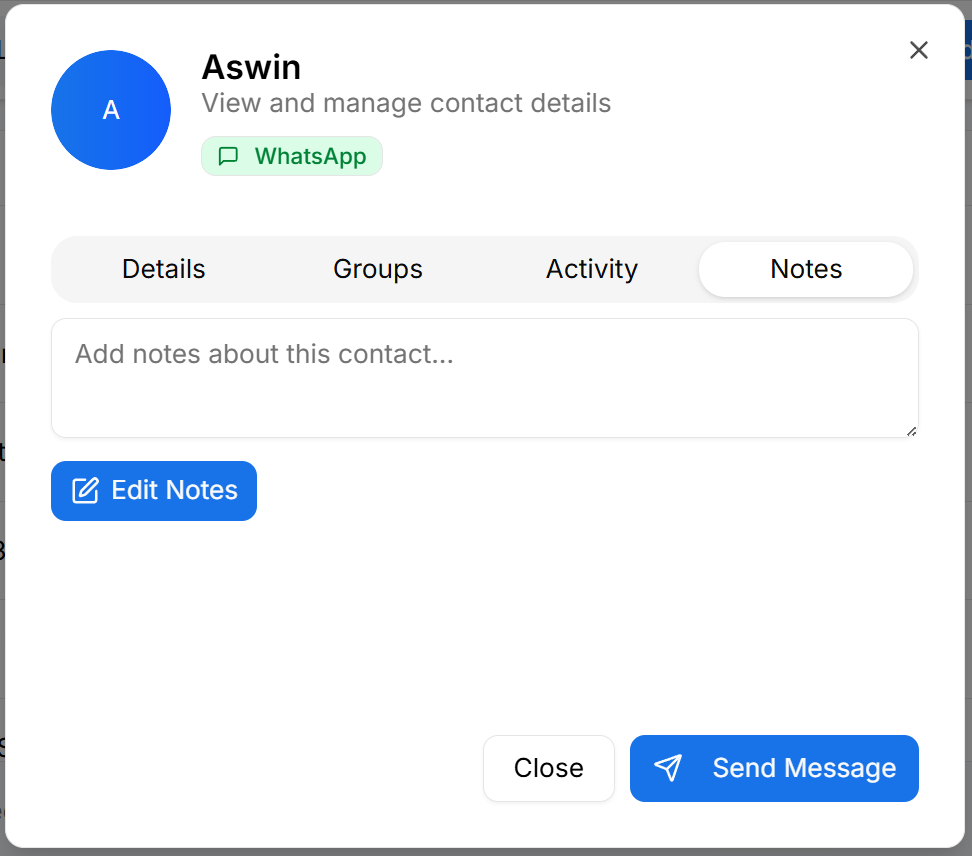
To add or update internal notes:
- Open the Notes tab
- Enter notes related to the contact
- Click Edit Notes to modify existing notes
Notes are internal-only and help teams share important context.
Actions
At the bottom of the Contact Details modal, the following actions are available:
- Send Message – Start a conversation with the contact
- Close – Exit the Contact Details view
These actions allow quick follow-ups without leaving the contact context.
Why Contact Details Matter
The Contact Details view helps teams:
- Access complete contact information in one place
- Manage group membership efficiently
- Review contact activity and engagement
- Maintain internal notes for collaboration
- Quickly message contacts when needed